
How to Set Up a Wi-Fi Extender
 By Theo LangUpdated
Plug the extender into a wall outlet near your router, connect it to your router network with the app or WPS button your extender provides, then move it to a spot between the router and the weak area. Connect your devices to the extended network and check the signal in the rooms you use most.
Plug in the extender near the router
Start the setup in the same room as your router so the extender can join the network with a strong signal. Plug the extender into a wall outlet and wait for its lights to settle, following the steps in the maker's guide for your model. Keep your router network name and password ready, since the setup screens ask for them. You will move the extender to its final spot after the connection works.
Connect it to your router network
Use the setup method your extender provides. The TP-Link RE315 and RE550 set up with the TP-Link Tether app, and the RE315 also states a One-Touch Connection. The NETGEAR EX5000 and EXS27 set up with the NETGEAR Nighthawk app for guided setup, or by pressing WPS on your router and the extender. Follow the app screens in order, pick your router network, and enter its password when asked.
Move it between the router and the weak area
Unplug the extender and move it to an outlet between your router and the rooms where signal is weak, then plug it in again. The TP-Link RE315 and RE550 state an intelligent signal indicator to find a location for the connection, so use that indicator on those models while you try spots. Check the connection in the weak rooms after each move, and keep the extender where the indicator and your devices both show a working connection.
Connect your devices to the extended network
Join your phone, laptop and other devices to the network the extender provides, using the same password as your router network. The TP-Link RE315 and RE550 connect to an EasyMesh-compatible router for one unified Wi-Fi network, and with a non-EasyMesh router the extender creates a separate network name. The NETGEAR EXS27 keeps your existing network name with Smart Roaming. Check which name your setup created, then connect each device to it in the rooms the extender covers.
Use the ethernet port for a wired device
If a device near the extender works better wired, connect it to the extender ethernet port with a cable. The TP-Link RE315 states one ethernet port, the RE550 states a gigabit ethernet port, and the NETGEAR EXS27 states a 2.5 Gigabit Ethernet port. The RE550 also states an access point mode that turns a wired connection into a Wi-Fi hotspot through its gigabit ethernet port. Follow the maker's guide for the mode you choose.
What you need
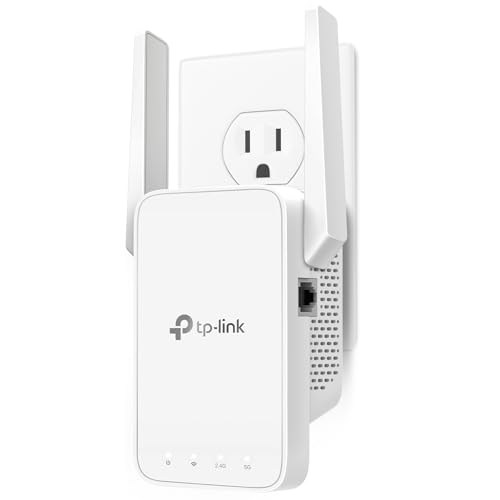
TP-Link AC1200 WiFi Extender Dual Band 5GHz/2.4GHz
An AC1200 dual-band extender with one ethernet port, two adjustable external antennas and EasyMesh support, set up with the TP-Link Tether app.
View on Amazon
TP-Link AC1900 WiFi Range Extender RE550
An AC1900 dual-band extender with a gigabit ethernet port, three adjustable external antennas, access point mode and EasyMesh support.
View on Amazon
NETGEAR WiFi Extender EX5000
An AC1200 WiFi 5 extender for up to 25 devices, set up with the NETGEAR Nighthawk app or WPS, in a compact wall-outlet design.
View on Amazon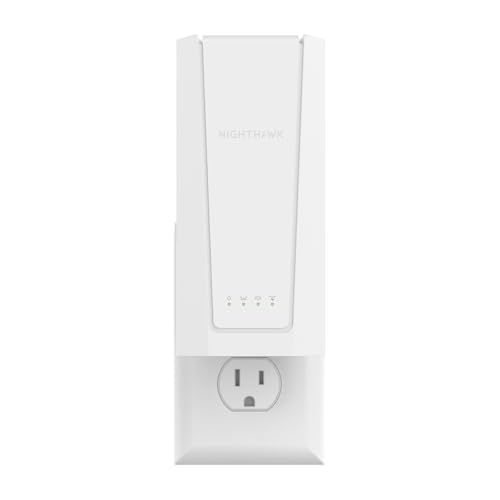
NETGEAR Nighthawk
A WiFi 7 BE5000 extender with a 2.5 Gigabit ethernet port and one wifi name across your home, set up with the Nighthawk app or WPS.
View on AmazonThese come from our ranked list Best Wi-Fi Booster, which compares them spec by spec.
FAQ
Does a wifi extender make my wifi faster?
An extender improves coverage in rooms your router signal reaches poorly. The TP-Link RE315 and RE550 state that extenders improve coverage rather than increase speeds, with actual speeds at 50% or less of current speeds through the extender.
Where should I place the extender?
Place it between your router and the weak area, where it still receives a working router signal. The TP-Link RE315 and RE550 state an intelligent signal indicator to help find that location during setup.
Can I connect a device to the extender with a cable?
Yes, on models with an ethernet port. The TP-Link RE315 states one ethernet port, the RE550 states a gigabit ethernet port, and the NETGEAR EXS27 states a 2.5 Gigabit Ethernet port for a wired link.
