What Is a Drawing Tablet for a Computer?
 By Theo LangUpdated
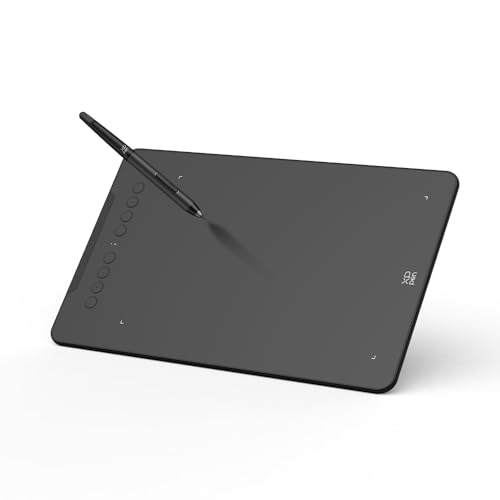
A drawing pad for a computer is a flat pen tablet that you draw on with a stylus while the lines appear on your computer screen. It replaces mouse movement for drawing, handwriting, signatures and photo editing, and the pen pressure changes line weight as you press harder or softer.
What a drawing pad does
You draw on the pad surface with a pen and watch the result on your computer screen. The pad tracks where the pen moves and how hard you press, then sends that movement to drawing, writing or editing software on the computer. People use it for digital art, sketching, handwriting notes, marking up documents, signing files and editing photos, where a pen tip gives finer control than dragging a mouse.
How the pen and pad work
Connect the pad to your computer with its cable, then install the driver from the maker so the computer reads pen position and pressure. The HUION Inspiroy H640P, XP-Pen Deco 01 V3, GAOMON S620 and GAOMON M10K pens are battery-free, so the pen needs no charging before use. In the driver you can set pen buttons, shortcut keys and left-hand use, then open your drawing or note software and draw on the pad surface.
What the active area means
The active area is the part of the pad that senses the pen, and it maps to your screen. The HUION Inspiroy H640P active area is 6x4 inch and the GAOMON S620 active area is 6.5x4 inch, which fit small desks and laptop bags. The XP-Pen Deco 01 V3 active area is 10 x 6.25-inch and the GAOMON M10K active area is 10 x 6.25 inch, which give more room for longer strokes. Measure your desk space and check the active area, not just the outer size.
Keys, tilt and extra controls
Shortcut keys on the pad can run commands such as undo, zoom or brush changes without reaching for the keyboard. The HUION Inspiroy H640P has 6 press keys, the XP-Pen Deco 01 V3 has 8 shortcut keys, the GAOMON S620 has 4 express keys and the GAOMON M10K has 10 press keys plus a touch ring for zoom and brush control. The XP-Pen Deco 01 V3 stylus supports up to 60 degrees of tilt for shading. Assign keys in the driver for the software you use.
Check compatibility before you connect
Check the operating system and software list for the exact model before you buy or connect it. The HUION Inspiroy H640P lists Mac, Windows, Linux and Android 6.0 or later, and it does not support iPhone or iPad. The GAOMON S620 lists Windows 7 or later and macOS 10.12 or later, and it is not compatible with iPad or iPhone. The XP-Pen Deco 01 V3 lists Windows 7 or later and Android 10.0 or later. Check the requirements published for your software as well.
What you need

HUION Inspiroy H640P 6x4-inch Drawing Tablet 8192 Pen Pressure
A 6x4 inch pen tablet with a battery-free stylus, 8192 pressure levels and 6 customizable press keys for drawing and note-taking.
View on Amazon
XPPen Deco 01 V3 10x6 Drawing Tablet
A 10 x 6.25-inch tablet with a battery-free stylus, 16,384 pressure levels, 60 degrees of tilt and 8 customizable shortcut keys.
View on Amazon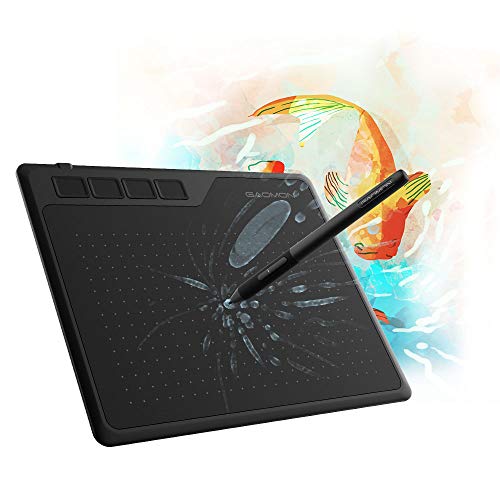
GAOMON S620 Graphics Drawing Tablet
A 6.5x4 inch tablet with a battery-free pen, 8192 pressure levels and 4 customizable express keys for drawing, notes and signatures.
View on Amazon
GAOMON M10K Drawing Tablet
A 10 x 6.25 inch tablet with a battery-free stylus, 8192 pressure levels, 10 press keys and a touch ring for zoom and brush control.
View on AmazonThese come from our ranked list Best Pen Tablet for PC, which compares them spec by spec.
FAQ
Do I look at the pad or the screen while drawing?
Look at your computer screen while you draw. Your hand moves the pen on the pad surface, and the line appears on the screen, so it takes practice to match hand movement to the cursor without looking down at the pen tip.
Does the pen need charging or batteries?
The HUION Inspiroy H640P, XP-Pen Deco 01 V3, GAOMON S620 and GAOMON M10K pens are battery-free, so you do not charge the pen. Check the pen tip for wear and replace the nib when lines feel rough or the tip looks worn down.
Can I use a drawing pad for notes and signatures?
Yes. You can handwrite notes, annotate documents and sign files with the pen in software that accepts pen input. Check that your note, document or meeting software supports pen input before you rely on the pad for class or work.