How to Use a Tablet as a Drawing Pad for PC
 By Theo LangUpdated
Connect the drawing tablet to your PC with its USB cable, install the maker's driver for your model, then open your drawing app. The tablet surface maps to your PC screen, so you draw on the pad with the pen while the line appears on the monitor. Set the mapping and pen buttons in the driver before you start.
Connect the tablet to your PC
Plug the tablet into your PC with a USB cable. Check that the cable matches a free port on your computer, and keep the tablet flat on your desk where your hand can reach the full active area. The pen works on the tablet surface, not on your PC screen, so place the pad where you can draw while looking at the monitor. If your model connects by USB-C, use the cable and adapter named for that model.
Install the driver for your model
Download and install the driver for your exact model from the maker's website. The driver lets your PC recognize the tablet and gives you settings for mapping, pen buttons and shortcut keys. If you replace an older tablet, remove the old tablet driver first when the maker tells you to, so two drivers do not conflict. After installation, move the pen over the active area and confirm the cursor follows on screen before you open a drawing app.
Map the pad to your screen
Open the driver settings and set how the active area maps to your display. Full-screen mapping spreads the whole pad across the whole monitor, so a pen move in one corner of the pad lands in the same corner on screen. Some drivers also let you map the pad to part of the screen or to one monitor. If you draw left-handed and your model supports it, set the left-hand or rotation option in the driver and turn the tablet to match.
Set the pen and shortcut keys
In the driver, assign the tablet shortcut keys to commands you use often, such as undo, zoom, brush size or eraser. If your pen has side buttons, assign those too. Save separate profiles for different apps if your driver offers them. Pen pressure comes from how hard you press the pen tip, so set brush size and opacity controls in your drawing app to respond to pressure. Draw a few lines at light and heavy pressure and adjust the driver pressure curve until strokes change the way you expect.
Draw while looking at the monitor
Open your drawing, photo editing or note-taking app and create a blank canvas. Hover the pen just above the pad to move the cursor without drawing, then touch the tip down and move to draw a line. Lift the pen to end the stroke. Your hand stays on the pad while your eyes stay on the monitor, which takes practice at first. Use the shortcut keys with your other hand to change tools without reaching for the keyboard.
What you need

HUION Inspiroy H640P 6x4-inch Drawing Tablet 8192 Pen Pressure
A 6 by 4 inch pen tablet with a battery-free stylus, 8192 pressure levels, tilt and 6 hot keys.
View on Amazon
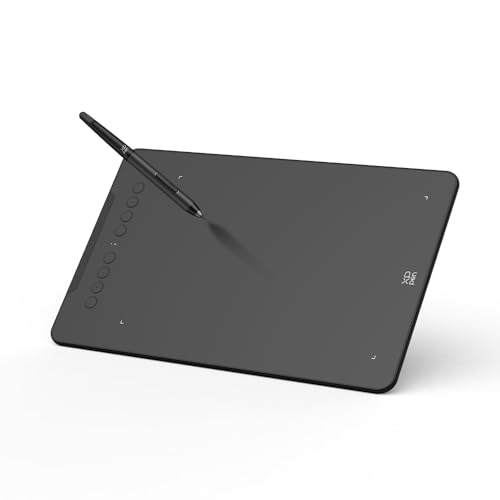
XPPen Deco 01 V3 10x6 Drawing Tablet
A 10 by 6.25-inch pen tablet with a battery-free stylus, 16384 pressure levels and 8 shortcut keys.
View on Amazon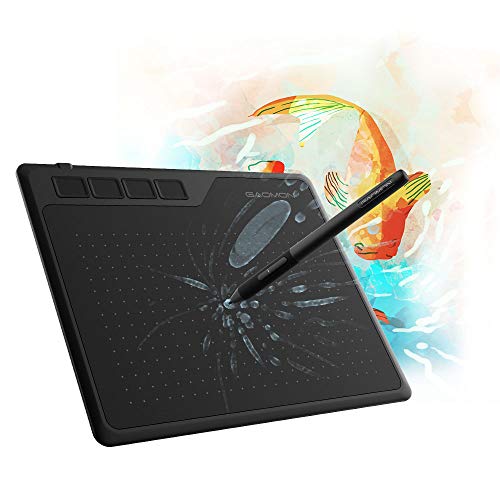
GAOMON S620 Graphics Drawing Tablet
A 6.5 by 4 inch pen tablet with a battery-free pen, 8192 pressure levels and 4 express keys.
View on Amazon
GAOMON M10K Drawing Tablet
A 10 by 6.25 inch pen tablet with a battery-free stylus, 8192 pressure levels, 10 keys and a touch ring.
View on AmazonThese come from our ranked list Best Pen Tablet for PC, which compares them spec by spec.
FAQ
Do you draw on the tablet screen itself?
You draw on the pad surface while the line appears on your PC monitor. The active area maps to the screen, so pen position on the pad matches cursor position on the display.
Does the pen need charging?
The pens named for these tablets are battery-free, so they need no charging or battery change.
Will a drawing tablet work with my software?
Check the operating systems and apps named for your model, then install that model's driver from the maker. Drawing, photo editing and note-taking apps that accept pen input can use pressure and shortcut keys once the driver maps the pad to your screen.