How to Set Up a Graphic Drawing Tablet
 By Theo LangUpdated
Set up a graphic drawing tablet by connecting it to your computer with its USB cable, installing the driver from the tablet maker, and opening the drawing software you plan to use. Then set the pen buttons and shortcut keys in the driver so the tablet responds the way you draw.
Check the box and your computer
Take the tablet, pen and cable out of the box and check the guide that came with them. Look at the system requirements printed for your tablet before you connect anything. The GAOMON M10K works with Windows and Mac computers and with certain Android phones and tablets, and the HUION Inspiroy H640P works with Mac, Windows and Linux computers and Android devices. Match your computer to the requirements for the tablet you bought.
Connect the tablet with the cable
Plug the tablet cable into the tablet and into a USB port on your computer. The GAOMON M10K offers USB connectivity, and the XP-Pen Deco 01 V3 offers USB-C to USB-C connectivity plus adapters. Keep the tablet flat on the desk while you connect it. If your computer does not react, try a different USB port on the same computer and check that the cable is seated at both ends.
Install the driver from the maker
Download the driver for your exact tablet model from the tablet maker's website and install it. The GAOMON M10K instructions say to uninstall other drivers for similar products, including an old driver for the same product, before installing. Follow the maker's manual for your model during installation. Restart the computer if the installer asks you to, then connect the tablet again.
Set the pen and shortcut keys
Open the driver settings and set the pen buttons and the tablet keys to commands you use often, such as undo or zoom. The HUION Inspiroy H640P driver lets you save different shortcut profiles for different apps. If you draw with your left hand, look for a left-hand setting in the driver. The GAOMON S620 driver can rotate the tablet area for left hand mode, and the HUION Inspiroy H640P can be flipped with a setting change in its driver.
Open your drawing software
Open the drawing, writing or meeting software you plan to use and draw a few lines with different pressure. Check that the cursor follows the pen and that the pen buttons do what you set. If the pen moves the cursor but pressure does not change the line, reopen the driver and check the pen settings for that app. Keep the pen close to the tablet surface when you want the cursor to move without drawing.
What you need

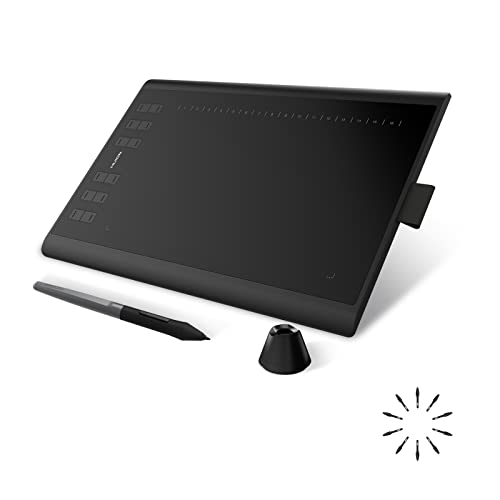
HUION Inspiroy H640P 6x4-inch Drawing Tablet 8192 Pen Pressure
A 6x4 inch drawing tablet with 8192 levels of pen pressure, a battery-free PW100 stylus and 6 customizable press keys.
View on Amazon
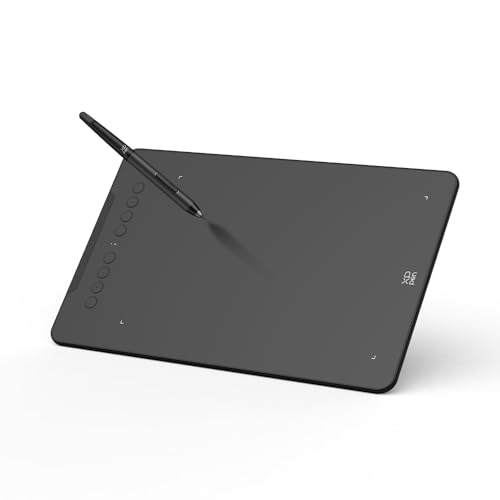
XPPen Deco 01 V3 10x6 Drawing Tablet
A 10 x 6.25-inch drawing tablet with 16,384 levels of pen pressure, 8 customizable shortcut keys and USB-C to USB-C connectivity.
View on Amazon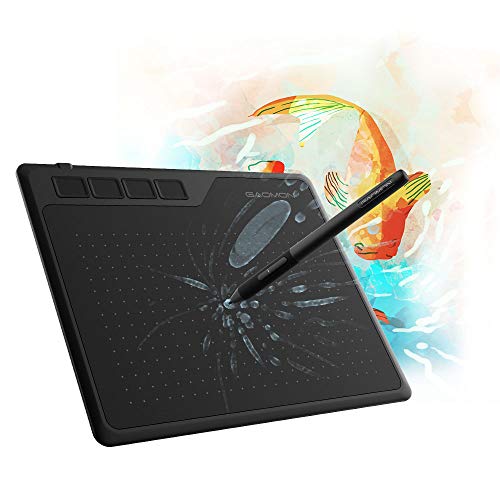
GAOMON S620 Graphics Drawing Tablet
A 6.5x4 inch graphics tablet with 8192 levels of pen pressure, a battery-free pen and 4 customizable express keys.
View on Amazon
GAOMON M10K Drawing Tablet
A 10 x 6.25 inch drawing tablet with 8192 levels of pen pressure, a battery-free AP31 stylus, 10 press keys and a touch ring.
View on AmazonThese come from our ranked list Best Pen Tablet for PC, which compares them spec by spec.
FAQ
Do I need to charge the pen?
The HUION Inspiroy H640P, the XP-Pen Deco 01 V3, the GAOMON S620 and the GAOMON M10K each come with a battery-free pen, so those pens do not need charging. Check the guide for your model if your pen is a different type.
Can I use the tablet with a phone?
Some tablets connect to Android phones and tablets. The HUION Inspiroy H640P works with Android smartphones and tablets, and the XP-Pen Deco 01 V3 supports Android devices. Check the requirements for your exact model before you connect it to a phone.
What if the tablet does not respond?
Check the cable at both ends, try a different USB port, and confirm the driver for your exact model is installed. Remove old drivers for similar products if the maker's instructions say to, then restart the computer and connect the tablet again.