How to Use a Drawing Tablet
 By Theo LangUpdated
A drawing tablet is a flat pad you connect to a computer, with a pen that moves the cursor and draws with pressure. Plug the tablet in, install the driver from the maker, open a drawing or note app, and draw on the pad while you watch the screen. The pen replaces the mouse for drawing, writing and signing.
Connect the tablet and install the driver
Plug the tablet into your computer with its USB cable. Then download the driver from the maker's site and install it before you open any drawing app. The driver is what makes the pen, the pressure and the press keys work. If you used a tablet from another maker before, remove its driver first and restart the computer, since drivers from different makers can conflict. Close your drawing apps while the driver installs, then open a drawing app and check that the pen moves the cursor.
Map the pen to the screen
The pen controls the cursor, and the tablet surface maps to the whole screen. Move the pen across the pad and watch the cursor follow on the monitor. If the cursor feels too fast or too slow, open the driver settings and change the active area or the pen speed. Left-handed users can flip the tablet and change the setting in the driver, since the HUION H640P, HUION H1060P, GAOMON S620 and XP-Pen G430S all support left-hand use.
Set pressure and shortcut keys
Pressure sensitivity changes line width with how hard you press. All four tablets here list 8192 levels of pressure sensitivity, so a light touch draws a thin line and a firm press draws a thick one. Adjust the pressure curve in the driver until light and firm strokes feel right. Then assign the press keys: the HUION H640P has 6, the HUION H1060P has 12 press keys plus 16 soft keys, and the GAOMON S620 has 4 express keys. Give them commands you use often, such as undo, zoom or brush switch.
Draw, write and teach with the pen
Open a drawing app and sketch on the pad while you watch the screen. The same pen also works for notes, signing documents and online teaching. The HUION H640P works as a writing pad for note-taking and a signature pad for documents, and the XP-Pen G430S works with Word, PowerPoint, OneNote and Zoom. If you use a phone, check compatibility first: the HUION tablets work with Android phones, while iPhone and iPad do not work with these tablets.
What you need

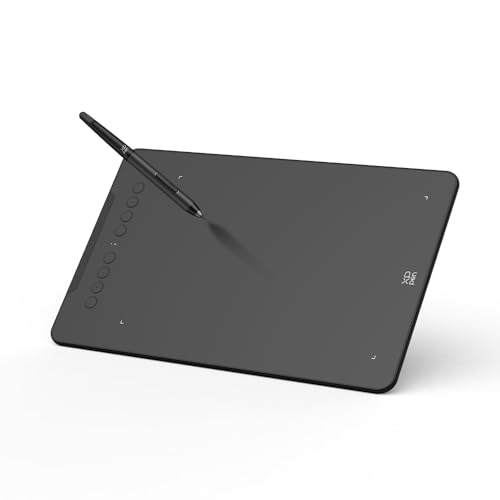
HUION Inspiroy H640P 6x4-inch Drawing Tablet 8192 Pen Pressure
A 6x4 inch drawing tablet with 8192 pressure levels, a battery-free stylus, tilt and 6 hot keys for Mac, PC and Android.
View on Amazon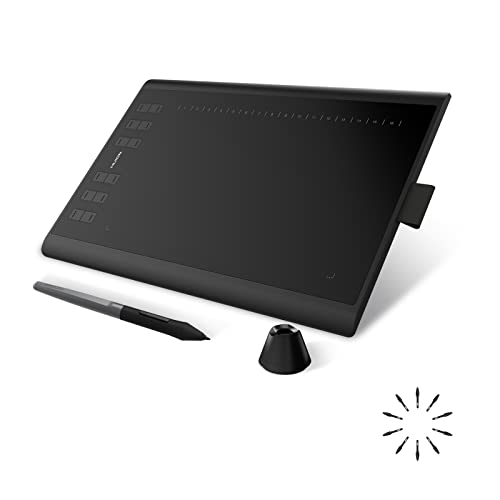
HUION Inspiroy H1060P Graphics Drawing Tablet
A 10 x 6.25 inch drawing tablet with 8192 pressure levels, a battery-free stylus, tilt and 12 press keys plus 16 soft keys.
View on Amazon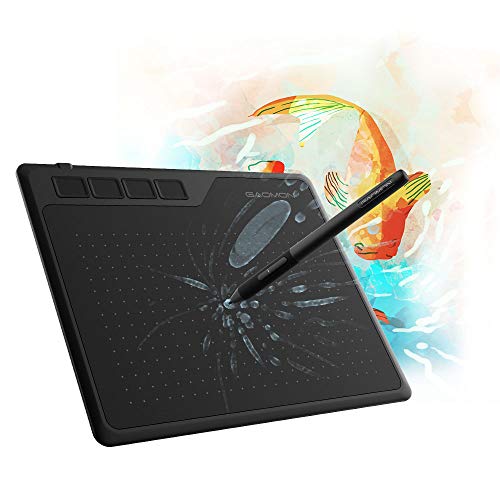
GAOMON S620 Graphics Drawing Tablet
A 6.5x4 inch drawing tablet with 8192 pressure levels, a battery-free pen and 4 express keys for drawing, notes and online classes.
View on Amazon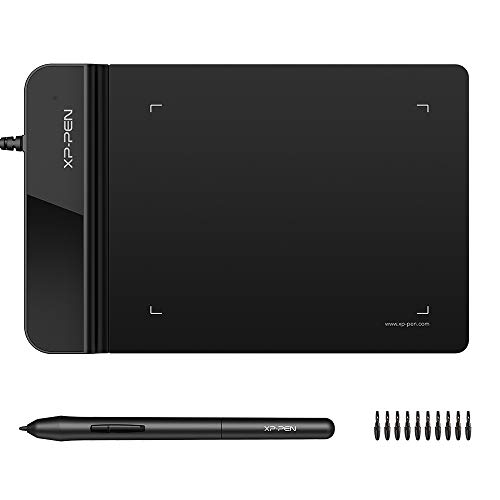
Drawing Tablet XPPen G430S OSU
A 4 x 3 inch drawing tablet with 8192 pressure levels and a battery-free stylus, made for OSU play, drawing and online teaching.
View on AmazonThese come from our ranked list Best Digital Pen Tablet, which compares them spec by spec.
FAQ
Do I need a driver for a drawing tablet?
Yes, for drawing. Install the driver from the maker so pressure, tilt and the press keys work. The XP-Pen G430S states no driver install is needed for OSU play, but drawing apps need the driver installed.
Can I use a drawing tablet with a phone?
Some tablets work with Android phones. The HUION H640P works with Android smartphones and tablets, and the H1060P connects to a phone through an OTG connector. iPhone and iPad do not work with these tablets, so check the maker's notes for your phone first.
What size drawing tablet should I buy?
Match the active area to your desk and your drawing style. The XP-Pen G430S has a 4 x 3 inch area and the HUION H640P has a 6x4 inch area, while the GAOMON S620 has a 6.5x4 inch area and the HUION H1060P has a 10 x 6.25 inch area. A larger area suits broad strokes, while a smaller one fits a crowded desk.