How to Use a Tablet as a Graphics Tablet for PC
 By Theo LangUpdated
To use a tablet as a graphics tablet for PC, connect the pen tablet to your computer with its USB cable, install the maker's driver, then draw on the tablet surface with the stylus while you watch the screen. The pen moves the cursor and controls line weight with pressure in drawing software.
Connect the tablet to your PC
Plug the tablet into your computer with the USB cable that came with it. Place the tablet flat on your desk in front of you, with the active area facing up. Keep the stylus close at hand. The tablet surface maps to your screen, so moving the pen across the surface moves the cursor across the display. You draw on the tablet and look at the monitor, not at your hand.
Install the driver from the maker
Download and install the driver for your tablet model from the maker's official website. Before you install it, uninstall drivers for other pen tablets, including an older driver for the same tablet. Restart the computer if the installer asks you to. After the driver is installed, the computer recognizes the tablet and the pen pressure works in software that supports it. Check the maker's notes for your operating system version before you install.
Set up the pen and tablet area
Open the driver settings and set how the active area maps to your screen. Choose the full screen or one monitor if you use more than one display. If your pen has side buttons, set them to switch between pen and eraser or to other tools you use often. If you draw with your left hand, flip or rotate the tablet in the driver settings so the keys sit on the side that suits you.
Assign the shortcut keys
Use the driver to assign each press key to a command you repeat, such as undo, zoom, brush switch or save. Save a different profile for each app if your driver offers profiles, so shortcuts stay set when you switch software. Keep your hand on the tablet keys and your other hand on the pen. Change the assignments as you learn which commands you reach for while you draw, write or edit photos.
Draw and write in your software
Open your drawing, photo editing or note-taking software and pick a brush or pen tool. Press lightly for a thin line and harder for a thicker line, since the stylus reports pressure as you draw. Use the pen in place of the mouse to draw, take notes, sign documents or mark up files. If pressure does not change the line, check that the brush in your software uses pen pressure and that the driver is running.
What you need

HUION Inspiroy H640P 6x4-inch Drawing Tablet 8192 Pen Pressure
A compact pen tablet with a 6x4 inch active area, a battery-free stylus with 8192 pressure levels and 6 customizable press keys for shortcuts.
View on Amazon
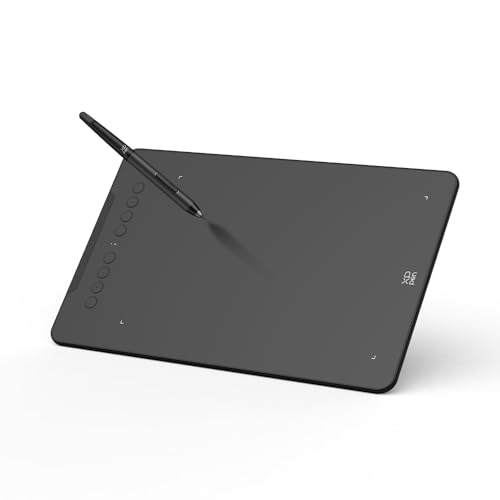
XPPen Deco 01 V3 10x6 Drawing Tablet
A larger pen tablet with a 10 x 6.25-inch active area, a battery-free stylus with 16384 pressure levels, tilt support and 8 customizable shortcut keys.
View on Amazon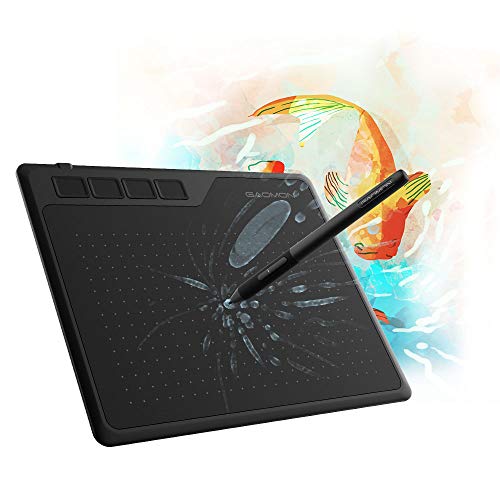
GAOMON S620 Graphics Drawing Tablet
A portable pen tablet with a 6.5x4 inch active area, a battery-free pen with 8192 pressure levels and 4 customizable express keys for frequent commands.
View on Amazon
GAOMON M10K Drawing Tablet
A pen tablet with a 10 x 6.25 inch active area, a battery-free stylus with 8192 pressure levels, 10 press keys and a touch ring.
View on AmazonThese come from our ranked list Best Pen Tablet for PC, which compares them spec by spec.
FAQ
Can I use a pen tablet instead of a mouse?
Yes. The pen moves the cursor, clicks and drags in place of the mouse. You can draw, take notes, sign documents and navigate with the stylus on the tablet surface while you watch the screen.
Does the stylus need charging?
The tablets shown here use a battery-free stylus, so the pen does not need charging. Pick up the pen and draw. Keep spare nibs at hand and replace a nib when the tip feels rough or the line skips.
Can left-handed users use these tablets?
Yes. Flip or rotate the tablet and change the orientation in the driver settings so the shortcut keys sit on the side that suits your hand. Set the pen buttons and keys again after you change the orientation.