How to Use a Graphic Tablet with Blender
 By Theo LangUpdated
To use a graphic tablet with Blender, connect the tablet to your computer, install the maker driver, then set up pen input inside Blender. The pen then moves the cursor and controls brush strength by pressure for sculpting, painting and drawing. Shortcut keys on the tablet can trigger Blender commands you assign in the driver.
Connect the tablet and install the driver
Plug the tablet into your computer with the USB cable that came in the box. Download the driver for your model from the maker website and install it, then restart the computer if the installer asks you to. Open the driver settings and confirm the pen moves the cursor and the tablet keys respond before you open Blender.
Set up pen input in Blender
Open Blender and open Preferences, then find the input settings for tablet and mouse behavior. Turn on options that use pen pressure where Blender offers them, and set how the pen buttons act for clicking and dragging. Save the preferences so Blender keeps the setup next time you open it. Check the Blender manual for the exact menu names in your version.
Map keys and check pressure
In the driver settings, assign tablet keys and pen buttons to Blender commands you use often, such as undo, brush size and view movement. Draw strokes in a sculpt or paint workspace and watch whether harder pressure makes a stronger stroke. Adjust pressure and mapping settings in the driver if strokes feel too light or too strong for your hand.
Use the pen for sculpting and painting
Use the pen in Sculpt Mode to push and smooth forms with pressure control, and in texture paint or Grease Pencil work to draw strokes with varied strength. Keep the tablet flat on the desk and move the pen across the active area to move across the screen. Use the mouse or trackpad for menus when pen control feels slow for a task.
What you need

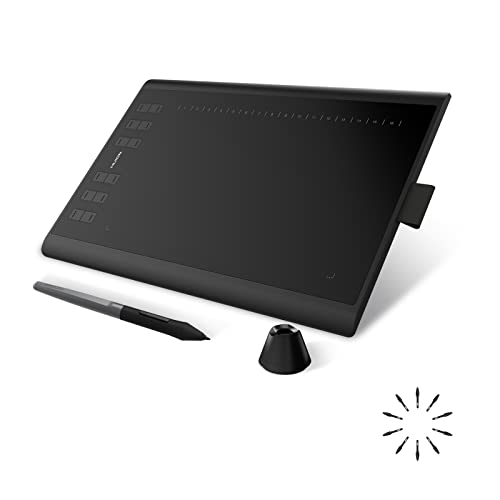
HUION Inspiroy H640P 6x4-inch Drawing Tablet 8192 Pen Pressure
A 6x4 inch drawing tablet with 8192 pressure levels, a battery-free stylus and 6 customizable press keys.
View on Amazon
XPPen Deco 01 V3 10x6 Drawing Tablet
A 10 x 6.25-inch drawing tablet with 16384 pressure levels, a battery-free stylus and 8 shortcut keys.
View on Amazon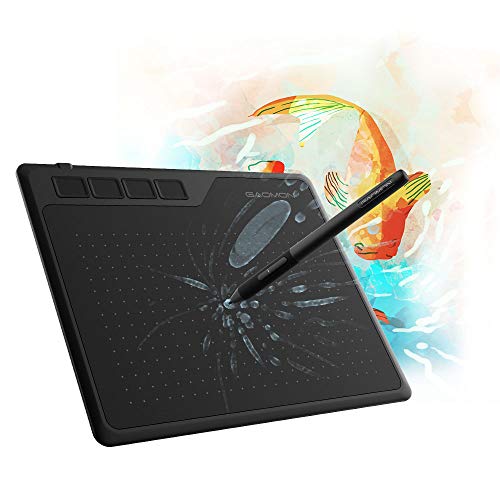
GAOMON S620 Graphics Drawing Tablet
A 6.5x4 inch drawing tablet with 8192 pressure levels, a battery-free pen and 4 express keys.
View on Amazon
GAOMON M10K Drawing Tablet
A 10 x 6.25 inch drawing tablet with 8192 pressure levels, 10 press keys and a touch ring.
View on AmazonThese come from our ranked list Best Pen Tablet for PC, which compares them spec by spec.
FAQ
Does Blender work with any graphic tablet?
Blender uses pen input from the driver on your computer. Install the driver for your model first, then check pen pressure inside Blender. Check the maker notes for your operating system before you buy.
Why is pen pressure not working in Blender?
Check that the driver is installed and the pen moves the cursor outside Blender. Then check Blender input preferences and the driver pressure settings. Restart Blender after you change driver settings.
Can I use a tablet for sculpting in Blender?
Yes. Sculpt brushes can use pen pressure to vary stroke strength. Set up pen input first, then adjust brush pressure settings in Blender and in the driver until strokes respond as you expect.