How to Connect a Hard Drive to a Laptop
 By Theo LangUpdated
To hook up an internal hard drive to a laptop, put the drive in a SATA enclosure or dock, connect the enclosure power supply, and plug its USB cable into the laptop. A desktop-size internal drive does not fit inside a laptop, so the enclosure is what lets the laptop use it as external storage.
Check the drive size and connection
Internal hard drives connect over SATA and come in set sizes, so match the drive size to the enclosure or bay you plan to use. A desktop-size drive does not fit a laptop drive bay. If your drive matches the bay size in your laptop manual, shut the laptop down, unplug it, and follow the manual, and check the warranty terms before opening it. For a desktop-size drive, use an external enclosure or dock instead.
Get an enclosure or dock with power
Pick a SATA enclosure or dock made for your drive size. The enclosure holds the drive, connects to it over SATA, and links to the laptop over USB. A desktop-size drive needs the enclosure to have its own power supply, so check that one is in the box before you start.
Seat the drive in the enclosure
With the enclosure unplugged, follow its manual to open it and seat the drive on the SATA connectors. Press the drive home evenly so the connectors mate fully, and fit any screws the manual calls for. Close the enclosure before you connect any cables.
Connect power and USB to the laptop
Plug the enclosure power supply into the wall and into the enclosure, then connect the USB cable between the enclosure and the laptop. If the enclosure has a power switch, turn it on after the cables are in. Keep the enclosure on a flat surface where it will not be knocked while the drive spins.
Set up the drive on the laptop
A new drive may need setup before it appears as storage. On Windows, open Disk Management, and on a Mac, open Disk Utility, then initialize and format the drive there. If the drive already holds files you want, do not format it. Eject the drive from the laptop before you unplug the USB cable or the power.
What you need

Western Digital WD161KFGX
A 16TB SATA hard drive with 7200 RPM, 512 MB cache and a 5-year limited warranty, built for NAS systems.
View on Amazon
Seagate 8TB BarraCuda Internal Hard Drive
An 8TB SATA hard drive for desktop PC storage, with a 2-year limited warranty.
View on Amazon
Seagate BarraCuda
A 2TB SATA hard drive in 3.5 inch size, with 7200 RPM, 256MB cache and a 2-year limited warranty.
View on Amazon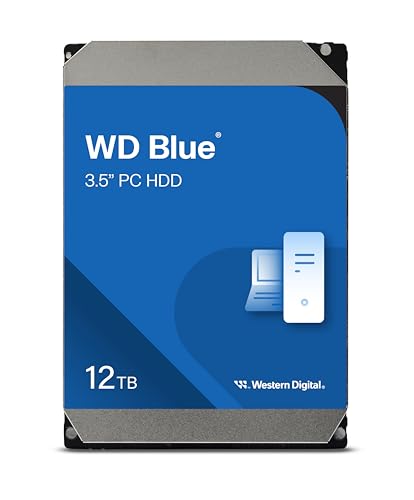
Western Digital WD120EAGZ
A 12TB SATA hard drive in 3.5 inch size, with 7200 RPM, 512 MB cache and a 2 year limited warranty.
View on AmazonThese come from our ranked list Best Internal Hard Drive, which compares them spec by spec.
FAQ
Can I put a desktop hard drive inside a laptop?
No. A desktop-size drive does not fit a laptop drive bay. Check your laptop manual for the bay size it takes, and use a SATA enclosure or dock to connect a desktop-size drive over USB instead.
Why does the enclosure need its own power supply?
A desktop-size drive needs more power than a laptop USB port gives on its own. The enclosure power supply runs the drive, while the USB cable carries the data between the drive and the laptop.
The laptop does not show the drive. What now?
Check the power and USB connections and try another USB port on the laptop. Then look in Disk Management or Disk Utility to see whether the drive needs setup. Do not format a drive that holds files you want to keep.