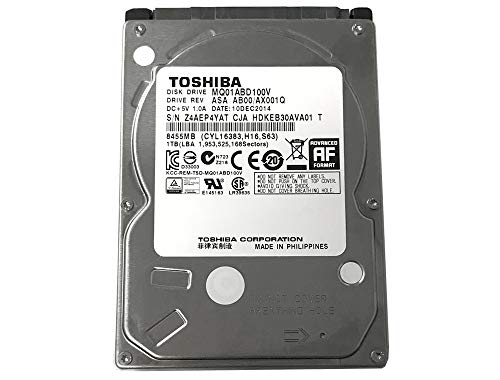
How Hard Is It to Replace a Laptop Drive?
 By Theo LangUpdated
Replacing a laptop hard drive is a straightforward job on many laptops, and a harder one on some. On models with a removable bottom panel and a drive held in a caddy, the swap takes a screwdriver, a replacement drive and an operating system to install. On thin laptops with a sealed case or a soldered drive, the job is harder, and you should check the maker's manual first.
Check what drive your laptop takes
Open your laptop's manual or the maker's support page and look for the storage type. Many laptops take a SATA drive that slides into a bay, while others take an M.2 drive that fits a slot on the board. Note the interface and the form factor before you buy a replacement, since a drive with the wrong connector will not fit. The manual also shows where the drive sits inside the case.
Back up your files first
Copy your files to an external drive or a cloud backup before you remove the old drive. A clone copies the whole system, including the operating system and your programs, so the new drive can start where the old one left off. If you skip the backup, anything stored only on the old drive is gone once it comes out.
Shut the laptop down and unplug it
Shut the laptop down fully and unplug the charger before you open anything. Remove the battery if the manual shows how, and touch a metal part of the case to discharge static before you handle the drive. Work on a clean, flat surface with the screws kept in a small tray so you keep track of them.
Swap the drive
Remove the bottom panel, then undo the screws or bracket that hold the drive in place. Slide the old drive out of its connector, set the new drive in the same way round, and fasten the bracket again. If the drive sits in a caddy, move the caddy to the new drive first, then refit the panel and the screws.
Install the system on the new drive
With the new drive fitted, install the operating system from a USB installer or restore the clone you made. Then copy your files back, install your programs and run the updates the system offers. Check that the laptop starts and that your files open before you wipe the old drive.
What you need

Western Digital WD161KFGX
A 16TB 3.5-inch drive with a SATA 6 Gb/s interface, 7200 RPM, 512 MB cache and a 5-year manufacturer's limited warranty, made for NAS systems.
View on Amazon
Seagate 8TB BarraCuda Internal Hard Drive
An 8TB desktop drive with a SATA 6 Gb/s interface for everyday PC storage, gaming and computing, covered by a 2-year limited warranty.
View on Amazon
Seagate BarraCuda
A 2TB 3.5-inch desktop drive with a SATA 6Gb/s interface, 7200 RPM and 256MB cache, with free Seagate DiscWizard software for cloning data from old drives.
View on Amazon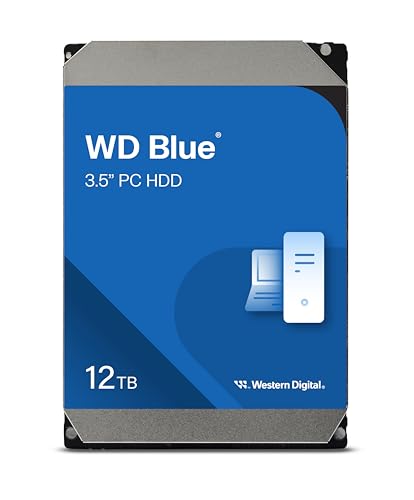
Western Digital WD120EAGZ
A 12TB 3.5-inch drive with a SATA 6 Gb/s interface, 7200 RPM and 512 MB cache for everyday computing, with free Acronis True Image WD Edition cloning software.
View on AmazonThese come from our ranked list Best Internal Hard Drive, which compares them spec by spec.
FAQ
Can I replace a laptop hard drive myself?
On many laptops, yes. If the manual shows a removable panel and a drive in a bay, the swap needs only a screwdriver and care. If the case is sealed or the storage is soldered, contact the maker instead.
Do I need to reinstall the operating system?
Yes, unless you cloned the old drive first. A new drive is blank, so install the operating system from a USB installer or restore a clone, then copy your files back and install your programs.
What should I do with the old drive?
Keep it until the new drive works and your files are back. Then wipe it before you pass it on or recycle it, so your files stay private.