How to Add a Hard Drive to a PC
 By Theo LangUpdated
To add a hard drive to a PC, mount a 3.5 inch SATA drive in a free bay inside the case, connect a SATA data cable and a SATA power cable, then format the drive so Windows can use it. Shut the PC down and unplug it before you open the case, and follow the steps in the maker's manual for your model.
Pick a drive that fits your PC
A desktop hard drive is a 3.5 inch SATA drive that connects at SATA 6 Gb/s. Check your PC's manual for a free 3.5 inch bay and a free SATA port on the motherboard before you buy. Capacities here run from 2TB to 16TB, so pick a size that holds the files you plan to store, and check the drive's notes for the use it is built for.
Shut down and open the case
Shut the PC down and unplug it from the wall before you open the case, and follow the steps in the maker's manual for your model. Touch a bare metal part of the case to discharge static before you handle the drive. Keep the screws and panels you remove in one place so you can put the case back together.
Mount the drive in a bay
Slide the drive into a free 3.5 inch bay with the SATA connectors facing the inside of the case, then fasten it with the screws or tool-free rails that came with your case. The drive should sit flat and firm, with no cables pressed against it. Follow the mounting layout in your case manual, and use the screws or rails your case provides for the bay.
Connect the SATA cables
Connect a SATA data cable from the drive to a SATA port on the motherboard, and connect a SATA power cable from the power supply to the drive. Both plugs fit one way, so line up the L-shaped connector and push it in until it sits flat. Route the cables away from fans so nothing catches when the PC runs.
Format the drive in Windows
Close the case, plug the PC in and switch it on. Open Disk Management, find the new drive, and follow the prompts to initialize it and create a volume. Choose the file system Windows suggests for a data drive, then give the volume a name so you can find it later.
What you need

Western Digital WD161KFGX
A 16TB 3.5 inch SATA drive at 7200 RPM with a 512 MB cache, built for RAID-optimized NAS systems with a 5-year warranty.
View on Amazon
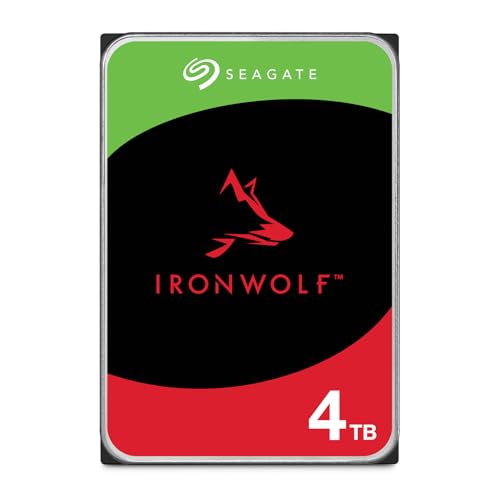
Seagate 8TB BarraCuda Internal Hard Drive
An 8TB SATA drive for everyday PC storage and gaming, with a 2-year warranty and 2-year Rescue service.
View on Amazon
Seagate BarraCuda
A 2TB 3.5 inch SATA drive at 7200 RPM with a 256MB cache, with free DiscWizard software for cloning data from an old drive.
View on Amazon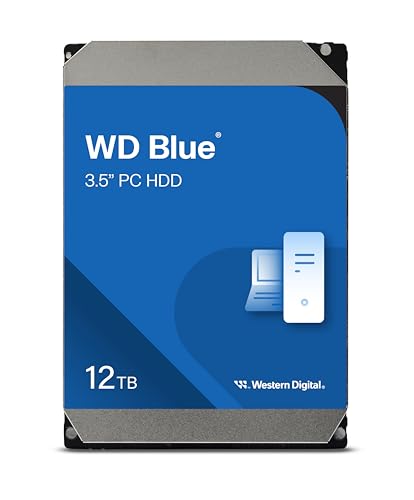
Western Digital WD120EAGZ
A 12TB 3.5 inch SATA drive at 7200 RPM with a 512 MB cache, with free Acronis True Image software for cloning.
View on AmazonThese come from our ranked list Best Internal Hard Drive, which compares them spec by spec.
FAQ
Do I need a SATA cable for a new hard drive?
Yes. A 3.5 inch SATA drive needs a SATA data cable to the motherboard and a SATA power cable from the power supply. The Seagate 8TB BarraCuda ships in an anti-static bag with no cables, so check what comes in the box before you start.
Can I add a hard drive to a laptop?
A 3.5 inch desktop drive fits a desktop bay, not a laptop. Check your laptop's manual for the drive size it takes, or use an external drive instead.
How do I know the new drive works?
After you format the drive, it shows up with its own drive letter in Windows. Copy a file to it and open the file again to check that the drive reads and writes.