How to Connect a SATA Hard Drive
 By Theo LangUpdated
Connect a SATA hard drive by shutting the computer down, unplugging it, mounting the drive in a free drive bay, and plugging in a SATA data cable and a power cable. Then close the case, plug the computer back in, and check that the system sees the drive.
Shut down and unplug first
Shut the computer down and unplug it before you open the case, and follow the maker's manual for your computer while you work. Do not open a computer that is under warranty; contact the maker instead. Do not work on the power supply or on a battery. Keep the drive in its anti-static bag until you are ready to mount it, and handle the drive by its edges.
Check the bay and the ports
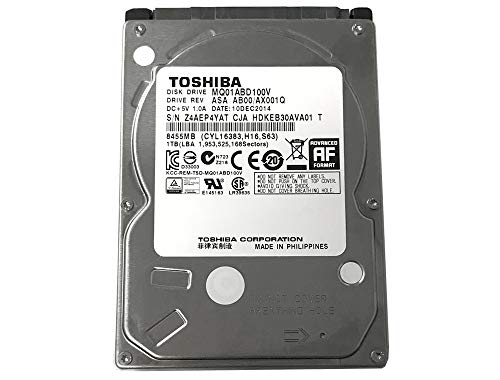
Look for a free drive bay that fits the drive size and a free SATA port on the motherboard. The Western Digital WD Red Pro, the Seagate BarraCuda 2TB and the Western Digital WD Blue drives are 3.5 inch drives with a SATA 6 Gb/s interface. Check that a power cable from the power supply can reach the bay. If no bay or port is free, stop and check the manual for your computer.
Mount the drive in the bay
Slide the drive into the free bay in the direction the manual shows, with the connectors facing the cables. Fasten the drive with the screws or rails that came with your case, as the manual describes. The drive should sit flat and should not move when you touch it lightly. Keep screws away from the circuit board on the drive, and do not force the drive if it does not slide in.
Connect the data and power cables
Plug one end of a SATA data cable into the drive and the other end into a SATA port on the motherboard. Then plug a power cable from the power supply into the drive. Both plugs fit in one direction, so line them up and press them in without force. Route the cables so they stay clear of any fan and do not press against the case cover when you close it.
Close up and check the drive
Put the case cover back on, plug the computer back in, and turn it on. Open the disk tool in your operating system and check that the new drive appears. If the drive does not appear, shut the computer down, unplug it, and check both cable connections again. Follow the drive maker's manual for any setup steps the system asks for before you store files on the drive.
What you need

Western Digital WD161KFGX
A 16TB NAS internal hard drive with a SATA 6 Gb/s interface, 7200 RPM speed, 512 MB cache and a 3.5 inch size.
View on Amazon
Seagate 8TB BarraCuda Internal Hard Drive
An 8TB internal hard drive with a SATA 6 Gb/s interface, sold for desktop PC storage in anti-static bag packaging.
View on Amazon
Seagate BarraCuda
A 2TB internal hard drive with a SATA 6Gb/s interface, 7200 RPM speed, 256MB cache and a 3.5 inch size.
View on Amazon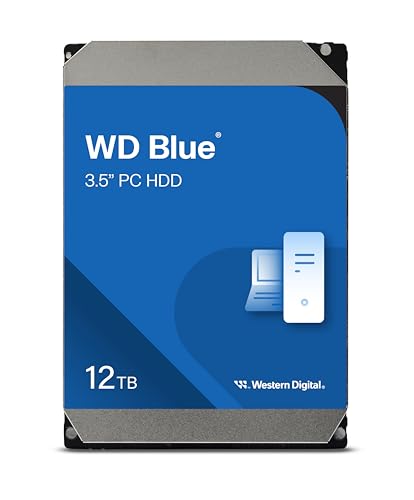
Western Digital WD120EAGZ
A 12TB internal hard drive with a SATA 6 Gb/s interface, 7200 RPM speed, 512 MB cache and a 3.5 inch size.
View on AmazonThese come from our ranked list Best Internal Hard Drive, which compares them spec by spec.
FAQ
Do I need to buy cables for the drive?
Check what comes with the drive you bought. The Seagate BarraCuda 8TB in Frustration Free Packaging comes in an anti-static bag with no cables and no box, so you need a SATA data cable and a power cable from your computer or bought separately.
Can I connect the drive while the computer is on?
No. Shut the computer down and unplug it before you open the case or touch the cables inside. Follow the maker's manual for your computer, and contact the maker instead of opening a computer that is under warranty.
What if the computer does not see the drive?
Shut the computer down, unplug it, and check that the SATA data cable and the power cable are seated on the drive and on the motherboard and power supply. Then turn the computer on and check the disk tool in your operating system again.