How to Add a Hard Drive to a PC
 By Theo LangUpdated
You add a hard drive to a PC by mounting the drive in a free bay inside the case and connecting it with a SATA data cable and a SATA power cable, then formatting it so Windows can use it. Shut the PC down and unplug it first, and follow the manual for your PC or case. The steps below cover the checks, the install and the setup.
Check the bay, ports and cables
Open your PC manual and look for a free 3.5-inch drive bay, a free SATA port on the motherboard and a free SATA power connector from the power supply. All four drives here use a SATA 6 Gb/s connection, so the port and the cables must match that interface. Measure the space in the bay against the drive size, and check that the case has room for the cables to reach. If the PC is under warranty, contact the maker before opening the case.
Shut down and open the case
Shut the PC down through Windows, then unplug the power cable and all other cables from the back of the case. Press the power button once more to drain any charge left in the system. Follow the manual for your PC or case to remove the side panel, and touch a bare metal part of the case before you handle the drive. Keep the screws from the panel in a small tray so you can find them again.
Mount the drive and connect the cables
Slide the drive into a free bay that matches its size and fasten it with the screws or rails that came with the case, so it sits firm and does not vibrate. Push the SATA data cable onto the small connector on the drive and onto the free SATA port on the motherboard. Push the wider SATA power connector from the power supply onto the drive until it seats. Check both plugs are straight and fully in, then replace the side panel and plug the PC back in.
Format the drive in Windows
Turn the PC on and open Disk Management from the Start menu. The new drive appears as unallocated space. Right-click the disk, choose to initialize it, then right-click the unallocated space to create a new simple volume and format it. Give the volume a drive letter and a name you will recognize, then wait for the format to finish before you copy files to it. The drive then shows up in File Explorer like any other drive.
What you need

Western Digital WD161KFGX
A 16TB 3.5-inch SATA 6 Gb/s drive with a 7200 RPM spindle, 512 MB cache and CMR recording for RAID NAS systems.
View on Amazon
Seagate 8TB BarraCuda Internal Hard Drive
An 8TB SATA 6 Gb/s desktop drive for everyday PC storage, with a 2-year limited warranty.
View on Amazon
Seagate BarraCuda
A 2TB 3.5-inch SATA 6 Gb/s drive at 7200 RPM with a 256MB cache and a 2-year limited warranty.
View on Amazon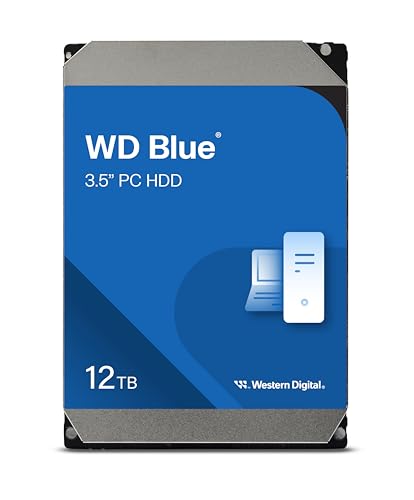
Western Digital WD120EAGZ
A 12TB 3.5-inch SATA 6 Gb/s drive with a 7200 RPM spindle, 512 MB cache and a 2-year limited warranty.
View on AmazonThese come from our ranked list Best Internal Hard Drive, which compares them spec by spec.
FAQ
Do I need to format a new hard drive?
Yes. A new drive arrives with no file system, so Windows cannot store files on it until you initialize it and create a formatted volume in Disk Management. Formatting erases anything on the drive, so do it before you copy files to it.
Can I add a hard drive to a laptop?
A laptop has room for a second internal drive only if the maker left a free bay and a free SATA port, so check your laptop manual first. If there is no room inside, an external drive over USB is the way to add storage to a laptop.
What size hard drive should I add?
The drives here run from 2TB to 16TB. A larger capacity holds more files, so pick the size that fits the files you plan to store, and check the capacity before you buy.
Do I need extra cables to add a hard drive?
You need a SATA data cable and a free SATA power connector from the power supply. Check what comes in the box with your drive and your case before you buy spares.