
How to Connect a Drawing Tablet to a Laptop
 By Theo LangUpdated
Connect a drawing tablet to your laptop with a USB cable, then install the driver from the maker's site and open your writing or drawing app. The pen moves the cursor on the laptop screen, so the tablet works as a writing pad for notes, signatures and sketching. A wireless tablet can also connect over Bluetooth where the model supports it.
Plug the tablet into a USB port
Use a USB cable to plug the tablet into a free USB port on your laptop. The GAOMON M10K connects this way, and the HUION Inspiroy H640P and the XP-Pen IT640 also use a USB cable. If the laptop has only USB-C ports, use an adapter that fits the cable end. Wait a few seconds for the laptop to show that a new device is attached, then check that the pen moves the cursor when you hover it over the tablet surface.
Install the driver from the maker
Download the driver for your tablet model from the maker's own website and install it before you start writing. The driver lets you set pen pressure, assign the shortcut keys and flip the tablet for left-handed use. The GAOMON M10K notes say to remove drivers for similar products before you install its driver. Restart the app you plan to write in after the driver is installed, so it picks up the pen settings. If the pen does not respond, check that the driver shows the tablet as connected.
Match the pen area to the screen
Open the driver settings and set the active area so the tablet maps to the full laptop screen. The HUION Inspiroy H640P has a 6x4 inch active area, the XP-Pen Deco mini7W V2 has a 7x4.37 inch area, and the GAOMON M10K has a 10 x 6.25 inch area, so a larger area gives your hand more room for the same screen. If the pen reaches one edge of the screen before it reaches the edge of the tablet, adjust the mapping in the driver until the corners line up. Save the setting so it stays put the next time you plug the tablet in.
Open a writing app and check the pen
Open the app you want to write in, such as OneNote or Microsoft Whiteboard, and pick the pen tool. Press the pen tip lightly on the tablet to make thin lines and press harder for thicker ones, since the pen reads 8192 levels of pressure on the HUION Inspiroy H640P and the GAOMON M10K and 16384 levels on the XP-Pen models. Use the pen side buttons to switch between pen and eraser. If lines appear in the wrong place, check the driver mapping again before you change anything in the app.
Use Bluetooth on a wireless tablet
If your tablet supports wireless use, turn on Bluetooth on the laptop and put the tablet in pairing mode, then pick it from the laptop's Bluetooth list. The XP-Pen Deco mini7W V2 connects over Bluetooth 5.0 and also works with its L-shaped USB-C cable when you want a wired link. Keep the tablet charged for wireless sessions, and switch to the cable if the connection drops while you write. The HUION Inspiroy H640P, the XP-Pen IT640 and the GAOMON M10K connect with a USB cable.
What you need

HUION Inspiroy H640P 6x4-inch Drawing Tablet 8192 Pen Pressure
A 6x4 inch tablet with a battery-free stylus, 8192 levels of pressure, 6 hot keys and tilt, for writing and drawing on Windows, Mac, Linux and Android.
View on Amazon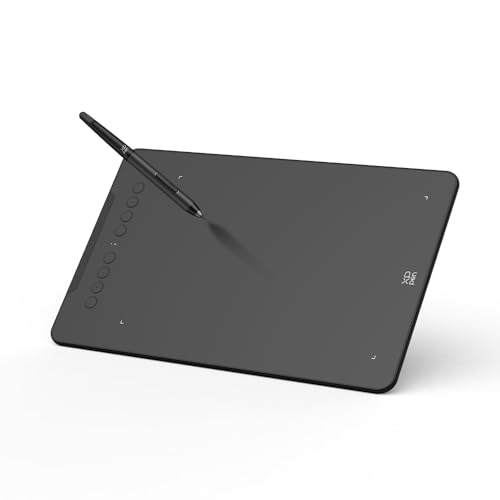
XPPen Deco mini7W V2 Wireless Drawing Tablet
A 7x4.37 inch wireless tablet with Bluetooth 5.0, 16384 levels of pressure, 60° tilt and 8 shortcut keys, with a USB-C cable for wired use.
View on Amazon
XPPen 6 * 4-inch Drawing Tablet
A 6 x 4 inch tablet with a battery-free stylus, 16384 levels of pressure, 60° tilt and 8 soft keys, plus an OTG adapter for Android phones.
View on Amazon
GAOMON M10K Drawing Tablet
A 10 x 6.25 inch tablet with a battery-free stylus, 8192 levels of pressure, 10 press keys and a touch ring for zooming and scrolling.
View on AmazonThese come from our ranked list Best Pen Tablet for Laptop, which compares them spec by spec.
FAQ
Do I need a driver to use a drawing tablet as a writing pad?
Yes. The tablet works as a basic pointer without one, but the driver sets pen pressure, maps the active area to the screen and lets you assign the shortcut keys. Install it from the maker's site before you start writing.
Can I connect a drawing tablet to a laptop with Bluetooth?
It depends on the model. The XP-Pen Deco mini7W V2 supports Bluetooth 5.0, while the other tablets in this guide connect with a USB cable. Check the tablet's own notes for wireless support before you buy it for cable-free use.
Why does my pen not line up with the cursor?
The tablet's active area is mapped to the wrong part of the screen. Open the driver settings, set the mapping to the full laptop screen and save it. If the problem stays, reinstall the driver and check the cable connection.

