
How to Connect an HDD to a Power Supply
 By Theo LangUpdated
To connect a hard drive to a power supply, plug a SATA power cable from the power supply into the wide power socket on the back of the drive, then connect a SATA data cable from the drive to the motherboard. The drive draws its power through that SATA power cable, so no separate adapter is needed when the power supply has a spare SATA connector.
Shut down and open the case
Shut the computer down, unplug it from the wall, and follow the maker's manual for opening the case. Touch a metal part of the case to discharge static before handling the drive. Find a free 3.5-inch drive bay and slide the drive in, then fix it in place with the screws or rails the case provides.
Connect the SATA power cable
Find a SATA power cable coming from the power supply. It ends in a wide, flat connector that fits only one way into the wider socket on the back of the drive. Push it in firmly until it sits flush. If every SATA power cable from the power supply is already in use, check whether the power supply has another spare connector before buying anything.
Connect the SATA data cable
Plug a SATA data cable into the narrower socket next to the power socket on the drive, then plug the other end into a SATA port on the motherboard. The data cable carries the drive's data, while the power cable from the power supply carries its power, so the drive needs both cables attached. Route both cables so they stay clear of fans and away from sharp edges.
Close up and check the drive
Close the case, plug the computer back in and switch it on. Enter the system setup or open the disk management tool to confirm the drive appears. If the drive does not appear, switch the computer off, unplug it again and check that both cables are seated firmly before trying again.
What you need

Western Digital WD161KFGX
A 16TB 3.5-inch drive with SATA 6 Gb/s, 7200 RPM and a 512 MB cache, built for RAID-optimized NAS systems with a 5-year warranty.
View on Amazon
Seagate 8TB BarraCuda Internal Hard Drive
An 8TB SATA 6 Gb/s desktop drive with a 190MB/s sustained transfer rate and a 2-year limited warranty plus 2-year Rescue.
View on Amazon
Seagate BarraCuda
A 2TB 3.5-inch drive with SATA 6 Gb/s, 7200 RPM and a 256MB cache for everyday desktop storage.
View on Amazon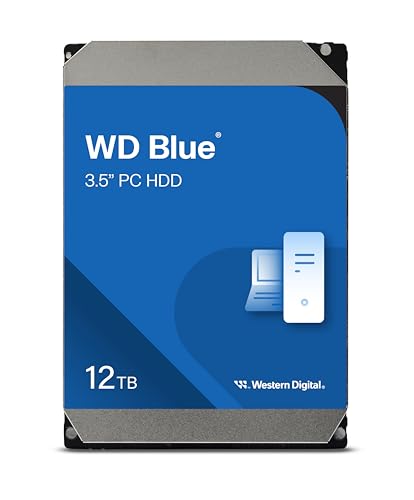
Western Digital WD120EAGZ
A 12TB 3.5-inch drive with SATA 6 Gb/s, 7200 RPM and a 512 MB cache, with free Acronis True Image cloning software.
View on AmazonThese come from our ranked list Best Internal Hard Drive, which compares them spec by spec.
FAQ
Can I connect a hard drive with only the power cable?
No. The power cable supplies power, but the drive also needs a SATA data cable to the motherboard before the computer can read it or write to it.
What if every SATA power connector is already in use?
Use a spare SATA power cable from the power supply if one is free. If every cable is already in use, check the maker's manual for the options that fit your power supply rather than forcing a cable to fit.
Does the drive need a separate power adapter?
No. A 3.5-inch SATA drive takes its power through the SATA power cable from the power supply, and the data cable connects it to the motherboard.

