
How to Connect HDD LED to Motherboard
 By Theo LangUpdated
To connect the HDD LED to the motherboard, plug the small HDD LED connector from the case onto the HDD LED pins of the front panel header, with the positive wire on the positive pin. The header sits on the motherboard itself, and the motherboard manual shows its exact spot and pin layout. Get the polarity right and the light blinks whenever the drive is active.
Shut down and unplug the PC
Shut the PC down through the operating system, then unplug the power cable from the wall and from the PC. Wait until the fans stop and the lights go out before you touch anything inside. Open the case the way the maker of the case describes, and keep the motherboard manual open beside you, since it shows the front panel header and its pin layout.
Find the front panel header
Look for a small row of pins on the motherboard, near the bottom edge, in the front panel header. The power switch, reset switch, power LED and HDD LED connectors all share this header, so it is the one place the case cables meet the board. If the printing on the board is hard to read, the motherboard manual has a diagram that shows each pin.
Find the HDD LED connector
Trace the thin cables that run from the front of the case to the motherboard. One of them ends in a small connector labeled HDD LED, and it sits beside the power switch and reset connectors. The connector carries a positive and a negative wire, and the motherboard manual shows which pin of the header is positive.
Match the polarity and plug it in
Line the connector up with the HDD LED pins on the header so the positive wire meets the positive pin. Push it on gently until it sits flat, and check that it covers only the HDD LED pins and not the pins beside them. If the connector marking is hard to read, check the motherboard manual, since the manual shows the positive pin.
Close up and check the light
Close the case, plug the power cable back in and switch the PC on. The HDD LED should blink when the drive reads or writes, and stay dark when the drive is idle. If the light stays dark while the drive works, shut the PC down, unplug it and reverse the connector on the header, since reversed polarity leaves the LED dark.
What you need

Western Digital WD161KFGX
A 16TB NAS drive with a SATA 6 Gb/s interface, rated for 550TB per year, for RAID-optimized NAS systems with a 5-year manufacturer's limited warranty.
View on Amazon
Seagate 8TB BarraCuda Internal Hard Drive
An 8TB desktop drive with a SATA 6 Gb/s interface and a 2-year limited warranty, for everyday PC storage, gaming and computing.
View on Amazon
Seagate BarraCuda
A 2TB desktop drive with a SATA 6 Gb/s interface, 7200 RPM and 256MB cache, with a 2-year limited warranty and free DiscWizard software.
View on Amazon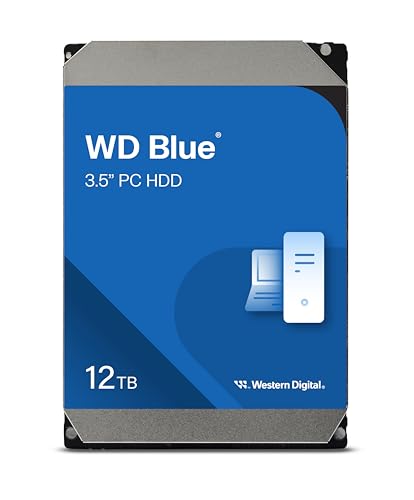
Western Digital WD120EAGZ
A 12TB desktop drive with a SATA 6 Gb/s interface, 7200 RPM and 512 MB cache, with a 2 year limited warranty and free Acronis cloning software.
View on AmazonThese come from our ranked list Best Internal Hard Drive, which compares them spec by spec.
FAQ
What if the HDD LED stays dark?
Shut the PC down, unplug it and reverse the connector on the header, since reversed polarity stops the LED from lighting. Then check that the connector sits on the HDD LED pins and that it is pushed fully on.
Can a reversed HDD LED damage the motherboard?
No. The LED circuit only lights the small front panel light, so a reversed connector leaves the light dark and nothing else changes. If you are unsure about the header layout, check the motherboard manual before plugging anything in.
Does the HDD LED work with an SSD?
Yes. The header reports drive activity, so the light blinks for a SATA SSD as well as a hard drive. The connector is the same either way, since it plugs into the front panel header and not into the drive itself.
Where is the HDD LED connector on the case?
It is one of the thin front panel cables that runs from the front of the case to the motherboard. Look for a small connector labeled HDD LED near the power switch and reset cables, and follow it back to the front panel if you lose it.

