How to Use an SSD Drive
 By Theo LangUpdated
An SSD drive stores files on flash memory, and you use an external one by plugging it into your computer, console, or phone with its cable. Once the device sees the drive, you can copy files to it, open files from it, or keep backups and extra storage on it. Check the cable and the port on your device first, since the connection decides whether the drive shows up.
Plug the drive in and check it appears
Connect the drive with the cable that came with it, using the matching port on your computer, console, or phone. Wait for the device to show the drive in its file manager or storage settings. If the drive does not appear, try another port on the same device and check that the cable is seated at both ends. Do not force a plug into a port it does not fit.
Move files on and off the drive
Open the drive and copy the files you want to keep, such as photos, videos, documents, or game files. Copying leaves the original where it was, while moving removes it from the first place, so keep a second copy of files you cannot replace. Wait for the copy to finish before you unplug the drive, and use the eject option on your device first.
Use the drive for backups and extra storage
An external drive works as extra storage for files you do not use every day and as a second copy for backups. Copy the files you want to protect to the drive, then store the drive away from the computer when you are done. If your phone or computer offers an app or a setting for automatic backup, point it at the drive so new files are copied without you remembering each time.
Protect the drive and your files
Keep the drive in a case or a pocket when you carry it, and keep it away from water and dust. If your drive offers password protection, turn it on and keep the password where you can find it again, since a locked drive cannot be opened without it. Always eject the drive before you unplug it, so a file that is still copying is not left half written.
What you need

Western Digital P50
A 4TB portable drive with speeds up to 2000MB/s and a SuperSpeed USB 20Gb/s interface, for PlayStation, Xbox, PC, and Mac.
View on Amazon
Western Digital P40
A 1TB portable drive with speeds up to 2000MB/s over USB 3.2 Gen2x2, RGB lighting, and support for PlayStation 5 and Xbox Series X|S.
View on Amazon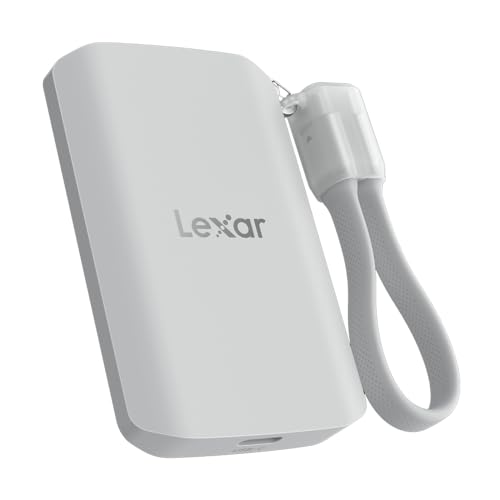
Lexar 2TB ES5 Magnetic External SSD
A 2TB magnetic drive with speeds up to 2000MB/s, MagSafe-compatible, that attaches to a compatible smartphone and supports recording in Apple ProRes.
View on Amazon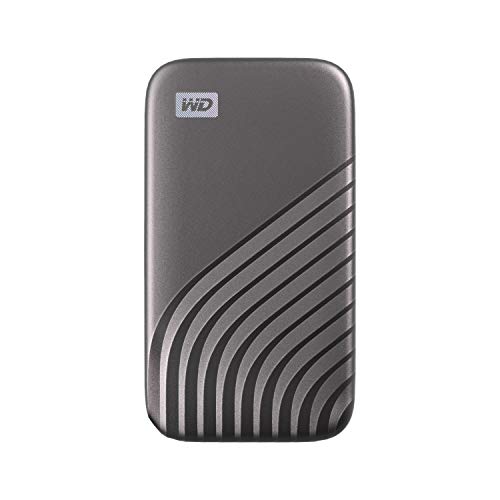
Western Digital WDBAGF0010BGY-WESN
A 1TB portable drive with speeds up to 1050MB/s, USB-C, and password protection with 256-bit AES hardware encryption.
View on AmazonThese come from our ranked list Best External SSD, which compares them spec by spec.
FAQ
Do I need to install software to use an SSD drive?
No. Plug the drive in and look for it in the file manager or storage settings on your device. You can copy files with the tools already on the device. Some drives offer an app for extra features, such as lighting controls or automatic backup, and those features are the only part that needs the app.
Can I use an SSD drive with a games console?
Yes, when the console supports external storage. Connect the drive, open the storage settings on the console, and follow the steps there to set the drive up for games or media. Check the console maker's notes for what an external drive can store, since some consoles store some games on it and archive others.
How do I know if the drive is full?
Open the drive in the file manager or storage settings and look at the free space shown for it. When the free space runs low, move files you no longer need off the drive or delete copies you already have elsewhere. Clear space before the drive fills up, and watch for warnings from your device that storage is running low.