
How to Connect a Hard Disk to a PC
 By Theo LangUpdated
You connect a hard disk to a PC with a USB cable. Plug the drive into a USB port on the PC, and the PC shows it as a new drive you can open, copy files to, and eject when done. The portable SSDs here connect the same way, through a USB cable, with no power cable and no tools.
Check the port and cable
Look at the ports on the PC and the cable that came with the drive. The Samsung T7 and the Lexar ES3 use USB 3.2 Gen 2. The WD Elements SE uses USB 3.0. The SanDisk Extreme uses a USB-C interface. Match the cable end to a port on the PC, and use a USB cable that fits the drive you bought. A port that only charges a phone may not carry data, so use a port on the PC itself.
Plug the drive into the PC
Plug the cable into the drive and then into a USB port on the PC. The WD Elements SE describes plug-and-play use, so the PC should show the drive without extra setup. Wait for the PC to finish reading the drive before you open it, and leave the cable still while files copy. If the drive does not appear, try a different USB port on the PC.
Open the drive and move files
Open File Explorer on the PC and look for the drive under the list of drives. Copy files to the drive by dragging them onto it, or copy files from the drive to the PC the same way. The SanDisk Extreme lists a rated read speed of 2000 MB/s, the Samsung T7 lists up to 1,050 MB/s, the Lexar ES3 lists up to 1050 MB/s, and the WD Elements SE lists read speeds up to 400 MB/s. Larger files take longer to copy, so wait until the copy finishes.
Eject the drive before unplugging it
Eject the drive from the PC before you pull the cable out, so a copy in progress does not lose files. In File Explorer, right-click the drive and choose Eject, then wait until the PC confirms the drive can be removed. Pull the cable out only after that message. Store the drive in a pocket or bag, since the SanDisk Extreme is pocket-sized and the Lexar ES3 fits in a pocket.
What you need
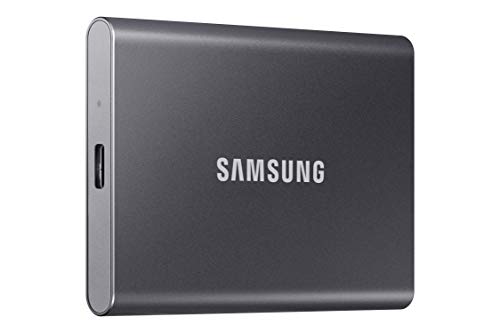
Samsung T7 Portable SSD
A 2TB portable SSD with USB 3.2 Gen 2 and read speeds up to 1,050 MB/s, for fast file transfer over a USB cable.
View on Amazon
SanDisk 500GB Extreme Portable SSD
A 500GB portable SSD with USB-C and a rated read speed of 2000 MB/s, with 256-bit AES encryption for password-protected files.
View on Amazon
WD 1TB Elements SE
A 1TB portable SSD with USB 3.0 and read speeds up to 400 MB/s, with plug-and-play use straight out of the box.
View on Amazon
Lexar ES3 512GB Portable SSD Silver
A 512GB portable SSD with USB 3.2 Gen 2 and read speeds up to 1050 MB/s, with a Type-C cable in the box.
View on AmazonThese come from our ranked list Best Portable SSD Hard Drive, which compares them spec by spec.
FAQ
Do I need to install software to use an external hard disk?
No. The WD Elements SE describes plug-and-play use, so the PC reads it without extra setup. The Lexar ES3 also comes with a Type-C cable for plug and play, so connect the cable and the PC should show the drive.
Which USB port should I use for a portable SSD?
Use a USB port on the PC itself, and match the cable to the drive. The Samsung T7 and Lexar ES3 use USB 3.2 Gen 2. The WD Elements SE uses USB 3.0. The SanDisk Extreme uses a USB-C interface, so check the cable end before you plug it in.
Can I unplug the drive right after copying files?
No. Wait until the copy finishes, then eject the drive in File Explorer before you pull the cable out. Pulling the cable during a copy can lose files, so wait for the PC to confirm the drive can be removed.


