
How to Connect an External Hard Drive to a PC
 By Theo LangUpdated
Plug the drive into a USB port on the PC with the cable that came with it, then wait for Windows to find it. The drive shows up in File Explorer, ready to open, copy files to and copy files from. If nothing appears, try another USB port and check that the cable is seated at each end.
Find the right port and cable
Match the plug on the cable that came with the drive to a USB port on the PC. A USB-C plug fits either way round, while a USB-A plug only fits one way, so turn a USB-A plug over if it does not slide in. Use the cable that came with the drive, since a charging cable from another device may carry power but no data.
Plug the drive in
Push the cable firmly into the drive and into the PC, then wait a short while for Windows to find it. A light on the drive may blink while Windows loads the driver, and a notice may appear when the drive is ready. If nothing happens, pull the cable out, push it back in firmly, and try another USB port on the PC.
Open the drive in File Explorer
Open File Explorer and look for the drive under This PC, where it appears with a drive letter and a name. Click it to open it, then copy a file onto it and open the copy to check that the drive reads and writes. If the drive appears but will not open, Windows may ask you to format it, which is covered in the next section.
Format a new drive only if asked
A new drive may arrive ready to use, or Windows may ask to format it before it can store files. Formatting erases everything on the drive, so only format a drive that is empty or holds files you have copied elsewhere. If the drive already holds files you want to keep, do not format it, and close the prompt instead.
Eject the drive before unplugging it
Always eject the drive before pulling the cable out. Click the eject icon in the taskbar, pick the drive from the list, and wait for the message that the drive can be removed. Unplugging during a copy can leave files incomplete, so wait until copying has finished first.
What you need
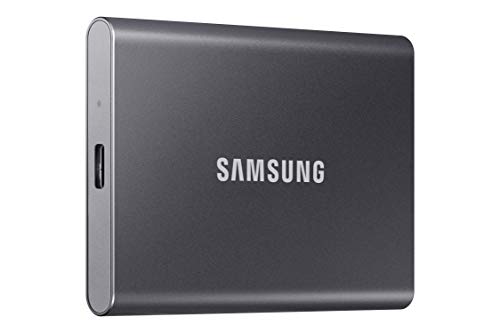
Samsung T7 Portable SSD
A 2TB portable SSD with USB 3.2 Gen 2 and read speeds up to 1,050 MB/s, in a solid aluminum unibody with a 3 year limited warranty.
View on Amazon
SanDisk 500GB Extreme Portable SSD
A 500GB portable SSD with USB-C and read speeds up to 2000 MB/s, with IP65 water and dust protection and a 5-year limited warranty.
View on Amazon
WD 1TB Elements SE
A 1TB portable SSD with USB 3.0 and read speeds up to 400 MB/s, with plug-and-play setup and drop resistance up to 2 meters.
View on Amazon
Lexar ES3 512GB Portable SSD Silver
A 512GB portable SSD with USB 3.2 Gen 2 and read speeds up to 1050 MB/s, with 256-bit AES encryption software and a 3-year limited warranty.
View on AmazonThese come from our ranked list Best Portable SSD Hard Drive, which compares them spec by spec.
FAQ
Why does my PC not see the external drive?
Try another USB port and another cable if you have one, and check that the cable is seated firmly at each end. If the drive still does not show in File Explorer, try it on another PC to find out whether the drive or the port is at fault.
Do I need to install software for an external drive?
No. Windows reads external drives without extra software, so you can open the drive and copy files right away. Install the maker's software only if you want its backup or encryption tools.
Can I unplug the drive right after copying files?
Wait until the copy has finished, then eject the drive from the taskbar before unplugging it. Pulling the cable during a copy can leave files incomplete or damage the file system.


