Do You Need a Graphics Tablet for Photo Editing?
 By Theo LangUpdated
No. A mouse handles cropping, straightening and slider adjustments, so you can edit photos without a tablet. A graphics tablet earns its place when you paint masks, retouch skin or dodge and burn, because the pen gives you finer control over brush strokes than a mouse. If your edits stay at the level of global adjustments, you can skip it for now.
What a graphics tablet does
A graphics tablet is a flat surface you draw on with a pen while the cursor follows on screen. Pressing harder makes a heavier stroke and pressing lighter makes a softer one, which gives you control over brush work that a mouse cannot match. The pen also works as a pointer, so you can click menus, pick tools and sign documents with it.
When a mouse is enough
For cropping, straightening, white balance and exposure sliders, a mouse is precise enough because each change applies to the whole photo or to a simple selection. Organizing, rating and exporting photos also need no pen input. If this covers your editing, a tablet adds little to your workflow.
When a tablet helps most
A tablet helps when you brush adjustments onto part of a photo, such as painting a mask, softening skin, whitening teeth or darkening a sky. The pen lets you vary the strength of a stroke as you go, so edges stay soft and corrections blend into the photo. Detailed retouching with a small brush also feels steadier with a pen than with a mouse, since the tip lands where you place it.
Pick a size that fits your desk
Tablets in this guide range from a 6x4 inch active area to a 10 x 6.25 inch active area. A smaller surface fits a crowded desk and travels well in a laptop bag, while a larger surface gives your hand more room for broad strokes. Match the size to the space on your desk and to how far you like to move the pen, not to the size of your monitor.
Set up the tablet and its shortcuts
Connect the tablet to your computer, install the driver from the maker, and open your editing software to check that the pen moves the cursor. Assign the press keys to the commands you use most, such as undo, zoom, brush switch or save, so you can keep your hand on the tablet while you edit. Give yourself a few editing sessions to adjust to the pen before you judge it.
What you need

HUION Inspiroy H640P 6x4-inch Drawing Tablet 8192 Pen Pressure
A 6x4 inch tablet with a battery-free stylus, 8192 levels of pressure sensitivity and 6 hot keys for undo, zoom and brush switching.
View on Amazon
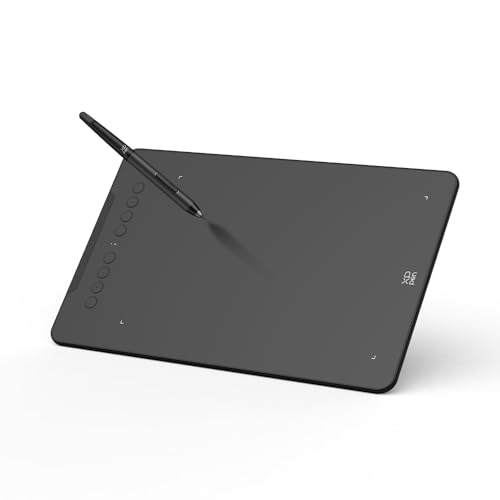
XPPen Deco 01 V3 10x6 Drawing Tablet
A 10 x 6.25-inch tablet with a battery-free stylus, 16384 levels of pressure sensitivity, tilt support and 8 shortcut keys.
View on Amazon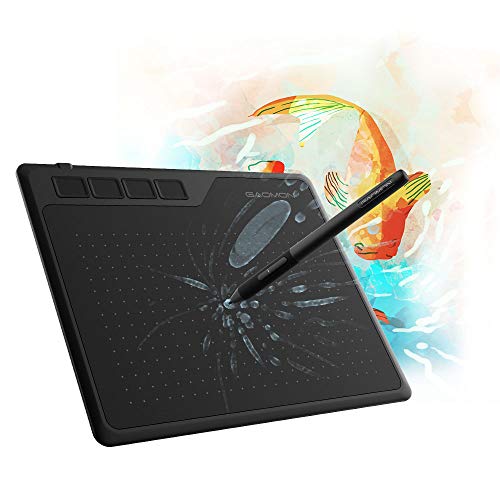
GAOMON S620 Graphics Drawing Tablet
A 6.5x4 inch tablet with a battery-free pen, 8192 levels of pressure sensitivity and 4 customizable express keys.
View on Amazon
GAOMON M10K Drawing Tablet
A 10 x 6.25 inch tablet with a battery-free stylus, 8192 levels of pressure sensitivity, 10 press keys and a touch ring for zooming and brush adjustment.
View on AmazonThese come from our ranked list Best Pen Tablet for PC, which compares them spec by spec.
FAQ
Can I use a graphics tablet with Photoshop?
Yes. The tablets in this guide list Photoshop among the software they work with, and the pen maps to the screen in the same way in other editing software. Install the driver first, then open Photoshop and check that pen pressure changes your brush.
Does a bigger tablet work better for photo editing?
Not always. A larger active area gives your hand more room for broad strokes, while a smaller tablet fits a crowded desk and is easier to carry. Pick the size that matches your desk space and the way you move the pen.
Is pressure sensitivity useful for photo editing?
Yes, when you paint with a brush. A light press lays down a soft stroke and a firmer press lays down a heavier one, so you can build up masks and retouching in stages instead of applying the full effect at once.