Which USB-C Cable Works With a Docking Station?
 By Theo LangUpdated
A docking station needs a full-featured USB-C cable, one that carries video, data and power together. The cable in the box with the dock is the one made for that dock's ports and power delivery. A plain charging cable or a data-only cable leaves the monitors blank even when the USB ports work.
Use the cable in the box first
Start with the USB-C cable that ships with the dock. The Anker Nano includes a 3ft USB-C cable rated at 10Gbps, and the Dell WD25 has a USB-C cable that routes left or right. A cable from the box matches the dock it ships with, so it avoids the guesswork of matching a spare cable to the dock. If the cable in the box is too short for the desk, buy a replacement with the same length and the same video, data and power support.
Check that the laptop port carries video
A USB-C port on a laptop does not always carry video. Look in the laptop manual or spec sheet for DisplayPort Alt Mode, Thunderbolt or USB4 on that port. The Selore dock notes that it needs a Thunderbolt or full-featured USB-C port, and that a port with data or charging only leaves video unavailable. If the port only carries data, monitors attached to the dock stay blank even though the USB ports work.
Match the cable to the monitors
Count the monitors and the resolution they run at, then check what the dock lists for that setup. The Anker Nano supports up to 4K at 60Hz on one display, dual 2K at 60Hz on two displays and triple 1080p at 60Hz on three displays. The VVB dock lists dual monitors at 4K at 30Hz and 1080p at 60Hz. A cable that only handles one display leaves the second monitor dark, so match the cable and the dock to the monitor count before buying.
Match the charging wattage
Compare the power delivery figure on the dock with the charger that came with the laptop. The Dell WD25 delivers 100 W, the Anker Nano delivers up to 100 W, and the Selore dock takes 100 W in and passes 85 W out. A dock that passes through less power than the laptop's own charger still charges it, but more slowly under load. Check whether the dock needs its own wall adapter: the Anker Nano includes a 140 W power adapter, while the Selore and VVB docks do not include a charger or adapter.
What you need
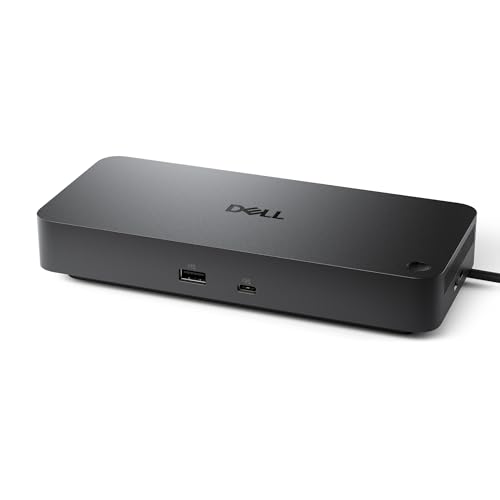
Dell Pro Laptop Docking Station WD25
A USB-C dock with DisplayPort, HDMI, Ethernet and 100 W power delivery, with support for up to four displays and a 3-year warranty.
View on Amazon
Selore USB C Docking Station Dual Monitor
An 8-in-1 USB-C hub with dual 4K at 60Hz HDMI ports, SD and microSD slots and 85 W pass-through charging.
View on Amazon
Anker Nano Laptop Docking Station
A 13-in-1 dock with a detachable 6-in-1 hub, three display outputs, 100 W power delivery and a 140 W power adapter in the box.
View on Amazon
USB C Laptop Docking Station Dual Monitor
A 14-in-1 USB-C dock with two 4K HDMI ports, DisplayPort, Ethernet and 87 W power delivery output.
View on AmazonThese come from our ranked list Best USB Docking Station, which compares them spec by spec.
FAQ
Can I use any USB-C cable with a docking station?
No. The cable must carry video, data and power together. A charging-only cable or a data-only cable leaves the monitors blank, so use the cable in the box or a full-featured USB-C cable.
Does a docking station charge the laptop?
Many do. The Dell WD25 delivers 100 W, the Anker Nano delivers up to 100 W, and the Selore dock passes 85 W out. Check the power delivery figure against the charger that came with the laptop.
Will a docking station work with a MacBook?
Many work, but the Selore, Anker Nano and VVB docks note that MacBooks mirror the same picture to two monitors instead of extending it. Check the dock's notes for macOS before buying it for two screens.