How to Add Monitors to a Laptop
 By Theo LangUpdated
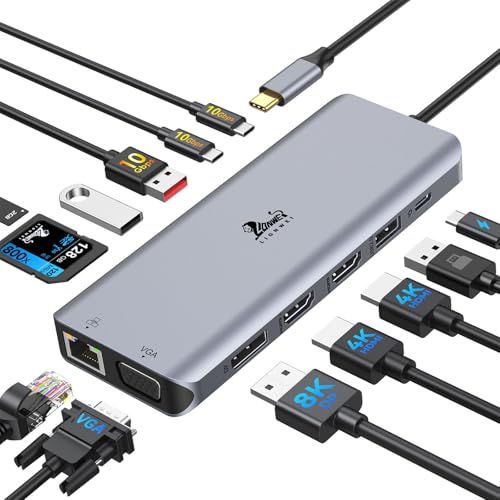
To add monitors to a laptop, connect the laptop to a docking station or hub with one USB-C cable, then connect each monitor to a video port on the dock. Check that your laptop USB-C port supports video output first, since a port name alone does not prove video support.
Check which ports your laptop has
Look at the ports on your laptop and check the manual or spec sheet for each USB-C port. You need a USB-C port that supports video output, such as DisplayPort Alt Mode, Thunderbolt or USB4, before a dock can send a picture to a monitor. If your laptop has an HDMI port, one monitor can connect there with an HDMI cable. Write down the video ports you have before you choose a dock or cables.
Connect the dock to the laptop
Place the dock on the desk and connect its USB-C cable to the laptop port that supports video output. Connect the dock power supply or charger if your dock needs one to pass power through to the laptop. Keep the laptop open while you connect the dock, and wait for the laptop to recognize the dock before you connect monitors. Check the dock manual for the cable and charger your model needs.
Connect monitors to the dock
Connect each monitor to an HDMI or DisplayPort output on the dock with a cable that matches the input on the monitor. Connect one monitor at a time and check that a picture appears before you connect the next one. Count the video outputs on the dock against the number of monitors you want to add, and check the resolution and refresh rate the dock lists for one display and for two displays.
Choose extend or mirror in settings
Open the display settings on the laptop after the monitors show a picture. Choose extend if you want separate windows on each screen, or mirror if you want the same picture on each screen. Arrange the screen order in settings so the pointer moves between screens in the order you expect. Check the dock notes for your operating system, since mirror behavior can differ by system and dock.
Check charging through the dock
Compare the power delivery figure on the dock with the charger that came with your laptop. A dock that passes through less power than the laptop charger can still charge the laptop, but charging can be slower while the laptop works. Check what charger and cable come in the box, since some docks need a separate wall charger to pass power through. Keep the laptop charger nearby until you confirm the dock charges as you expect.
What you need

Anker Laptop Docking Station Dual Monitor
An 8-in-1 USB-C hub with 2 HDMI ports, Ethernet, a microSD and SD card reader and up to 85W pass-through charging.
View on Amazon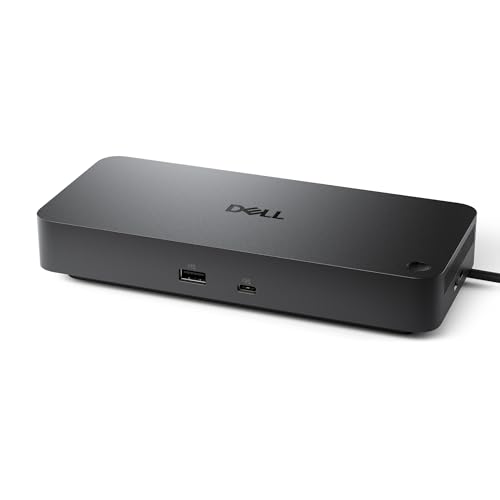
Dell Pro Laptop Docking Station WD25
A USB-C dock with HDMI, DisplayPort, Ethernet and 100W power delivery, with support for up to four displays.
View on Amazon
Acer USB-C Docking Station Dual Monitor
A 9-in-1 USB-C dock with 2 HDMI ports for dual monitors at 4K@60Hz and power delivery up to 90W to the laptop.
View on Amazon
Dell WD19S 180W Docking Station (130W Power Delivery) USB-C
A USB-C docking station with HDMI and dual DisplayPort outputs and 130W power delivery for the laptop.
View on AmazonThese come from our ranked list Best Docking Station, which compares them spec by spec.
FAQ
Can I add two monitors with one dock?
Yes, if the dock has two video outputs and your laptop USB-C port supports video output. Check the resolution and refresh rate the dock lists for two displays, since the figure for two displays can differ from the figure for one display.
Why do two monitors mirror on a Mac?
Some docks note that macOS shows the same picture on two external monitors through a USB-C dock. Check the dock notes for macOS before you buy a dock for two separate screens, and check the settings on the laptop after you connect the monitors.
Do I need a dock for one monitor?
No. One monitor can connect with a single cable if your laptop has an HDMI port or a USB-C port with video output. A dock helps when you also want more USB ports, Ethernet or charging through one cable at the desk.