
How to Set Up a Docking Station
 By Theo LangUpdated
To set up a docking station, connect the dock to power, plug in your monitors and peripherals, then connect the dock to your laptop with one USB-C cable. Check that your laptop USB-C port supports video output, then set the display mode in your computer settings. One cable then carries the picture, the peripherals and charging for the laptop.
Check your laptop's port first
A USB-C port on a laptop does not always carry video. Look in your laptop manual or spec sheet for DisplayPort Alt Mode, Thunderbolt or USB4 on that port. Check that the port supports video output and power delivery before you connect the dock. If the port only carries data, monitors attached to the dock stay blank even though the USB ports work.
Connect power to the dock
Place the dock on the desk and connect its power supply, where the dock has one. Some small hubs take power from the laptop, while larger docks take their own power supply and pass power through to the laptop. Check the power delivery figure on the dock against the charger that came with your laptop, and check what comes in the box before you start.
Plug in monitors and peripherals
Connect your monitors to the dock with HDMI or DisplayPort, and match the cable to the input on the monitor. Plug in a keyboard, a mouse and a drive to the USB-A and USB-C ports on the dock. Connect an Ethernet cable to the dock when you want a wired network. Keep the cables short and clear of the desk edge so the dock stays in place.
Connect the dock to the laptop
Connect the dock to the laptop with the USB-C cable that came with the dock. Use the USB-C port on the laptop that supports video output, and check that the cable seats fully at the dock and at the laptop. The laptop should charge through the same cable when the dock passes power through. If the laptop does not charge, check the power supply and the port you used.
Set the display mode
Open the display settings on your computer and choose extend or mirror for your external monitors. Extend gives you a separate screen for each monitor, while mirror shows the same picture on each monitor. Check the resolution and refresh rate listed for your monitors, and check the dock notes for macOS, since macOS can mirror the same picture to two monitors on some docks.
What you need

Anker Laptop Docking Station Dual Monitor
An 8-in-1 USB-C hub with two HDMI ports, Ethernet, a microSD and SD card reader and up to 85 W pass-through charging.
View on Amazon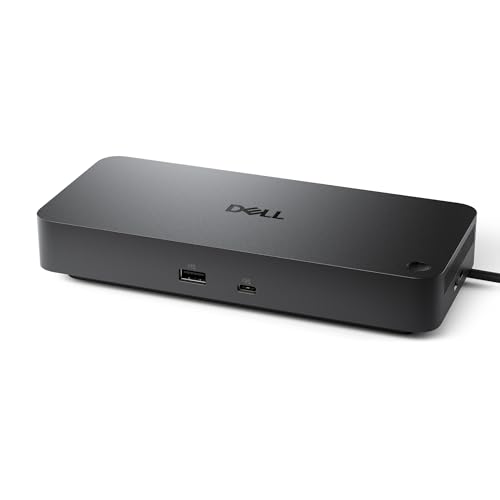
Dell Pro Laptop Docking Station WD25
A USB-C dock with HDMI, DisplayPort, Ethernet and 100 W power delivery, listed with support for up to four displays.
View on Amazon
Acer USB-C Docking Station Dual Monitor
A 9-in-1 USB-C dock with two HDMI ports, USB-A and USB-C ports, SD and MicroSD slots and 90 W power delivery.
View on Amazon
Dell WD19S 180W Docking Station (130W Power Delivery) USB-C
A USB-C dock with HDMI, dual DisplayPort and 130 W power delivery for a laptop and two displays.
View on AmazonThese come from our ranked list Best Docking Station, which compares them spec by spec.
FAQ
Why does my monitor stay blank on a dock?
Check that your laptop USB-C port supports video output, and check that the monitor cable is in the dock and the monitor input matches. A port that only carries data leaves the monitor blank even though the USB ports work.
Will a docking station charge my laptop?
A dock charges the laptop when it passes power through the USB-C cable and the laptop port supports power delivery. Compare the power delivery figure on the dock with the charger that came with your laptop.
Can I use two monitors with one dock?
Yes, when the dock lists two video outputs and your laptop port supports video output for two displays. Check the dock notes for macOS, since macOS can mirror the same picture to two monitors on some docks.


