How to Use an SSD as a USB Drive
 By Theo LangUpdated
Put the SSD in an enclosure that matches its type, then plug the enclosure into a USB port. A 2.5-inch SATA SSD fits a 2.5-inch SATA enclosure, and an M.2 NVMe SSD fits an M.2 NVMe enclosure. The computer sees the drive as external storage, so you can copy files to it and carry it between computers.
Match the enclosure to your SSD
Check the shape and connector of your SSD before you buy an enclosure. A 2.5-inch SATA SSD slides into a 2.5-inch SATA enclosure, and an M.2 NVMe SSD fits an M.2 NVMe enclosure made for its length, such as 2230, 2242, 2260 or 2280. An M.2 SATA drive does not fit an NVMe enclosure, so check the drive connector and length and match the enclosure to it.
Fit the SSD into the enclosure
Open the enclosure and seat the drive on its connector. A 2.5-inch SATA drive pushes onto the (7+15) pin SATA connector inside the case, and an M.2 drive slides into its slot at a slight angle and sits flat when the end is fixed in place. Tool-free enclosures need no screwdriver for this step, so close the case once the drive sits firm and the connector is fully seated.
Connect it to your computer
Connect the cable, then wait for the computer to find the drive. Plug and play means no driver is needed, and a hot-swappable drive can connect while the computer runs. A USB 3.0 port gives transfer rates up to 5 Gbps, while a USB 2.0 port gives up to 480 Mbps, so use a USB 3.0 port for large copies.
Check that the drive appears
Open the file manager on your computer and look for the drive under external drives or devices. If the drive does not appear, unplug the cable, plug it into a different USB port and wait a few seconds. If it still does not appear, check that the drive sits fully on its connector inside the enclosure and that the cable clicks firmly into the port.
Copy files and eject the drive
Copy files to the drive the same way you copy them to a USB stick, by dragging them in the file manager or with copy and paste. Eject the drive from the operating system before you unplug the cable. Pulling the cable out during a copy can leave files half written, so let the copy finish first.
What you need
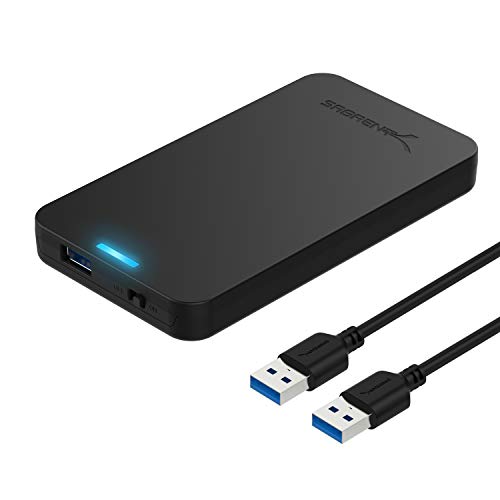
SABRENT 2.5-inch SATA to USB 3.0 Tool-Free SSD/HDD Enclosure (EC-UASP)
A tool-free 2.5-inch SATA enclosure with USB 3.0, UASP SATA III and transfer rates up to 5 Gbps, with no drivers needed.
View on Amazon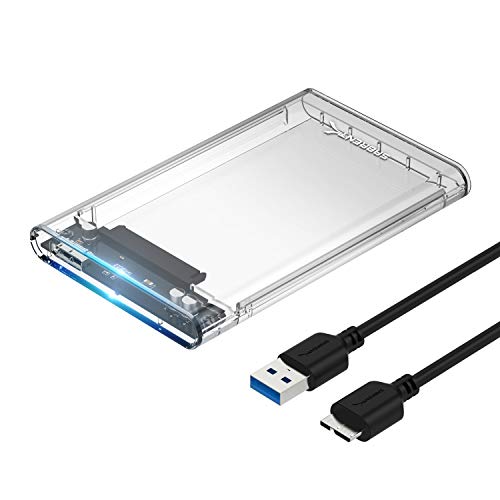
SABRENT 2.5-inch SATA to USB 3.0 Clear SSD/HDD Enclosure (EC-OCUB)
A clear tool-free 2.5-inch SATA enclosure with USB 3.0, UASP SATA III and transfer rates up to 5 Gbps, plus free Acronis True Image software for cloning.
View on Amazon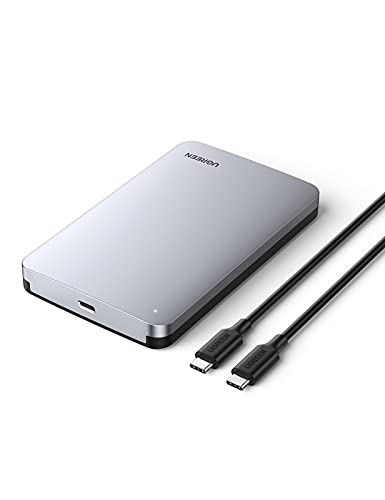
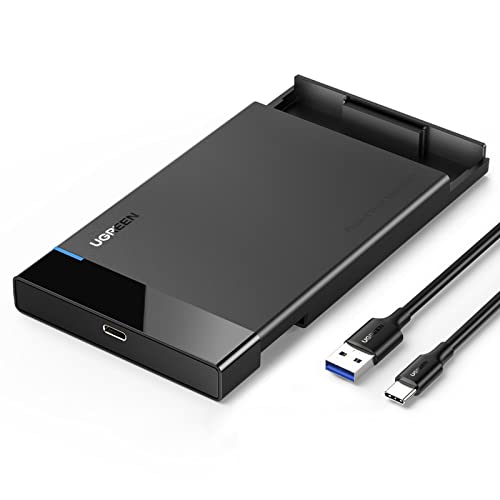
UGREEN USB C Hard Drive Enclosure for 2.5-inch SATA SSD HDD
An aluminum USB-C enclosure for 2.5-inch SATA SSDs up to 6TB, with USB 3.1 Gen 2, UASP and transfer speeds up to 6Gbps, plus a USB-C to USB-C cable.
View on Amazon
M.2 NVMe SSD Enclosure
A tool-free M.2 NVMe enclosure for 2230, 2242, 2260 and 2280 SSDs, with USB 3.2 Gen 2, UASP and transfer speeds up to 10Gbps.
View on AmazonThese come from our ranked list Best USB SSD Enclosure, which compares them spec by spec.
FAQ
Do I need an enclosure to use an SSD as a USB drive?
Yes. The enclosure adds the USB connection and the case that protects the drive, and the drive plugs into the computer through the enclosure.
Can I use any SSD with any enclosure?
No. Match the enclosure to the drive: a 2.5-inch SATA SSD needs a 2.5-inch SATA enclosure, and an M.2 NVMe SSD needs an M.2 NVMe enclosure in the right length. An M.2 SATA drive does not fit an NVMe enclosure.
Will the SSD work on another computer?
Yes, if that computer has a free USB port. Unplug the enclosure from the first computer after ejecting it, then plug it into the next one and wait for the drive to appear.