How to Use an SSD as External Storage
 By Theo LangUpdated
Put an M.2 SSD into an enclosure and it works as an external drive: the enclosure connects the SSD to your computer through USB-C, and the computer sees it as a drive you can open, copy files to and eject. Fit the SSD to the enclosure, plug the cable in, and format the drive if your computer asks.
Match the SSD to the enclosure
Check the SSD before you buy an enclosure: the SSD must be an M.2 drive in a size the enclosure accepts, such as 2230, 2242, 2260 or 2280, with an M key or a B+M key. The UGREEN enclosure accepts NVMe and SATA SSDs, while the Lexar and FIDECO enclosures accept NVMe SSDs only and do not support SATA. The FIDECO enclosure also does not accept an SSD with a heatsink. Match the key and the size first, since an SSD that does not fit the slot cannot connect at all.
Fit the SSD into the enclosure
Open the enclosure and slide the M.2 SSD into the slot, then hold it down with the screw or the tool-free clip the enclosure uses. The UGREEN enclosure fixes the SSD with one screw, while the Lexar and FIDECO enclosures use a tool-free design. The ASUS enclosure ships with a USB-C to C cable and a USB-C to A cable, so pick the cable that fits the port on your computer. Close the case before you plug it in, so the SSD sits flat against the thermal pad inside.
Plug in and set up the drive
Plug the enclosure into a USB-C port on your computer and wait for the drive to appear. The UGREEN enclosure works with Windows, macOS and Linux, and also with Android and iOS. The FIDECO enclosure works with Windows, Mac and Linux. A new SSD needs to be initialized before the computer can recognize it, so open your computer's disk tool and set it up when the drive first appears. Once the drive shows up, copy files to it like any other external drive, then eject it before you unplug the cable.
Check the speed and the size
The enclosure's USB interface sets the ceiling for transfers: the UGREEN enclosure runs at up to 20Gbps through USB 3.2 Gen 2x2, while the Lexar, ASUS and FIDECO enclosures run at up to 10Gbps through USB 3.2 Gen 2. On Mac mini and MacBooks the UGREEN enclosure runs at up to 10Gbps. The UGREEN enclosure accepts SSDs up to 8TB and the Lexar enclosure accepts SSDs up to 4TB, so check the capacity figure against the files you plan to store.
What you need

UGREEN USB-C M.2 NVMe SSD Enclosure,20Gbps
A USB-C enclosure with USB 3.2 Gen 2x2 at up to 20Gbps, for NVMe and SATA SSDs up to 8TB in an aluminum case with a thermal pad.
View on Amazon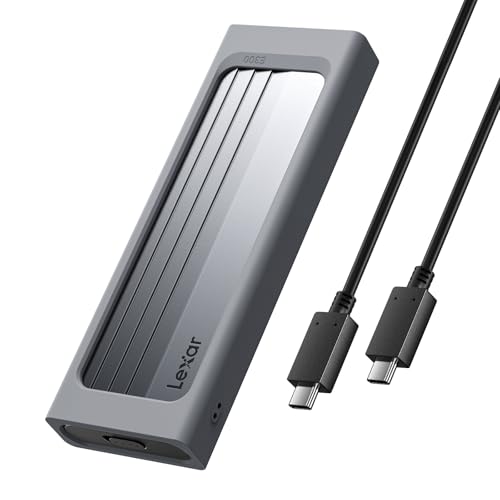
Lexar E300 M.2 NVMe SSD Enclosure
A tool-free USB-C enclosure at up to 10Gbps for NVMe SSDs up to 4TB, with an aluminum case, a thermal pad and a lanyard hole.
View on Amazon
ASUS ROG Strix Arion Aluminum Alloy M.2 NVMe SSD Enclosure Case Adapter
An aluminum alloy enclosure at up to 10Gbps for NVMe SSDs, with two cables in the box and Aura Sync RGB lighting.
View on Amazon
FIDECO M.2 NVMe SSD Enclosure
A tool-free enclosure at up to 10Gbps for NVMe SSDs, with a sandwich design that keeps the thermal pad in contact with the drive.
View on AmazonThese come from our ranked list Best NVMe External Enclosure, which compares them spec by spec.
FAQ
Do I need an enclosure to use an SSD as external storage?
Yes, unless the SSD is already a portable drive. An enclosure gives an internal M.2 SSD a USB-C connection and a case, so your computer can read it as an external drive.
Can I use a SATA SSD in these enclosures?
Only in the UGREEN enclosure, which accepts NVMe and SATA SSDs. The Lexar and FIDECO enclosures accept NVMe SSDs only, and the FIDECO enclosure does not accept an SSD with a heatsink.
Why does my new SSD not show up?
A new SSD needs to be initialized before the computer can recognize it. Open your computer's disk tool, initialize the drive, and it should appear as an external drive.