How to Use an SSD Enclosure
 By Theo LangUpdated
An SSD enclosure turns a bare SATA drive into a portable USB drive. Open the enclosure, seat the drive on the SATA connector, close the case, then plug the cable into your computer. The drive shows up as an external drive, ready for files, backups, or moving data to another computer.
Check the drive fits the enclosure
These enclosures take SATA drives, not M.2 NVMe drives. The SABRENT EC-KSL3 fits 2.5 and 3.5 inch SATA drives, while the other three enclosures here fit 2.5 inch SATA drives. Match the drive thickness and connector to the enclosure before you start, and confirm the drive size against the enclosure notes.
Seat the drive in the enclosure
Open the cover or slide the tray out, then push the drive onto the SATA connector until it sits flat. The enclosures here open without tools, so you should not need a screwdriver for this step. Close the cover or slide the tray back in and make sure the case is shut before you plug anything in.
Connect power and the USB cable
Plug the USB cable into the enclosure and into a USB port on your computer. The SABRENT EC-KSL3 needs its 12V power adapter plugged into a wall outlet, since it draws power from the adapter rather than the USB port. Leave the enclosure still on the desk while it powers on.
Find the drive on your computer
The drive should appear as an external drive in your file manager, with no drivers to install. If nothing appears, check that the cable is seated, try another USB port, and confirm the power adapter is plugged in where the enclosure uses one. A new drive may need formatting in your operating system disk tool before it can store files.
Move files and eject the drive
Copy or move files to the drive as you would with any external drive. When you finish, eject the drive from your operating system before you unplug the cable, so a file transfer is not cut off mid-write. Store the enclosure in a dry place away from hard knocks when it is not in use.
What you need
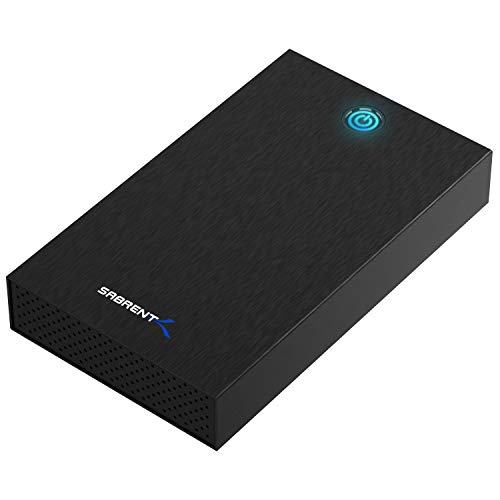
SABRENT USB 3.0 Hard Drive Enclosure
A tool-free USB 3.0 enclosure for 2.5 and 3.5 inch SATA drives, with UASP, an LED indicator and a 12V power adapter in the box.
View on Amazon
BENFEI 2.5-inch SATA to USB Tool Free External Hard Drive Enclosure
A tool-free 2.5 inch SATA III enclosure with USB Type-C and Type-A plugs, UASP support and an 18-month warranty.
View on Amazon
BENFEI 2.5-inch SATA to USB Tool Free External Hard Drive Enclosure (6Gbps
A tool-free 2.5 inch SATA III enclosure with a USB Type-C to Type-A cable in the box, UASP support and an 18-month warranty.
View on Amazon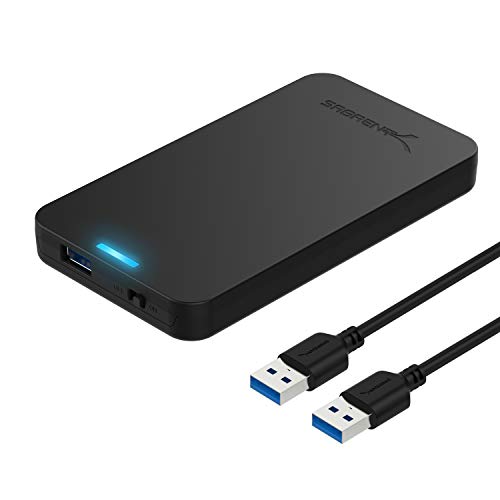
SABRENT 2.5-inch SATA to USB 3.0 Tool-Free SSD/HDD Enclosure (EC-UASP)
A tool-free 2.5 inch SATA enclosure with USB 3.0, UASP SATA III support and plug and play use with no drivers.
View on AmazonThese come from our ranked list Best SSD Case, which compares them spec by spec.
FAQ
Can I use an SSD enclosure with a phone?
One BENFEI enclosure here lists a USB Type-C and Type-A plug for connecting to a laptop, phone or pad. The other BENFEI enclosure lists PC, laptop and PS4 use. Check the port on your phone and the cable that came with the enclosure before you connect it.
Do I need drivers for an SSD enclosure?
No. The four enclosures here work without drivers. The SABRENT EC-KSL3 and both BENFEI enclosures support Windows, macOS and Linux, while the SABRENT EC-UASP supports Mac and Windows.
Why does my drive not show up?
Check that the drive is seated on the connector, the cable is plugged in at both ends, and the power adapter is connected where the enclosure uses one. Try another USB port and another cable if the drive still does not appear.