How to Use an External SSD
 By Theo LangUpdated
Plug the drive into your computer or console with a USB cable, wait for it to appear as a new drive, then drag files onto it. Eject the drive before you unplug it. Each drive connects over USB and differs in capacity and the devices it attaches to.
Connect the drive with its cable
Connect the cable to the drive and to a USB port on your computer or console. The WD_BLACK P50 comes with an 18-inch USB Type-A to Micro-B cable, and the Lexar ES5 attaches to a compatible smartphone with its MagSafe-compatible design. Wait for the drive to appear on screen before you open it. If the drive does not appear, try a different USB port on the same computer.
Check the drive shows up
Open your file manager and look for the drive under its name. On a console, open the storage settings and look for the drive there. The WD_BLACK P50 and P40 list PlayStation, Xbox, PC and Mac, so check the console storage screen for the drive name after you plug it in. Unplug the cable, plug it back in and look again for the drive name.
Move files onto the drive
Drag the files you want onto the drive icon, or copy them and paste them into the drive window. Wait for the copy to finish before you close the window or unplug the cable. A large transfer takes longer than a small one, so leave the drive connected until the progress bar clears. Keep a second copy of files you cannot replace.
Eject the drive before unplugging it
Use the eject option on your computer before you pull the cable out. Pulling the cable out while files are still writing can leave a file half written. Wait until the computer shows the drive ready to remove, then unplug the cable. Store the drive where the cable and the port stay clear of knocks.
Use it for games and phone video
A drive can hold games and video as well as documents. The WD_BLACK P40 lists PlayStation 5 and Xbox Series X|S consoles, and the WD_BLACK P50 lists PlayStation, Xbox, PC and Mac. The Lexar ES5 supports recording in Apple ProRes at 4K120FPS and Samsung Pro Video 8K 30FPS on a compatible phone. The Western Digital My Passport SSD has password protection with 256-bit AES hardware encryption.
What you need

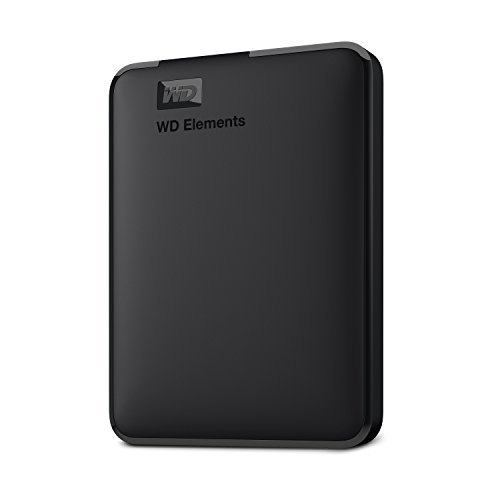
Western Digital P50
A 4TB portable drive with rated read speeds up to 2000 MB/s, a SuperSpeed USB 20Gb/s interface and a 5-year manufacturer's limited warranty.
View on Amazon
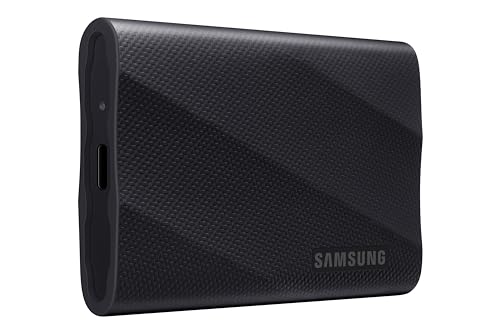
Western Digital P40
A 1TB portable drive with RGB lighting, a USB 3.2 Gen2x2 interface, rated read speeds up to 2000 MB/s and a shock-resistant structure.
View on Amazon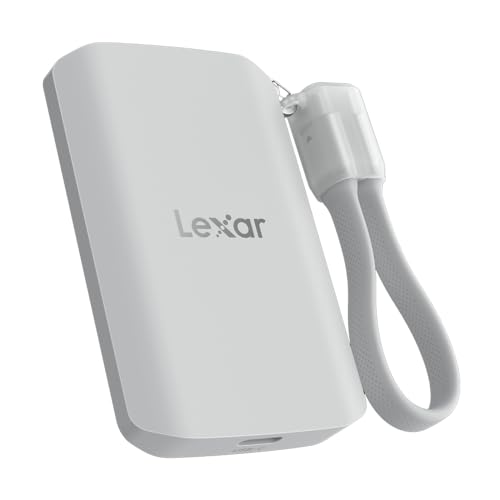
Lexar 2TB ES5 Magnetic External SSD
A 2TB magnetic drive with rated read and write speeds up to 2000 MB/s, a MagSafe-compatible design and a 5-Year Limited Warranty.
View on Amazon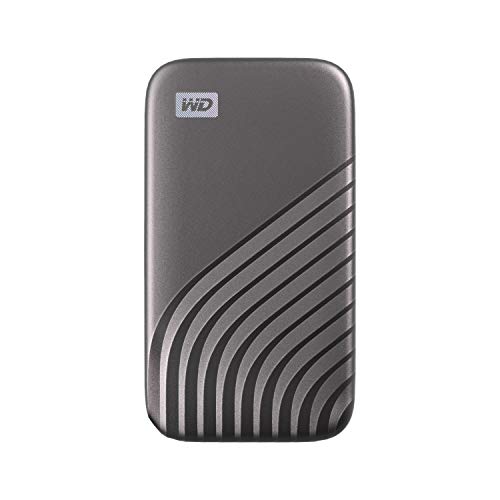
Western Digital WDBAGF0010BGY-WESN
A 1TB portable drive with rated read speeds up to 1050 MB/s, password protection with 256-bit AES hardware encryption and USB-C.
View on AmazonThese come from our ranked list Best External SSD, which compares them spec by spec.
FAQ
Can I use an external SSD with a game console?
Yes, if the console lists the drive as compatible. The WD_BLACK P50 and P40 list PlayStation, Xbox, PC and Mac, so check the console storage screen after you plug the drive in.
Do I need to format a new external SSD?
Your computer or console may ask you to format the drive the first time you plug it in. Follow the prompt on screen and pick the format it offers for your device.
Can I unplug the drive right after copying files?
Wait until the copy finishes, then eject the drive before you unplug the cable. Pulling the cable out while files are still writing can leave a file half written.