How to Set Up a Cable Modem
 By Theo LangUpdated
To set up a cable modem, connect it to the coaxial wall outlet, plug it in, then connect it to a router or a computer with an Ethernet cable and activate it with your cable provider. The modem links your home to the provider's network, and the router shares that connection with your devices. The whole job takes a few steps and no extra tools.
Connect the coaxial cable
Find the coaxial wall outlet, near where the cable line enters the room, and screw the coaxial cable into it by hand until it is snug. Screw the other end into the cable port on the back of the modem. A loose coaxial connection can stop the modem from registering, so check both ends feel firm before moving on.
Plug in power and wait
Plug the modem's power adapter into a wall outlet and into the modem, then give the modem time to start. Its lights will change as it locks on to the provider's signal, and the online light should settle to a steady state. If a light keeps blinking for a long while, check the coaxial cable again before going further.
Connect a router or computer
Use an Ethernet cable to connect the modem to your router, or to a computer if you are setting the modem up without a router. Plug one end into the modem's Ethernet port and the other into the router's internet port, marked WAN or Internet. A modem on its own connects one device, so a router is what shares the connection with the rest of the home.
Activate the modem with your provider
Your provider must register the modem before it can carry traffic. Follow the activation steps on the provider's website or app, or call the provider and give the modem details it asks for. The provider checks the modem against its approved list, so confirm the modem is listed for your provider and plan before you buy or activate it.
Check the connection
Once the modem's online light is steady and the router is on, open a web page on a connected device. If pages load, the setup is done. If nothing loads, restart the modem and the router in turn, check each cable is seated, and contact your provider if the modem still does not come online.
What you need
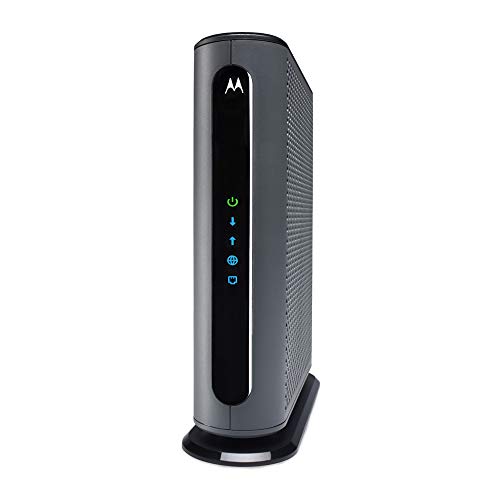
Motorola MB8611 DOCSIS 3.1 Multi-Gig Cable Modem
A DOCSIS 3.1 modem with a 2.5 Gbps Ethernet port and a 2-year warranty, for plans with Comcast Xfinity, Cox and Spectrum.
View on Amazon
ARRIS Surfboard G36 DOCSIS 3.1 Multi-Gig Modem &
A DOCSIS 3.1 modem and Wi-Fi 6 router with a 2.5 Gbps port, four 1 GbE ports and coverage listed to 2,500 sq ft.
View on Amazon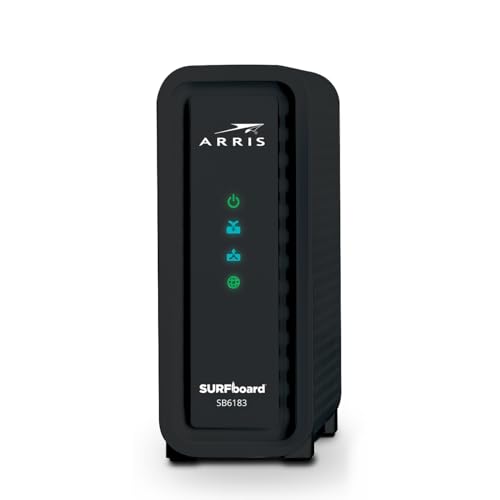
ARRIS (SB6183) -Cable Modem
A DOCSIS 3.0 modem with 16x4 channel bonding, a 1 Gbps port and a 400 Mbps max internet speed, with a 2 Year Warranty.
View on Amazon
Arris Touchstone CM8200A DOCSIS 3.1 Ultra Fast Cable Modem 32X8 Gigabit (Black)
A DOCSIS 3.1 modem with 32x8 channel bonding and a single active Ethernet port for the primary device connection.
View on AmazonThese come from our ranked list Best Docsis, which compares them spec by spec.
FAQ
Do I need a router with a cable modem?
A modem on its own connects one device to the internet. The Motorola MB8611 is not a router, so you need a separate router for Wi-Fi and more than one wired device.
How do I activate a new cable modem?
Contact your cable provider and follow its activation steps through its website or app. Keep the modem model nearby, since the provider uses it to register the modem on your account.
What if the modem lights never turn solid?
Leave the modem plugged in while it registers with your provider, then check the coaxial cable is hand-tight at both ends. If the lights still do not settle, contact your provider to check the line and the activation.