
How to Set Up a Cable Modem and Router
 By Theo LangUpdated
To set up a cable modem and router, connect the modem to the coaxial wall outlet, plug it in, then run an Ethernet cable from the modem to the router and activate the modem with your cable provider. The modem brings the internet into your home, and the router creates the Wi-Fi network your devices join. Set up the modem first, then the router.
Connect the modem to the wall
Screw the coaxial cable into the wall outlet by hand until it is snug, then screw the other end into the cable port on the back of the modem. Plug the modem's power adapter into a wall outlet and into the modem, then give it time to start. Its lights will change as it locks on to the provider's signal, and the online light should settle to a steady state before you connect the router.
Link the router to the modem
Use an Ethernet cable to join the two boxes. Plug one end into the modem's Ethernet port and the other into the router's internet port, marked WAN or Internet. Plug the router into power and give it time to start. If your modem is also a router, check its manual for how to put it in bridge mode or turn off its Wi-Fi, so the new router runs the network on its own.
Activate the modem with your provider
Your provider must register the modem before it can carry traffic. Follow the activation steps on the provider's website or app, or call the provider and give the modem details it asks for. The provider checks the modem against its approved list, so confirm the modem is listed for your provider and plan before you buy or activate it.
Set up the Wi-Fi network
Open the router's setup page or app and follow the prompts to name the network and set a password. Choose a network name and password you can remember, and write the password down and keep it with the router. When the setup says the router is online, connect a phone or laptop to the new network and open a web page to check the connection works.
Place the router and check the signal
Put the router out in the open, away from thick walls and metal objects, and near the center of the area you want to cover. Walk through your home with a phone or laptop and open a page in each room to see how the network holds up. If a room loads slowly, move the router a short distance into a more open spot and check the signal again.
What you need
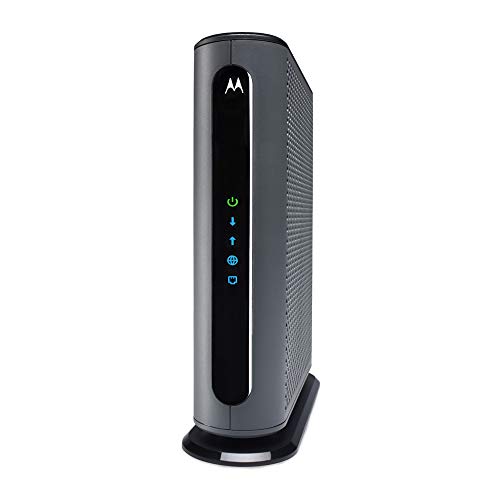
Motorola MB8611 DOCSIS 3.1 Multi-Gig Cable Modem
A DOCSIS 3.1 modem with a 2.5 Gbps Ethernet port and a 2-year warranty, for plans with Comcast Xfinity, Cox and Spectrum.
View on Amazon
ARRIS Surfboard G36 DOCSIS 3.1 Multi-Gig Modem &
A DOCSIS 3.1 modem and Wi-Fi 6 router with a 2.5 Gbps port, four 1 GbE ports and coverage listed to 2,500 sq ft.
View on Amazon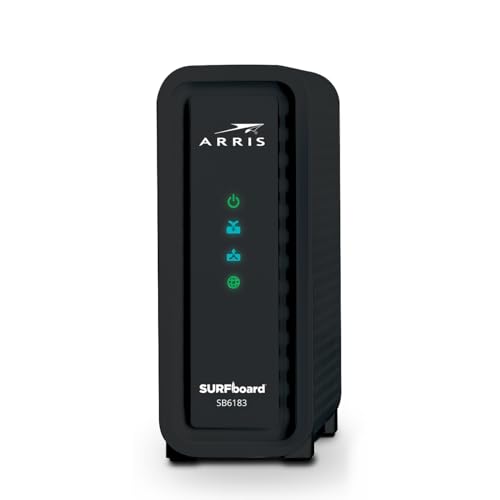
ARRIS (SB6183) -Cable Modem
A DOCSIS 3.0 modem with 16x4 channel bonding, a 1 Gbps port and a 400 Mbps max internet speed, with a 2 Year Warranty.
View on Amazon
Arris Touchstone CM8200A DOCSIS 3.1 Ultra Fast Cable Modem 32X8 Gigabit (Black)
A DOCSIS 3.1 modem with 32x8 channel bonding and a single active Ethernet port for the primary device connection.
View on AmazonThese come from our ranked list Best Docsis, which compares them spec by spec.
FAQ
Do I need a router with a cable modem?
A modem on its own connects one device to the internet. The Motorola MB8611 is not a router, so you need a separate router for Wi-Fi and more than one wired device.
Why does my Wi-Fi work but the internet does not?
The router may be running while the modem is not yet online. Check the modem's lights and the Ethernet cable between the two boxes, then restart the modem first and the router second. If the modem still does not come online, contact your provider.
Can I use the router my provider gave me?
Connect it the same way, with an Ethernet cable from the modem to the router's internet port, and follow the provider's setup steps. Ask the provider if you are unsure whether its router works with your modem.


