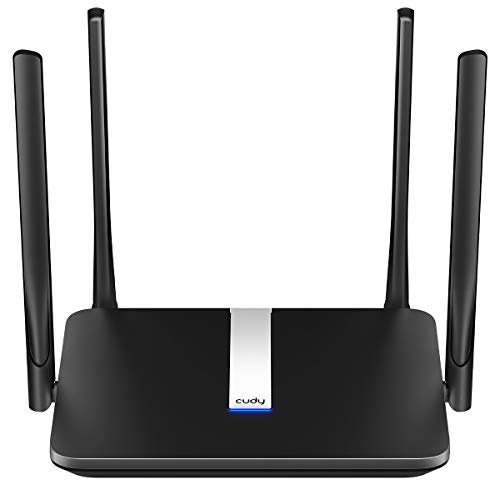
How to Pick a Router
 By Theo LangUpdated
Pick a router by matching it to your internet plan, the size of your home, and the devices you connect. Check the Wi-Fi standard, coverage area, device limit, and Ethernet ports for the router, then confirm it works with your modem and provider before you buy.
Check your internet plan speed
Find the download speed on your internet plan bill or provider account page. Then compare it with the speed class and band speeds for the router. The speed class combines the 2.4 GHz and 5 GHz bands, so check each band figure as well as the total. If the router total is below your plan speed, the router can limit the connection. Check the requirements for your plan with your provider if you are unsure.
Measure the area to cover
Write down the floor area of the rooms where you need Wi-Fi and note walls, floors, and distance from the router location. Compare that area with the coverage figure for the router. Coverage figures assume open space, so a home with thick walls or multiple floors may need a different placement or a mesh system. Place the router in a central, open spot and check the coverage for one unit before you add more units.
Count devices and wired ports
Count phones, laptops, TVs, and smart home devices that connect at the same time. Compare that count with the connected device figure for the router. Then count devices you want to plug in with a cable, such as a desktop, console, or storage drive. Count the Gigabit Ethernet LAN ports and the WAN port for the modem, and check whether extra ports or a switch would be needed for your setup.
Choose Wi-Fi standard and bands
Check which Wi-Fi standard your phones, laptops, and other devices support, then match the router to that standard. Wi-Fi 6, Wi-Fi 6E, and Wi-Fi 7 are different standards, and dual band routers use the 2.4 GHz and 5 GHz bands. A dual band router does not use the 6 GHz band. Check the standard and bands in the router details and on your devices, and confirm they share a common band before you buy.
Decide between router and mesh
Choose a single router when one unit covers the rooms you counted and you have a central place to put it. Choose a mesh system when you need coverage in rooms far from the modem or on other floors and you can place extra units around the home. Check whether the system supports Ethernet backhaul if you plan to wire units together, and check how many units are included and whether you can add more later.
What you need

TP-Link Deco X55 AX3000
A Wi-Fi 6 AX3000 mesh system in a 3-pack covering up to 6500 square feet for up to 150 devices, with 3 Gigabit ports per unit.
View on Amazon
Amazon eero 6 mesh
A Wi-Fi 6 mesh router in a 1-pack covering up to 1,500 square feet, for internet plans up to 900 Mbps, and 75+ connected devices.
View on Amazon
TP-Link AX1800 WiFi 6 Router
A dual band Wi-Fi 6 AX1800 router with 1.8 Gbps total bandwidth, up to 1200 Mbps on 5 GHz and 574 Mbps on 2.4 GHz.
View on Amazon
NETGEAR Nighthawk
A dual band Wi-Fi 6 AX1800 router covering up to 1,500 square feet for 20 devices, with four Gigabit LAN ports and a separate WAN port.
View on AmazonThese come from our ranked list Best Wi-Fi Router, which compares them spec by spec.
FAQ
Do I need a separate modem?
Check with your provider and read the router details before you buy. A router connects to a modem or gateway by Ethernet, and some gateway setups need bridge mode. Confirm the modem or gateway you have works with the router you choose.
What does dual band mean?
Dual band means the router uses two bands, the 2.4 GHz band and the 5 GHz band. Check which band each of your devices uses and compare the speed for each band. A dual band router does not use the 6 GHz band, so check the bands if that band matters to you.
Can I add mesh units later?
Check the details for the system you choose before you buy. Some mesh systems let you add compatible units to expand coverage, while a single router may need a different setup to cover more rooms. Confirm which units work together and whether Ethernet backhaul is supported if you plan to wire them.