How to Install an External SSD on a PC
 By Theo LangUpdated
To install an external SSD on a PC, plug the drive into a USB port with the cable that came with it and wait for the PC to show it in File Explorer or Finder. If it does not appear, open Disk Management on Windows or Disk Utility on macOS and format the drive. Then copy files to it or point your games and apps at the new drive.
Choose a port and cable
Pick a USB port on the PC and use the cable that came with the drive. A USB-C port and a USB-A port use different plugs, so match the cable end to the port on the PC and the port on the drive. If the cable does not fit, use the cable or adapter that came in the box and check the drive manual for the port type it uses.
Plug in the drive and wait
Plug the drive into the PC and wait for the PC to detect it. A new drive often appears in File Explorer on Windows or Finder on macOS within a few seconds. If nothing appears, try a different USB port on the PC and check that the cable is seated at both ends before moving to the next step.
Format the drive if it does not appear
A new drive sometimes needs formatting before the PC shows it. On Windows, open Disk Management, find the drive, right-click it and choose the format option. On macOS, open Disk Utility, select the drive and choose Erase. Formatting clears the drive, so use this step only on a new drive or one with no files you need.
Move files and check the drive
Open the drive in File Explorer or Finder and copy a small file to it to check that it reads and writes. Then move larger files, such as documents, photos and game folders, to the drive. Keep a copy of files you cannot replace on a second drive or in a backup, and eject the drive from the PC before you unplug it.
Set the drive as a game location
Some game launchers let you add a new install folder on an external drive. Open the launcher settings, add a folder on the external SSD and choose it when you install a game. Check the launcher help for the exact steps, since each launcher names the setting in a different way.
What you need

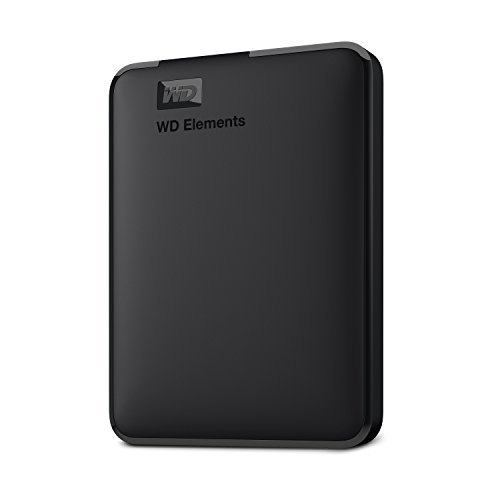
Western Digital P50
A 4TB portable SSD with a SuperSpeed USB 20Gb/s interface and read speeds up to 2000 MB/s, with a shock-resistant form factor.
View on Amazon
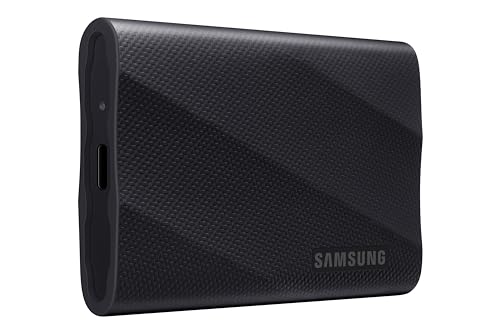
Western Digital P40
A 1TB portable SSD with a USB 3.2 Gen2x2 interface and speeds up to 2000 MB/s, with RGB lighting controlled through the WD_BLACK Dashboard on Windows.
View on Amazon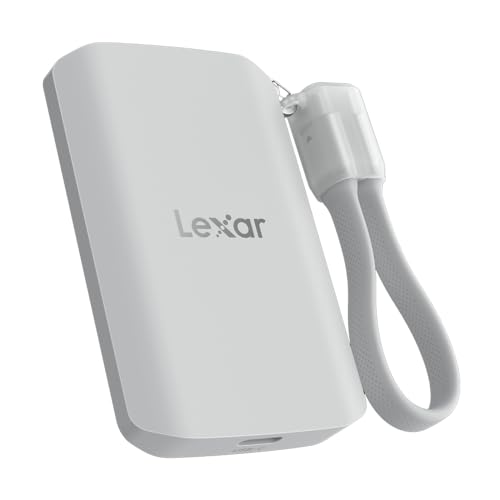
Lexar 2TB ES5 Magnetic External SSD
A 2TB magnetic SSD with read speeds up to 2000 MB/s and a USB 3.2 Gen 2x2 interface, rated IP65 for dust and water resistance.
View on Amazon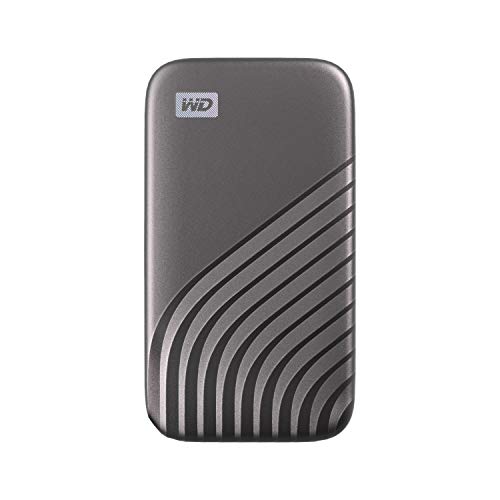
Western Digital WDBAGF0010BGY-WESN
A 1TB portable SSD with read speeds up to 1050 MB/s, a USB 3.2 Gen-2 interface and password protection with 256-bit AES hardware encryption.
View on AmazonThese come from our ranked list Best External SSD, which compares them spec by spec.
FAQ
Do I need to open my PC to install an external SSD?
No. An external SSD connects through a USB cable, so no part of the PC case needs to open. Plug it in, format it if the PC asks, and use it as a drive.
Why does my external SSD not show up?
The drive may need formatting, the cable may not be seated, or the port may not be working. Try a different port and cable, then open Disk Management on Windows or Disk Utility on macOS to see if the drive is listed there.
Can I run games from an external SSD?
Yes, many game launchers let you install games on an external drive. Add a folder on the drive in the launcher settings and choose it as the install location, then check that the game starts from there.