How to Hardwire a Computer to a Router
 By Theo LangUpdated
To hardwire a computer to a router, plug an Ethernet cable from the computer's Ethernet port into a LAN port on the router, then check that the computer shows a wired connection. A wired link runs through the cable instead of Wi-Fi, so the computer uses the router's wired ports. The Nighthawk R6700AX has 4 Gigabit LAN ports, and the Deco X55 has 3 Gigabit ports per unit.
Find the LAN ports on the router
Look for the LAN ports on the back of the router. The Nighthawk R6700AX has 4 Gigabit LAN ports and a separate 1 Gig WAN port, and the WAN port connects to your modem or gateway. The Deco X55 has 3 Gigabit ports per unit. Plug the computer into a LAN port, not the WAN port, since the WAN port is the link to the modem.
Connect the Ethernet cable
Run an Ethernet cable from the Ethernet port on the computer to a LAN port on the router. Push each end in until it clicks and sits flush. If the cable is loose, the wired connection drops, so check both ends before you move on.
Check the wired connection
On the computer, look for the wired network connection in the network settings. A cable connection shows as wired or Ethernet rather than Wi-Fi. If the computer still shows Wi-Fi, check the cable ends and the LAN port, then look at the router's app: the Deco app, the eero app and the Nighthawk app each manage the network.
When one router is not enough
If the cable cannot reach, a mesh system puts a unit closer to the computer. The Deco X55 3-pack covers up to 6500 sq. ft. and supports wired Ethernet backhaul, so a second unit can link back to the main unit by cable. The eero 6 covers up to 1,500 sq. ft. and expands with cross-compatible eero hardware. The Nighthawk R6700AX covers up to 1,500 sq. ft. for 20 devices, and larger homes may benefit from a mesh system.
What you need

TP-Link Deco X55 AX3000
A 3-pack mesh system with 3 Gigabit Ethernet ports per unit and wired Ethernet backhaul, covering up to 6500 sq. ft. for up to 150 devices.
View on Amazon
Amazon eero 6 mesh
A Wi-Fi 6 mesh router for internet plans up to 900 Mbps, covering up to 1,500 sq. ft. for 75+ devices, with a built-in Zigbee hub.
View on Amazon
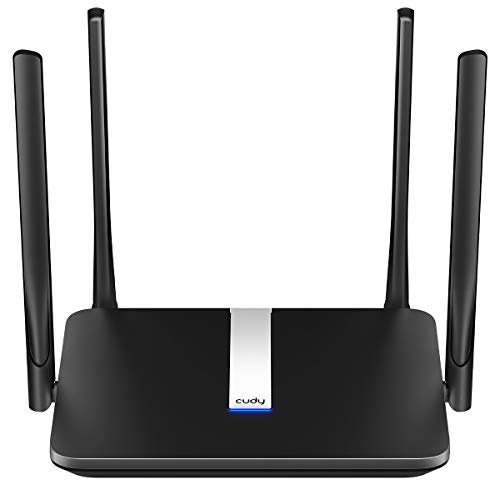
TP-Link AX1800 WiFi 6 Router
A dual-band Wi-Fi 6 router with 1.8 Gbps total bandwidth, 4 high-gain antennas, Beamforming and a 2-year warranty.
View on Amazon
NETGEAR Nighthawk
A Wi-Fi 6 router with 4 Gigabit LAN ports and a separate 1 Gig WAN port, covering up to 1,500 sq. ft. for 20 devices.
View on AmazonThese come from our ranked list Best Wi-Fi Router, which compares them spec by spec.
FAQ
Do I need a modem as well as a router?
Yes, for most internet service providers a modem is required, and the router connects to it through the WAN port. The Deco X55 needs a modem for most providers, the Archer AX21 states that all Wi-Fi routers require a separate modem, and the Nighthawk pairs with an existing modem or gateway by Ethernet.
Can I hardwire more than one computer?
Yes, if the router has enough LAN ports. The Nighthawk R6700AX has 4 Gigabit LAN ports, and the Deco X55 has 3 Gigabit ports per unit. Each computer needs its own cable and LAN port.
Does hardwiring turn off Wi-Fi?
No. A wired computer still sits on the same network as the Wi-Fi devices, and the router keeps broadcasting Wi-Fi. The Deco X55, eero 6, Archer AX21 and Nighthawk R6700AX are all Wi-Fi 6 routers, so phones and laptops keep connecting by Wi-Fi while the computer uses the cable.