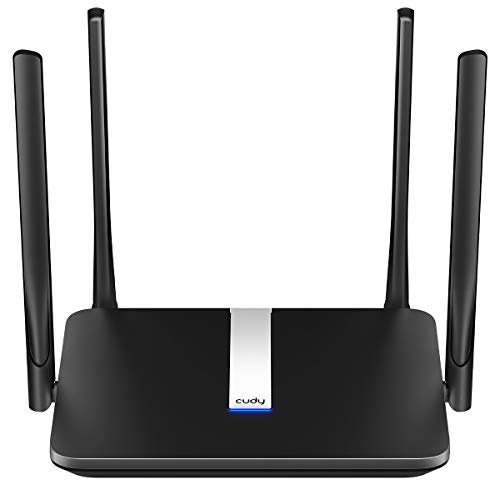
How to Connect a Computer to a Router
 By Theo LangUpdated
To hard wire a computer to a router, plug an Ethernet cable into the Ethernet port on your computer and into a LAN port on the router. The computer then uses the wired connection instead of Wi-Fi. Check that the router is powered on and connected to your modem first.
Find the Ethernet ports
Look for the Ethernet port on your computer, on the back of a desktop PC or on the side of a laptop. On the router, use a LAN port, not the WAN or internet port that connects to the modem. The NETGEAR Nighthawk R6700AX has four Gigabit LAN ports and a separate WAN port, so plug the computer cable into one of the four LAN ports.
Plug in the Ethernet cable
Push one end of the Ethernet cable into the computer's Ethernet port until it clicks, then push the other end into a LAN port on the router. Route the cable along the wall or floor where it will not trip anyone or get pinched by a door. If the cable is too short to reach, move the computer closer or use a longer cable.
Check the wired connection
Once both ends are plugged in, the computer should switch to the wired connection. Open a browser and load a page to confirm the connection works. If the page does not load, check that both cable ends are pushed in fully, try a different LAN port on the router, and restart the computer and the router.
Use the router's Ethernet ports well
A router has a limited number of LAN ports, so plan which devices get a wired connection. The TP-Link Deco X55 has 3 Gigabit Ethernet ports per unit, and the NETGEAR Nighthawk R6700AX has four Gigabit LAN ports. A computer that needs a wired link, such as a desktop PC, takes priority over a device that works fine on Wi-Fi. Connect the modem to the router's WAN port, not to a LAN port.
If the wired connection does not work
First check the cable itself. A damaged cable or a loose plug stops the connection, so try a different cable and a different LAN port. Check the router's lights and the modem connection, and restart both the router and the computer. If the computer still shows no wired connection, check the Ethernet port on the computer and the router's manual.
What you need

TP-Link Deco X55 AX3000
A Wi-Fi 6 mesh system with 3 Gigabit Ethernet ports per unit, covering up to 6500 square feet with wired Ethernet backhaul.
View on Amazon
Amazon eero 6 mesh
A Wi-Fi 6 mesh router covering up to 1,500 square feet, supporting internet plans up to 900 Mbps and 75 or more devices.
View on Amazon
TP-Link AX1800 WiFi 6 Router
A dual-band Wi-Fi 6 router with Gigabit ports, AX1800 speeds up to 1.8 Gbps, and a 2-year warranty.
View on Amazon
NETGEAR Nighthawk
A dual-band Wi-Fi 6 router with four Gigabit LAN ports, covering up to 1,500 square feet for up to 20 devices.
View on AmazonThese come from our ranked list Best Wi-Fi Router, which compares them spec by spec.
FAQ
Do I need an Ethernet cable to hard wire a computer?
Yes. Plug one end into the Ethernet port on your computer and the other end into a LAN port on the router. The cable carries the wired connection between the two.
Which port on the router do I plug the computer into?
Use a LAN port, not the WAN or internet port. The WAN port connects the router to the modem, while the LAN ports connect wired devices such as computers. The NETGEAR Nighthawk R6700AX has four Gigabit LAN ports and a separate WAN port.
Can I hard wire a computer and still use Wi-Fi?
Yes. A computer with an Ethernet cable plugged in uses the wired connection, and other devices in the home can still connect to the router over Wi-Fi. The Deco X55 supports up to 150 devices, and the eero 6 supports 75 or more devices.