How to Connect a Wireless Keyboard and Mouse
 By Theo LangUpdated
Connect a wireless keyboard and mouse by checking how the set links to the computer, then using its USB receiver or Bluetooth pairing. Receiver sets plug into a USB port and work after you turn the devices on. Bluetooth sets pair in the computer settings without a receiver or a USB port.
Check how the set connects
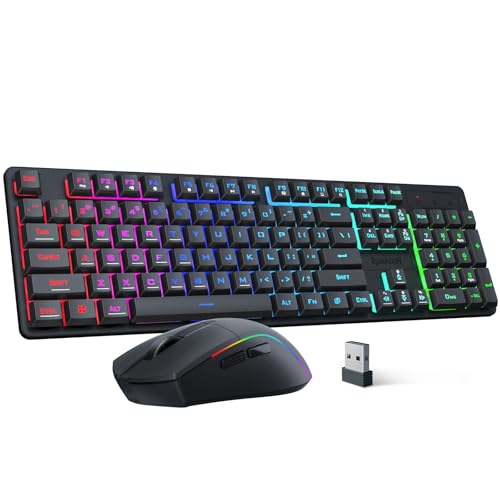
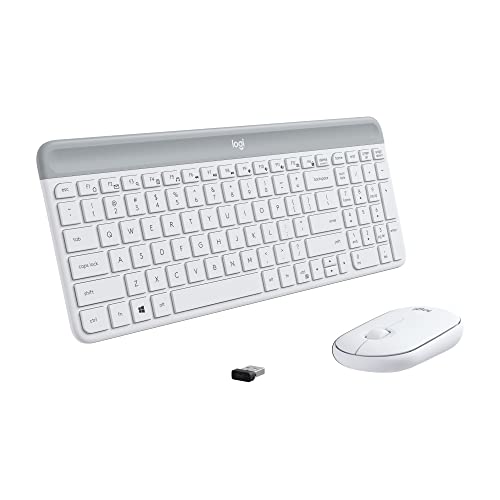
Look for a USB receiver in the box, in the mouse, or in a storage slot, and check the maker manual for the connection type. The Logitech MK270 combo connects through a single included USB-A Nano Receiver. The RedThunder K10 Wireless combo shares a USB receiver stored in the bottom of the mouse. The Logitech MK250 combo uses Bluetooth only, with no dongle or USB port needed.
Plug in the USB receiver
For a receiver set, plug the receiver into a USB port on the computer, then turn on the keyboard and the mouse. The RedThunder K10 Wireless combo is plug and play after you insert the receiver and turn on both devices. The Logitech MK270 combo also uses plug and play through its USB receiver. Keep the receiver plugged in while you use the set.
Pair a Bluetooth set
For a Bluetooth set, turn on Bluetooth on the computer and open the Bluetooth settings. Put the keyboard and mouse in pairing mode by following the maker manual for that model, then select each device in the settings list and confirm pairing. The Logitech MK250 combo pairs by Bluetooth without a dongle, so check that the computer has Bluetooth before you start.
Check power and wake the devices
Check the batteries or charge a rechargeable set before use, and use the on and off switches where the set has them. The RedThunder K10 Wireless combo goes to sleep after a period with no operation, and pressing a key wakes it. If the connection is lost, check the receiver is plugged in, check power, and follow the maker manual to pair the devices again.
What you need

RedThunder K10 Wired Gaming Keyboard and Mouse and Wrist Rest Combo
A wired gaming keyboard and mouse combo with RGB backlight and a soft leather wrist rest that connects by cable through a USB port.
View on Amazon
Logitech MK270 Full Size Wireless Keyboard and Mouse Combo
A full-size wireless keyboard and compact mouse combo that connects through a single included USB-A Nano Receiver.
View on Amazon
RedThunder K10 Wireless Gaming Keyboard and Mouse Combo
A rechargeable wireless gaming keyboard and mouse combo with LED backlight that shares a USB receiver stored in the mouse.
View on Amazon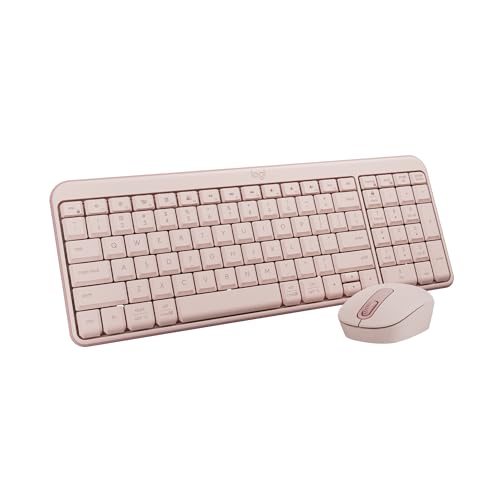
Logitech MK250 Compact Wireless Bluetooth Keyboard and Mouse Combo
A compact Bluetooth keyboard and mouse combo with a number pad that pairs without a dongle or USB port.
View on AmazonThese come from our ranked list Best Pink Keyboard and Mouse, which compares them spec by spec.
FAQ
Do I need a USB port for a wireless set?
A receiver set needs a USB port for its receiver. A Bluetooth set such as the Logitech MK250 combo pairs without a dongle or USB port, so check that the computer has Bluetooth.
Where is the USB receiver stored?
Check the box, the mouse, and the maker manual. On the RedThunder K10 Wireless combo, the USB receiver is in the bottom of the mouse.
What if the keyboard stops responding?
Check that the receiver is plugged in or that Bluetooth is on, check the on and off switches and the batteries or charge, press a key to wake the device, and pair again by following the maker manual.