Using a Keyboard and Mouse with a Tablet
 By Theo LangUpdated
Yes. Most tablets accept a keyboard and mouse over Bluetooth, and many also accept a wired or 2.4 GHz wireless set through a USB adapter. Once paired or plugged in, the keyboard types in any text field and the mouse moves a pointer on screen, so the tablet works much like a small laptop for writing, spreadsheets and browsing.
Pair a Bluetooth keyboard and mouse
Open the Bluetooth settings on the tablet and switch Bluetooth on. Put the keyboard in pairing mode, tap its name when it appears in the list, and repeat the same steps for the mouse. If the tablet asks for a code, type it on the keyboard and press Enter. Once both devices show as connected, open a notes app and type a few words, then move the mouse to check the pointer follows. If a device fails to appear, switch it off and on again and check that no other device is already connected to it.
Connect a wired or wireless set
A set with a USB receiver plugs into the tablet through an adapter that matches the tablet port, such as USB-C. Plug the receiver in, switch the keyboard and mouse on, and wait for the pointer to appear. A wired keyboard and mouse plug in the same way and need no pairing step. Match the receiver or cable to the tablet port, using an adapter when the shapes differ, or switch to a Bluetooth set.
Switch between devices and modes
Some keyboards and mice pair with more than one device and switch between them with a key or a button. Check the keys or switch on the set to find how it changes device, then pair the set with the tablet first and with the other device after. When you move back to the tablet, press the same key or button and wait for the pointer to return. If the set stops responding after a switch, turn Bluetooth off and on again on the tablet.
Fix common connection problems
If the pointer moves but clicks do nothing, check the mouse battery or charge and confirm the mouse is still paired. If keys repeat or miss, move the keyboard closer to the tablet and away from other wireless devices. If the tablet sees the keyboard but no pointer appears, the mouse may be off or paired to another device, so check its switch and pair it again. Restarting the tablet clears a stuck Bluetooth connection.
What you need
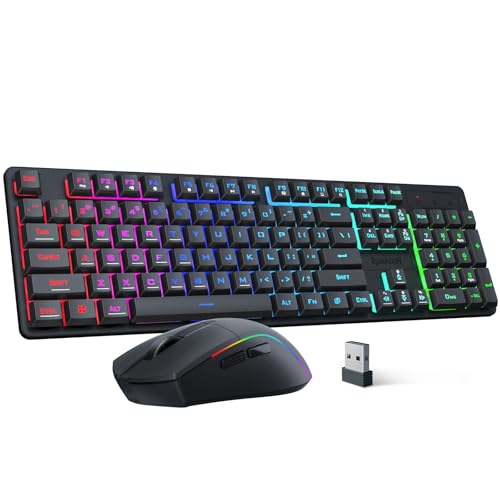
Redragon S107KS Wireless Gaming Keyboard and Mouse
A wired and 2.4G combo with a mouse that reaches 10,000 DPI, a 65 g mouse, 25-key anti-ghosting and a 2 year manufacturer warranty.
View on Amazon
Redragon Wireless Gaming Keyboard and Mouse Combo
A 60% Bluetooth 5.0, 2.4G and USB-C combo with a mouse adjustable from 100 to 12800 DPI, a 4000mAh keyboard battery and a 700mAh mouse battery.
View on Amazon
Logitech MK250 Wireless Bluetooth Keyboard and Mouse Combo
A Bluetooth-only combo with a compact keyboard that keeps the number pad, a small ambidextrous mouse and a 1 year limited hardware warranty.
View on Amazon
MEETION Wireless Bluetooth Keyboard and Mouse
A full-size 115-key combo with a 2.4GHz USB-A receiver and dual Bluetooth for up to 3 devices, a 3200 DPI mouse and quiet keys.
View on AmazonThese come from our ranked list Best Bt Keyboard and Mouse, which compares them spec by spec.
FAQ
Do I need a special keyboard for a tablet?
No. Any Bluetooth keyboard pairs with a tablet that has Bluetooth, and many tablets also accept a wired or wireless set through an adapter. Check that the keyboard layout matches the language you type in.
Can I use a mouse with an iPad or Android tablet?
Yes. Both systems support Bluetooth mice, and many tablets also accept a wired or wireless mouse through an adapter. The pointer appears on screen once the mouse is paired or plugged in, and clicks and scrolling work in most apps.
Why does my keyboard lag on a tablet?
A weak wireless signal or a low battery often causes lag. Move the keyboard closer to the tablet, check the battery or charge, and switch off other nearby wireless devices to see if the delay clears.