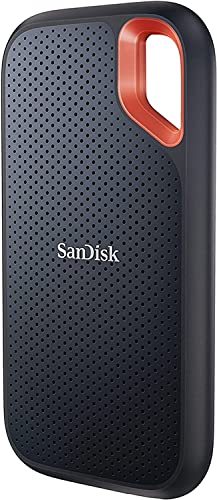
How to Connect an SSD to a Laptop
 By Theo LangUpdated
To connect an SSD to a laptop, plug the drive into a USB port with its cable, then look for the drive in File Explorer on Windows or in Finder on a Mac. If the drive does not appear, check the cable, try another USB port, and look in Disk Management or Disk Utility. Once the laptop shows the drive, open it and drag files onto it.
Plug the drive into a USB port
Plug the cable into the drive and the other end into a USB port on the laptop. The Seagate drive comes with an 18 inch USB 3.0 cable and lists plug and play simplicity, and the WD drives list USB 3.2 Gen 1 or USB 3.1. Push the plug in fully, and keep the drive on a flat surface so the cable does not pull it off the desk.
Check that the laptop sees the drive
Open File Explorer on Windows or Finder on a Mac and look for the drive in the list of drives. If it does not appear, unplug the cable and plug it back in, then try another USB port on the laptop. If it still does not appear, open Disk Management on Windows or Disk Utility on a Mac and look for the drive there.
Open the drive and move files
Double-click the drive to open it, then drag files onto it to copy them. The Seagate drive states that backup is a drag and drop job on Windows or Mac computers. Wait until the copy finishes before you unplug the drive, and close any file that is open on the drive first.
Pick a drive by its capacity
The drives shown here hold different amounts of space. The Seagate Portable drive holds 5TB, the WD Elements 5TB drive holds 5TB, the WD My Passport holds 4TB, and the WD Elements 2TB drive holds 2TB. Check how much space your files take, then pick a drive that holds that amount with room to spare.
What you need
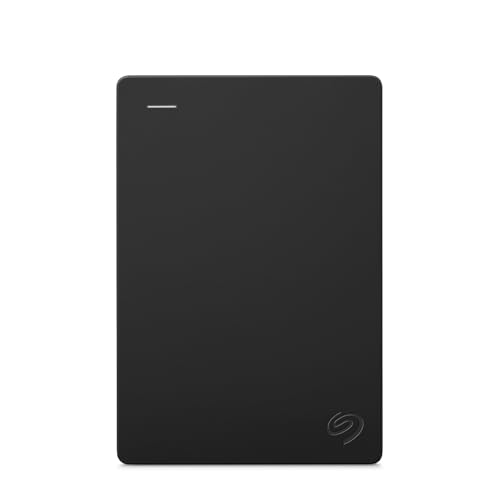
Seagate Portable
A 5TB external hard drive with a USB 3.0 connection, an 18 inch USB 3.0 cable and plug and play simplicity for Windows or Mac.
View on Amazon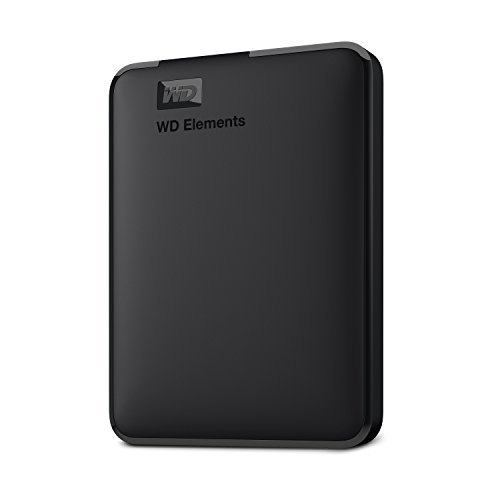
Western Digital WD
A 5TB external hard drive with SuperSpeed USB 3.2 Gen 1 and plug-and-play expandability for PC and Mac.
View on Amazon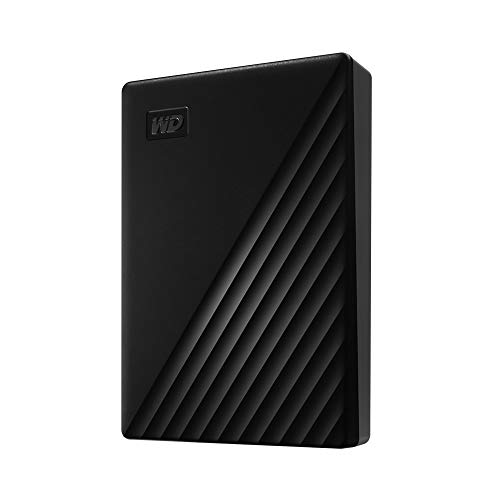
WD 4TB My Passport
A 4TB external hard drive with USB 3.1, backup software, password protection and hardware encryption.
View on Amazon
WD 2TB Elements Portable External Hard Drive
A 2TB external hard drive with SuperSpeed USB 3.2 Gen 1 and plug-and-play expandability for PC and Mac.
View on AmazonThese come from our ranked list Best External Hard Drive for Laptop, which compares them spec by spec.
FAQ
Why does my laptop not see the SSD?
Check the cable and the USB port first, then unplug the drive and plug it back in. If it still does not appear, open Disk Management on Windows or Disk Utility on a Mac and look for the drive there.
Can I use the same drive on Windows and Mac?
The Seagate drive is designed to work with Windows or Mac computers, and the WD Elements drives list PC and Mac. Check the drive's notes for your computer before you move files between the two.
Can I move files by dragging them onto the drive?
Yes. The Seagate drive states that backup is a drag and drop job on Windows or Mac computers. Drag the files onto the drive, wait until the copy finishes, and then unplug the drive.