
How to Connect a Hard Drive to a Computer
 By Theo LangUpdated
You can connect a hard drive to a computer in two ways: plug in an external drive over USB, or install an internal drive with a SATA data cable and a power cable from the power supply. An external drive needs no tools and no opening the case. An internal drive needs the computer shut down and unplugged first, and the drive mounted in a bay.
Decide external or internal
An external drive is the simple choice: you plug it into a USB port and the computer sees it as a drive. An internal drive sits inside the case and connects to the motherboard with a SATA data cable and to the power supply with a power cable. Pick external when you want storage you can move between computers, and internal when you want a drive that stays in one machine.
Connect an external drive over USB
Plug the drive's USB cable into a USB port on the computer and the other end into the drive. Wait for the computer to find the drive, then open your file manager to check it appears. If the drive does not appear, try another USB port and check that the cable is fully seated. The WD_BLACK P50 and P40 drives and the My Passport SSD connect over USB, and the Lexar ES5 connects over USB-C.
Install an internal drive
Shut the computer down, unplug it, and follow the maker's manual before you open the case. Mount the drive in a bay with the screws or tray the case provides, then plug a SATA data cable from the drive to a SATA port on the motherboard and a power cable from the power supply to the drive. Close the case, plug the computer back in, and turn it on.
Check the drive shows up
After you connect the drive, open your file manager and check that the drive appears. If it does not appear, check that the cable is fully seated and that the drive has power. A new drive may need to be formatted before it stores files, so check your operating system's disk tool and follow its steps to format the drive.
Pick the right cable and port
Use the cable that came with the drive, since the wrong cable may not carry enough power or may not fit. A USB-C port needs a USB-C cable, and an older USB-A port needs a USB-A cable. Check that your computer's USB port supports the drive's interface, and check the drive's manual for the cable it needs.
What you need

Western Digital P50
A 4TB portable SSD with speeds up to 2,000 MB/s, a SuperSpeed USB 20Gb/s interface, and an 18-inch USB Type-A to Micro-B cable.
View on Amazon
Western Digital P40
A 1TB portable SSD with a USB 3.2 Gen2x2 interface, speeds up to 2,000 MB/s, RGB lighting, and a shock-resistant structure.
View on Amazon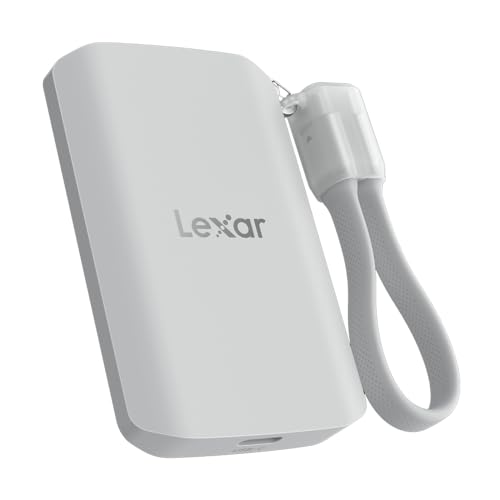
Lexar 2TB ES5 Magnetic External SSD
A 2TB magnetic external SSD with speeds up to 2000 MB/s, a USB 3.2 Gen 2x2 interface, and a MagSafe-compatible design.
View on Amazon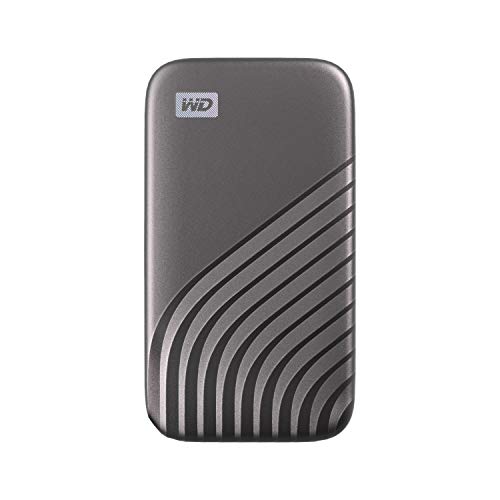
Western Digital WDBAGF0010BGY-WESN
A 1TB portable SSD with speeds up to 1050 MB/s, USB 3.2 Gen-2 and USB-C, and password protection with 256-bit AES hardware encryption.
View on AmazonThese come from our ranked list Best External SSD, which compares them spec by spec.
FAQ
Can I connect a hard drive with a USB cable?
Yes, if it is an external drive with a USB connection. Plug the cable into the drive and a USB port on the computer, then check that the drive appears in your file manager.
Do I need to open my computer to connect a drive?
No, if you use an external drive. It connects over USB and needs no tools. You only open the case for an internal drive, and then you must shut the computer down and unplug it first.
Why does my connected drive not show up?
Check that the cable is fully seated and that the drive has power, then try another USB port. A new drive may need formatting before it stores files, so check your operating system's disk tool.


