
How to Connect an External DVD Drive to a Laptop
 By Theo LangUpdated
Connect an external DVD drive to a laptop by plugging its USB cable into the laptop's USB port. The Rioddas drive draws power from that port and needs no separate power adapter, and plug-and-play models need no driver install. Once the laptop detects the drive, insert a disc and open it from your file manager to play it, copy files from it, or burn new files to it.
Check which ports your laptop has
Look at the USB ports on your laptop and note whether they are USB-A or USB-C, since the drive's cable must match. The ASUS ZenDrive U9M includes USB 2.0 and Type-C cables, the ASUS ZenDrive V1M has a built-in 24 cm USB-C cable, and the Alronly drive comes with USB-A and USB-C interfaces. The Rioddas drive uses USB 3.0 and is backwards compatible with USB 2.0. Pick a drive whose cable fits a port on your laptop, or use the cable it includes.
Check the drive works with your system
Check the drive's compatibility notes against your laptop before you buy. The Rioddas drive works with Windows 11, 10, 8.1, 7, Vista and XP, Linux, and macOS 10.16 and later. The ASUS ZenDrive V1M lists Windows and macOS support. The ASUS ZenDrive U9M lists Mac and PC support. The Rioddas drive is not compatible with ChromeOS, smartphones, tablets, TVs, projectors, vehicles, or Blu-ray and 4K discs. The Alronly drive also excludes Chromebooks, cars, tablets and televisions.
Plug the drive into the laptop
Plug the drive's cable directly into a USB port on the laptop. The Rioddas drive is powered by the USB port, needs no external driver or power adapter, and is detected automatically when you plug it in. The Alronly drive is also plug and play with no driver to install. If the drive is not recognized at first, try a different USB port. The Rioddas drive has a physical eject button that releases a disc even when the computer fails to recognize the drive.
Insert a disc and open it
Insert a CD or DVD into the drive and wait for the laptop to detect the disc, then open it from your file manager. The Rioddas drive supports CD-ROM/R/RW, DVD-ROM/R±RW/R±DL, and VCD formats. It also has a physical eject button that releases a disc even when the computer fails to recognize the drive. Use that button if a disc gets stuck instead of forcing the tray.
Burn a disc to save files
To write files to a blank disc, use the burning software on your laptop or the software that comes with the drive. The ASUS ZenDrive U9M and V1M both write DVDs at 8X, and the Alronly drive writes DVDs at 8x and CDs at 24x. Both ASUS drives support M-DISC, and the V1M lets you create a disc in three steps through its drag-and-burn interface on Windows. Check the disc type the drive writes before you start.
What you need
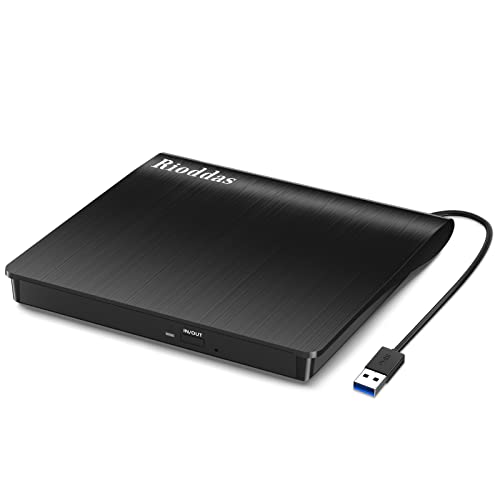
Rioddas External CD/DVD Drive for Laptop
A USB 3.0 CD and DVD drive that is powered by the USB port, needs no driver, and transfers data at up to 5Gbps.
View on Amazon
ASUS ZenDrive U9M Ultraslim External DVD Drive & Writer
An ultraslim 13.9 mm DVD drive and writer with 8X DVD writing, USB-C and USB-A cables included, and M-DISC support.
View on Amazon
ASUS ZenDrive V1M External DVD Drive & Writer
A 14 mm slim DVD drive and writer with a built-in 24 cm USB-C cable, 8X DVD writing, and M-DISC support.
View on Amazon
External CD/DVD Drive USB 3.0 Type-C Burner Writer Reader for Laptop/PC/Mac
A USB 3.0 Type-C CD and DVD drive with 8x DVD and 24x CD speeds, a built-in cable, and plug-and-play use with no driver.
View on AmazonThese come from our ranked list Best External Cd Drive, which compares them spec by spec.
FAQ
Does an external DVD drive need a power adapter?
The Rioddas drive is powered by the USB port and needs no external driver or power adapter, so plug it into a USB port and the laptop detects it. The Alronly drive is also plug and play with no driver to install.
Why does my laptop not see the drive?
Also check that the drive works with your system: the Rioddas drive does not work with ChromeOS, smartphones, tablets, TVs, projectors or vehicles. Make sure the cable is fully seated in the laptop's USB port.
Can I play Blu-ray discs on these drives?
No. The Rioddas drive is not compatible with Blu-ray or 4K discs. The ASUS ZenDrive U9M and V1M support DVD, and the Alronly drive supports CD and DVD, so check the disc support each drive lists before you buy. Use a Blu-ray drive for Blu-ray discs.


