
How to Burn a DVD on a Laptop
 By Theo LangUpdated
To burn a DVD on a laptop, connect a DVD writer, insert a blank DVD-R or DVD-RW disc, add your files in burning software, and start the burn. An external USB DVD writer connects through a USB port and burns discs from the laptop.
Check for a built-in drive
Look for a disc tray or slot on the side of your laptop. You can also use an external USB DVD writer connected to a USB port. Check the drive's disc support before you buy: the drives shown below write DVD discs, and two of them also write CD discs. Match the connector to a free USB port on your laptop.
Connect the external drive
Plug the drive's cable into a USB port on the laptop. The Rioddas drive runs from USB power with no separate power adapter, and the ASUS ZenDrive V1M has a built-in 24cm USB-C cable. Wait for the laptop to recognize the drive before you insert a disc. If the drive does not appear, try a different USB port on the laptop.
Insert a blank DVD
Use a blank DVD-R or DVD-RW disc for files, photos and videos. Press the drive's eject button, place the disc in the tray, and close the tray. Your operating system may ask what to do with the blank disc; choose the option that opens your burning software, or open the software yourself from your programs list.
Add files and start the burn
In the burning software, choose a data disc project and drag in the files you want to keep. Check the total size fits the disc, then start the burn and leave the laptop plugged in and undisturbed until it finishes. The ASUS ZenDrive V1M offers a drag and burn interface on Windows. When the burn ends, eject the disc and write the date and contents on its case.
Check the finished disc
Put the disc back in the drive and open a few files to confirm they copied correctly. Store the finished disc in a case away from heat and scratches. If the burn fails, try a new blank disc and a lower write speed in the software settings. The drives here write DVD discs, and two also write CD discs.
What you need
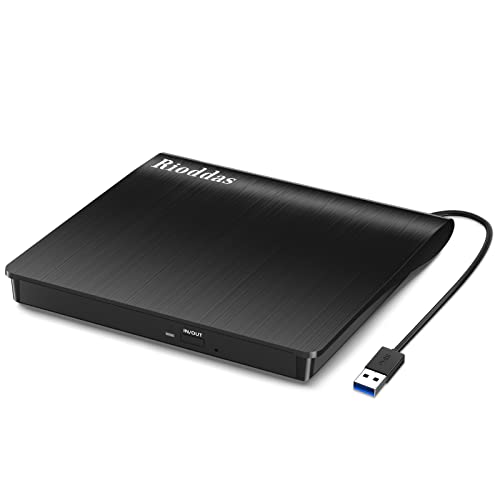
Rioddas External CD/DVD Drive for Laptop
A USB 3.0 external CD/DVD burner that plugs into a laptop USB port with no external power adapter needed.
View on Amazon
ASUS ZenDrive U9M Ultraslim External DVD Drive & Writer
An ultraslim external DVD writer with 8X DVD writing, USB-C and USB-A cables included, and M-DISC support.
View on Amazon
ASUS ZenDrive V1M External DVD Drive & Writer
An external DVD writer with a built-in 24cm USB-C cable, 8X DVD writing and M-DISC support for Windows or macOS.
View on Amazon
External CD/DVD Drive USB 3.0 Type-C Burner Writer Reader for Laptop/PC/Mac
A USB 3.0 and Type-C external CD/DVD burner with a built-in cable and plug-and-play setup for laptop or PC.
View on AmazonThese come from our ranked list Best External Cd Drive, which compares them spec by spec.
FAQ
Can I burn a DVD without a built-in drive?
Yes. An external USB DVD writer connects through a USB port and burns discs the same way. The drives shown below connect by USB 3.0 or USB-C and need no drive bay in the laptop.
What blank discs do I need?
For files and backups, use blank DVD-R or DVD-RW discs. Check the supported formats for your drive first: the Rioddas drive supports DVD-ROM, DVD-R, DVD-RW and DVD-R DL discs, plus CD formats.
Can these drives burn Blu-ray discs?
No. The drives here write DVD discs, and the Rioddas drive is not compatible with Blu-ray or 4K discs. For Blu-ray burning you need a drive that lists Blu-ray write support.


