
How to Add an External DVD Drive to a Laptop
 By Theo LangUpdated
Plug an external DVD drive into a USB port on your laptop, and the laptop treats it like a built-in drive. Put a disc in the tray, open your media player or file manager, and the disc shows up ready to play, read or burn. Check the drive's notes for the systems it works with before you buy.
Check which ports your laptop has
Look at the sides of your laptop for a USB-A port or a USB-C port. A USB-A port takes the flat rectangular plug, while a USB-C port takes the small oval plug. If your laptop has only USB-C ports, pick a drive with a USB-C cable or use an adapter. Check the drive's notes for the systems it works with, such as Windows or macOS, before you plug it in.
Plug the drive into a USB port
Push the drive's cable into a USB port on the laptop, not into a hub, so the drive gets full power from the port. Wait for the laptop to show a message that new hardware was found, or for the drive to appear in your file manager. If nothing appears, try a different USB port on the laptop. Keep the drive's cable with the drive so you do not have to hunt for a spare cable.
Load a disc and open it
Press the button on the drive to open the tray, set the disc in with the printed side facing up, and push the tray closed. Open your file manager and look for the drive, then open it to see the files on the disc. To play a movie, open your media player and choose the disc. To burn files, open your burning software and follow its steps for a data disc or an audio disc.
If the drive does not show up
First try another USB port on the laptop, since a port can fail to give the drive enough power. Then check that the disc is clean and seated in the tray with the printed side facing up. Restart the laptop with the drive still plugged in, and look for the drive in your file manager again. If the drive still does not appear, check the maker's support page for your laptop model and the drive.
What you need
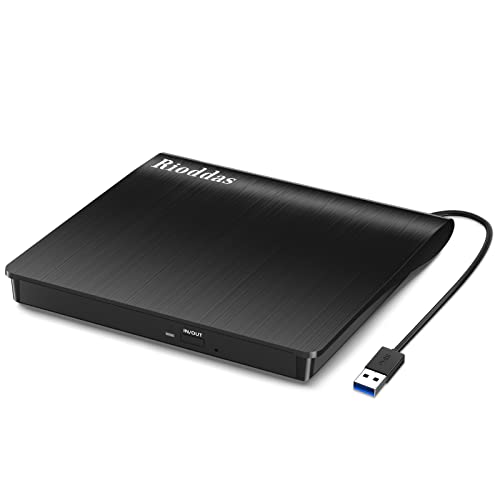
Rioddas External CD/DVD Drive for Laptop
A USB 3.0 CD and DVD drive with plug-and-play setup, no driver or power adapter, and an embedded cable that stays with the drive.
View on Amazon
ASUS ZenDrive U9M Ultraslim External DVD Drive & Writer
An ultraslim DVD drive and writer with USB-C and USB-A cables included, M-DISC support, and a one-year warranty.
View on Amazon
ASUS ZenDrive V1M External DVD Drive & Writer
A USB-C DVD drive and writer with a built-in cable, M-DISC support, and a one-year warranty for Windows and macOS laptops.
View on Amazon
External CD/DVD Drive USB 3.0 Type-C Burner Writer Reader for Laptop/PC/Mac
A USB 3.0 and Type-C CD and DVD drive with a built-in cable and plug-and-play setup, no driver to install.
View on AmazonThese come from our ranked list Best External Cd Drive, which compares them spec by spec.
FAQ
Do I need to install a driver for an external DVD drive?
Plug the drive in and look for it in your file manager. If it does not appear, try another USB port or check the drive's notes for your system.
Can I use an external DVD drive with a MacBook?
Yes, if the drive lists macOS support and you have the right cable. Check that your MacBook has a port that matches the drive's cable.
Will an external DVD drive play Blu-ray discs?
Only a drive that lists Blu-ray support plays Blu-ray discs. A standard DVD drive reads DVDs, and only a drive that lists CD support reads CDs. Check the disc support in the drive's notes before you buy.


