
How to Burn a DVD From an SD Card
 By Theo LangUpdated
You cannot burn a DVD straight from an SD card. Copy the files from the card to your computer first, then burn them to a blank DVD with an external DVD burner drive and burning software. The drive writes the files to the disc, and the disc then plays or stores them without the card.
Copy the files from the SD card
Put the SD card in your computer and copy the files you want on the disc into a folder on the computer. Check that each file opens and plays from the computer before you burn it. A file that will not open from the computer will not play from the disc either. Keep the card in place until the copy finishes, then remove it.
Pick a blank DVD that fits the files
Use a blank DVD-R or DVD+R disc for a disc you write once, or a DVD-RW disc for a disc you plan to erase and write again. Check the size of the folder against the disc, and split the files across discs when one disc cannot hold them all. Check that your drive supports the disc type before you buy the discs.
Connect the external DVD burner drive
Plug the external drive into a USB port on your computer and wait for the computer to find it. The Rioddas drive is powered by its USB port and needs no driver, and the Alronly drive is plug and play with no driver required. If a drive does not appear, try a different USB port, and on a desktop use a port on the back of the computer.
Burn the files to the disc
Open your burning software, add the folder you copied from the card, and put a blank DVD in the drive. Choose the burn option in the software and wait until it says the disc is done before you open the drive. Do not remove the disc while the drive light is on or the software still shows progress.
Check the finished disc
Put the finished disc back in the drive and open it on the computer to check that the files are there and play. If a file will not open from the disc, copy it from the SD card again and burn a fresh disc. Keep the disc in a case away from heat and sunlight, and keep the files on the computer as a backup.
What you need
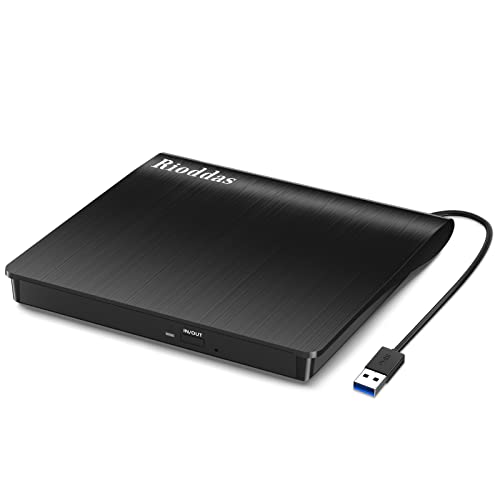
Rioddas External CD/DVD Drive for Laptop
A USB 3.0 CD/DVD +/-RW burner that is powered by its USB port, needs no driver, and works with Windows, Linux and macOS.
View on Amazon
ASUS ZenDrive U9M Ultraslim External DVD Drive & Writer
An ultraslim DVD writer with M-DISC support, 8X DVD writing, and USB 2.0 and Type-C cables in the box.
View on Amazon
ASUS ZenDrive V1M External DVD Drive & Writer
A DVD writer with M-DISC support, 8X DVD writing, and a built-in 24cm USB-C cable for ultraslim laptops.
View on Amazon
External CD/DVD Drive USB 3.0 Type-C Burner Writer Reader for Laptop/PC/Mac
A USB 3.0 Type-C CD/DVD +/-RW burner with 8x DVD and 24x CD speeds, a built-in cable, and plug and play setup.
View on AmazonThese come from our ranked list Best External Cd Drive, which compares them spec by spec.
FAQ
Can I burn a DVD directly from the SD card?
No. Copy the files from the card to your computer first, then burn them from the computer to a blank DVD in the drive. The drive reads the files from the computer, not from the card.
What do I need to burn a DVD from an SD card?
A computer, a blank DVD, burning software, and an external DVD burner drive. Copy the files to the computer, put the blank disc in the drive, and burn from the software.
Will the burned DVD play on any DVD player?
It should play on players that support the disc type you used, such as DVD-R or DVD+R. Check that the player supports the disc type, and check that the files are in a format the player can read.


