How to Connect a New Router
 By Theo LangUpdated
Plug an Ethernet cable from your modem into the router's WAN port, plug in the modem first and then the router, and open the maker's app to name the network and set a password. The app walks through the rest of the setup, and your devices connect to the new network name when it appears.
Place the router and unplug the modem
Put the router in an open spot near the modem, off the floor and clear of thick walls and metal shelves. Unplug the modem from power so it can restart cleanly with the new router. Keep the modem's Ethernet cable and the router's power adapter within reach before you start.
Connect the modem to the router
Plug one end of an Ethernet cable into the modem and the other end into the router's WAN port, the port marked for the internet connection. The Nighthawk router has a separate WAN port beside its four LAN ports, while the Deco units let any of their three Gigabit ports serve as the router connection. Plug the modem back in first, wait until its lights show it is online, then plug in the router.
Open the app and name the network
Download the maker's app on your phone: the Deco app for the Deco system, the eero app for the eero router, the Tether app for the Archer, or the Nighthawk app for the Nighthawk. The app finds the router and walks through setup step by step. Give the network a name you will recognize and set a password, then let the app finish the setup before you move the router.
Connect your devices and check each room
Join your phones, laptops and TVs to the new network name with the password you set. Walk through the rooms you use most and check the signal on your phone in each one. If a room shows a weak signal, move a mesh unit closer to it: the Deco 3-pack covers up to 6500 square feet, and the eero system takes extra units as your needs change.
Check for a firmware update
Open the app once more and check for a firmware update for the router. The Tether app checks for the latest firmware for the Archer, and the Nighthawk updates its firmware automatically. Leave the router plugged in while an update runs, and do not unplug it until the app says the update is done.
What you need

TP-Link Deco X55 AX3000
A Wi-Fi 6 AX3000 mesh system, 3-pack, covering up to 6500 square feet with 3 Gigabit ports per unit and Ethernet backhaul.
View on Amazon
Amazon eero 6 mesh
A Wi-Fi 6 mesh router covering up to 1,500 square feet, for internet plans up to 900 Mbps and 75 or more devices.
View on Amazon
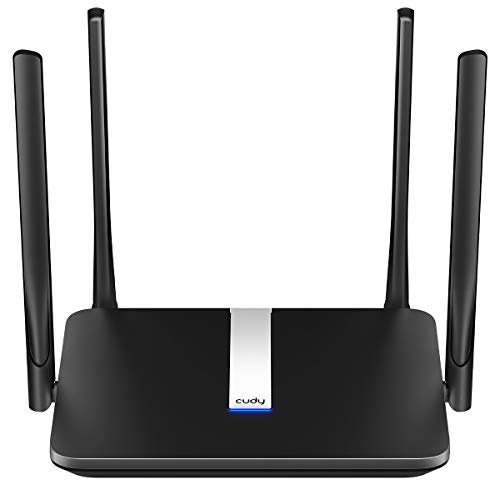
TP-Link AX1800 WiFi 6 Router
A Wi-Fi 6 AX1800 dual-band router with 1.8 Gbps total bandwidth, 4 high-gain antennas and EasyMesh support.
View on Amazon
NETGEAR Nighthawk
A WiFi 6 AX1800 router covering up to 1,500 square feet, with 4 Gigabit LAN ports and a separate WAN port.
View on AmazonThese come from our ranked list Best Wi-Fi Router, which compares them spec by spec.
FAQ
Do I need a modem for a new router?
A modem is required for most providers: the Deco and Archer both need one, and the Nighthawk pairs with your existing modem or gateway by Ethernet. Connect the modem to the router's WAN port.
What is the WAN port on a router?
It is the port that connects the router to the modem and the internet. Plug the Ethernet cable from the modem into the WAN port, and use the LAN ports for wired devices like computers and game consoles.
Why is my new router offline?
Check the cable first: the modem must connect to the router's WAN port, and the modem must be online before the router starts. If the lights show no connection, unplug the modem and the router, then plug the modem in first.