
How to Connect a Hard Drive to Another Computer
 By Theo LangUpdated
To connect a hard drive to another computer, plug it in with its cable and wait for the computer to show it as a drive you can open. A portable drive connects over USB, while a bare internal drive needs an enclosure or adapter that turns it into a USB drive. If the drive does not appear, check the cable, the port, and the drive list on the computer.
Plug in a portable drive
Connect the drive to a USB port on the computer with its cable, then wait a few seconds for the computer to notice it. Open File Explorer on Windows or Finder on a Mac and look for the drive name in the list. If nothing appears, try another port and another cable. Use the cable that came with the drive, since a charging-only cable may not carry data.
Connect a bare internal drive
A drive taken out of a computer connects through an enclosure or a USB adapter made for its size and connector. Shut the computer down and unplug it before you take a drive out, and follow the maker's manual. Slide the drive into the enclosure, close it up, then plug the enclosure into the computer with its cable.
Check that the drive shows up
On Windows, open Disk Management. On a Mac, open Disk Utility. Look for the drive in the list of disks. If it appears in the list, assign it a drive letter or mount point so it shows in File Explorer or Finder. If the computer asks to format the drive, do not agree yet. Formatting erases the files on it, so copy them off on a computer where the drive still works before you agree.
Match the cable and the port
Check the plug on the drive and the port on the computer before you buy a cable or an adapter. USB-C and USB-A plugs are different shapes, so the cable has to match both ends. If the shapes do not match, use an adapter or a hub with the right sockets. If the drive came with its own cable, use that cable first.
Move the files and eject the drive
Copy or move the files you need, then eject the drive before you unplug it. On Windows, use the Remove Hardware icon in the taskbar. On a Mac, click Eject next to the drive in Finder. Wait until the drive no longer appears in File Explorer or Finder, then pull the cable out.
What you need
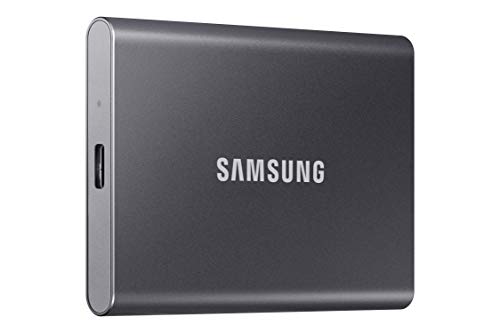
Samsung T7 Portable SSD
A 2TB portable SSD with USB 3.2 Gen 2 and read speeds up to 1,050 MB/s, in a solid aluminum body with fall protection up to 6 feet.
View on Amazon
SanDisk 500GB Extreme Portable SSD
A portable SSD with USB-C, transfer speeds up to 2000 MB/s, IP65 water and dust protection, and 256-bit AES encryption.
View on Amazon
WD 1TB Elements SE
A 1TB portable SSD with USB 3.0 and read speeds up to 400 MB/s, with a compact design and drop resistance up to 2 meters.
View on Amazon
Lexar ES3 512GB Portable SSD Silver
A 512GB portable SSD with USB 3.2 Gen 2, read speeds up to 1050 MB/s, and 256-bit AES encryption, with a Type-C cable in the box.
View on AmazonThese come from our ranked list Best Portable SSD Hard Drive, which compares them spec by spec.
FAQ
Can I connect a hard drive to any computer?
Yes, if the computer has a matching USB port and the drive uses a file system the computer can read. Windows and Mac computers both read common formats, but a drive set up for one system may need reformatting for the other, which erases its files.
Why does my hard drive not show up?
Check the cable and try another port first. Then look in Disk Management on Windows or Disk Utility on a Mac to see if the drive is listed. If it is listed but not mounted, it may need a drive letter or a format the computer can read.
Do I need to format a drive before using it on another computer?
Not if the drive already works on the other computer. Format only a new or empty drive, or one the computer cannot read, and copy any files you want to keep first, because formatting erases everything on the drive.


