How to Clean a Router
 By Theo LangUpdated
To clean a router, unplug it first, wipe dust off the outside with a dry soft cloth, and clear the vents so air can move through the case. Do not use water or spray cleaner on it, and do not open the case. After you plug it back in, check the connection and look for a firmware update in the maker's app.
Unplug the router first
Pull the power plug from the wall and from the router, then wait until all the lights go out. Cleaning a router while it still has power risks damage to the ports and to the parts inside. Note which cable goes in each port before you move anything, so you can put each cable back in the same place. Set the router on a clear, dry surface where you can reach all sides of it.
Wipe dust off the outside
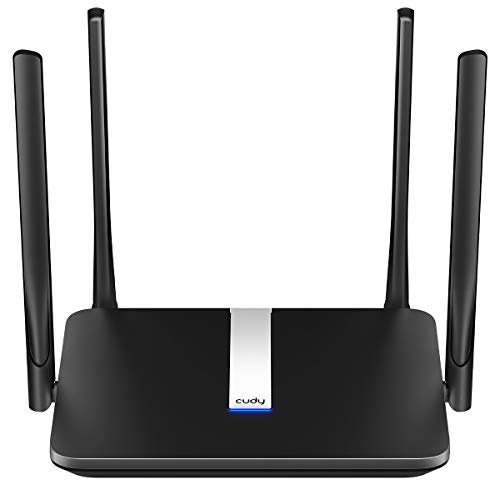
Wipe the top, sides and base with a dry soft cloth, using light strokes so dust lifts off instead of packing into the case. Pay attention to the seams and the feet, where dust gathers. Do not use water, spray cleaner or a wet cloth on the router, and do not press the cloth into the ports. If the cloth picks up dust, shake it out away from the router and keep wiping until the outside looks clear.
Clear the vents and ports
Find the vents on the case and brush dust away from them with a dry soft brush, so air can move through the router. Dust in the vents slows airflow and can make the router run warm, so work around each vent and each port. Do not poke anything into the vents or ports, and do not blow dust deeper into the case. A clear vent helps the router stay cool while it runs.
Plug it back in and check the connection
Put each cable back in the same port, then plug the power back in and wait for the lights to settle. Open the maker's app to check that the router is online and that your devices reconnect. Look in the app for a firmware update and install it if one is offered. If a device still will not connect, unplug the router once more, check the cables, and plug it back in.
What you need

TP-Link Deco X55 AX3000
A 3-pack Wi-Fi 6 mesh system with 3 Gigabit ports per unit, managed through the Deco app for setup and control after cleaning.
View on Amazon
Amazon eero 6 mesh
A single Wi-Fi 6 router that covers up to 1,500 sq. ft. for 75+ devices, managed through the eero app.
View on Amazon
TP-Link AX1800 WiFi 6 Router
A Wi-Fi 6 router with 4 high-gain antennas and AX1800 speed, checked for the latest firmware through the Tether app.
View on Amazon
NETGEAR Nighthawk
A Wi-Fi 6 router with 4 Gigabit LAN ports and a Nighthawk app for setup, with automatic firmware updates.
View on AmazonThese come from our ranked list Best Wi-Fi Router, which compares them spec by spec.
FAQ
Can I use water to clean my router?
No. Water can damage the parts inside, so use a dry soft cloth on the outside only. If dust sits in a vent, brush it away with a dry soft brush and leave the case closed.
Should I open the router to clean inside it?
No. Leave the case closed and clean the outside only. If the router runs hot or drops the connection after cleaning, contact the maker instead of opening it.
Do I need to restart the router after cleaning it?
Yes. Plug it back in after you finish cleaning, then check that your devices reconnect. Open the maker's app to check the connection and look for a firmware update.