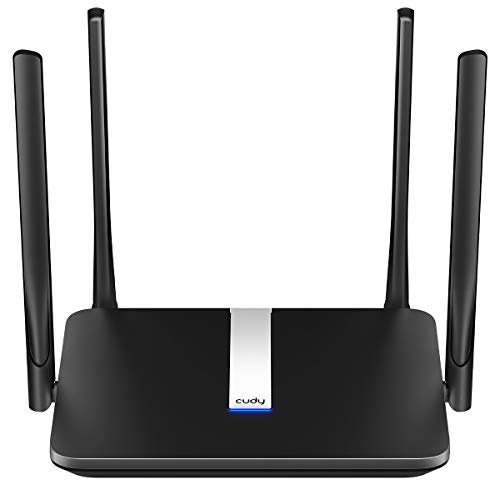
How to Set Up a Wireless Router
 By Theo LangUpdated
To set up a wireless router, connect it to your modem with an Ethernet cable, plug it in, and follow the setup steps in the maker's app. Create a network name and password, then connect your devices to the new network. Place the router in the open, near the middle of the space it will cover, and check for a firmware update in the app.
Connect the router to the modem
Plug one end of an Ethernet cable into the modem and the other end into the router's WAN or internet port, then plug the router into power and wait for its lights to settle. The Nighthawk router has a separate 1 Gig WAN port for the modem and four 1 Gig LAN ports for wired devices. The Deco X55 has 3 Gigabit Ethernet ports on each unit, and any Deco unit can work as a Wi-Fi router. If your internet comes through a gateway or modem router combo, check the maker's notes on bridge mode before you connect the new router.
Run the setup in the app
Download the maker's app on your phone and follow its setup steps. The Deco app helps you set up your network with visual guidance. The eero app walks you through setup. The Nighthawk app gives guided setup on iOS or Android. The app asks you to create a network name and password and to pick the settings for your network. Keep the phone near the router while setup runs, and keep the modem powered on. If setup stalls, close the app and start the steps again from the beginning.
Place the router for coverage
Put the router in the open, near the middle of the space it will cover, and keep it off the floor and away from thick walls and metal objects. The Deco X55 3-pack covers up to 6,500 sq ft, while the eero 6 and the Nighthawk R6700AX each cover up to 1,500 sq ft. Walls, floors and interference can reduce range, so move the router or add a mesh unit if a room gets a weak signal. For a mesh system, place the extra units where the signal from the main unit is still strong.
Connect devices and check the network
Connect your phones, laptops and TVs to the new network name with the password you created. The Deco X55 connects up to 150 devices, the eero 6 connects 75 or more devices, and the Nighthawk R6700AX covers up to 20 connected devices. Use the Nighthawk app to check the connection speed, pause a device or set up a guest network. If a device will not connect, check that it joins the 2.4 GHz band or the 5 GHz band, and move it closer to the router.
What you need

TP-Link Deco X55 AX3000
A 3-pack Wi-Fi 6 mesh system with AX3000 speed class, 3 Gigabit Ethernet ports per unit, and setup through the Deco app.
View on Amazon
Amazon eero 6 mesh
A Wi-Fi 6 mesh router that covers up to 1,500 sq ft, supports plans up to 900 Mbps, and sets up through the eero app.
View on Amazon
TP-Link AX1800 WiFi 6 Router
A Wi-Fi 6 dual-band AX1800 router with 4 high-gain antennas, Easy Mesh support, and a 2-year manufacturer warranty.
View on Amazon
NETGEAR Nighthawk
A Wi-Fi 6 dual-band AX1800 router with four 1 Gig Ethernet LAN ports, a separate WAN port, and guided setup in the Nighthawk app.
View on AmazonThese come from our ranked list Best Wi-Fi Router, which compares them spec by spec.
FAQ
Do I need a modem to set up a router?
Yes, for most internet providers. A modem is required for most internet service providers, and the Archer AX21 notes that all Wi-Fi routers require a separate modem. Connect the modem to the router's WAN port with an Ethernet cable.
What is the difference between a router and a mesh system?
A single router covers one area from one unit, while a mesh system uses several units that work together to cover a larger space. The Deco X55 comes as a 3-pack, and the eero 6 lets you add eero products as your needs change.
How do I know if my router needs a firmware update?
Check the maker's app for an update notice. Stay on the latest firmware by checking the Tether app, and the eero 6 gets automatic updates that bring the latest eero Wi-Fi.