How to Install a New Router
 By Theo LangUpdated
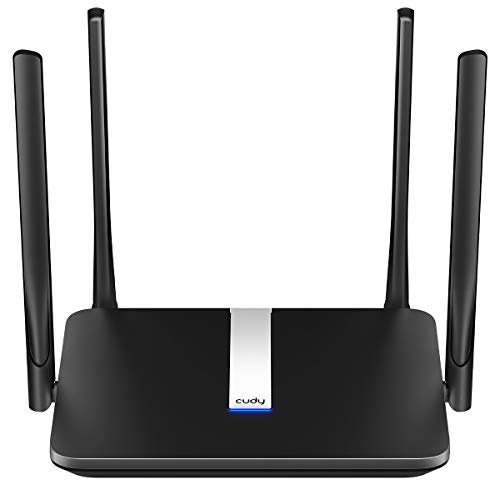
To install a new router, connect it to your modem with an Ethernet cable, plug it into power, and follow the setup steps in the router app or web page. You then set a network name and password, check that your devices connect, and place the router where its signal reaches the rooms you use. A modem is required for most internet service providers.
Unplug the modem and old router
Unplug your modem and old router from power. Disconnect the Ethernet cable between them and set the old router aside. Connect the new router's WAN or internet port to the modem with an Ethernet cable. Plug the modem back in first and wait for its lights to settle before you plug in the new router.
Plug in the new router
Connect the new router to power and switch it on if it has a power switch. Wait for its lights to show that it has started and is ready for setup. The lights tell you the router has power and is talking to the modem. If a light stays off, check that the power cable and the Ethernet cable to the modem are pushed in fully.
Open the setup app or web page
Download the router's app on your phone or open the setup web page from a computer connected to the router. The app or page walks you through setup step by step. Follow the prompts to detect your internet connection and create your network. Keep your phone or computer near the router while setup runs so the connection to the router does not drop.
Set a network name and password
Choose a network name and a password for your Wi-Fi network and save them. Use a password that is long and hard to guess, and write it down where you can find it. The router may also ask you to set an admin password for its settings page. Keep the admin password separate from the Wi-Fi password and store it where you keep your other passwords.
Place the router and check your devices
Put the router in an open spot near the center of your home, away from thick walls, metal objects and other electronics. Connect your phone, laptop and other devices to the new network name and enter the password you set. Open a web page or stream a video on each device to check the connection works in the rooms you use.
What you need

TP-Link Deco X55 AX3000
A Wi-Fi 6 mesh system with three units, three Gigabit Ethernet ports per unit, and support for Ethernet backhaul, set up through the Deco app.
View on Amazon
Amazon eero 6 mesh
A Wi-Fi 6 mesh router covering up to 1,500 sq. ft. and connecting 75+ devices, with setup guided by the eero app.
View on Amazon
TP-Link AX1800 WiFi 6 Router
A Wi-Fi 6 dual-band router with AX1800 speed class, four high-gain antennas and Easy Mesh support, set up through the Tether app.
View on Amazon
NETGEAR Nighthawk
A Wi-Fi 6 dual-band router with AX1800 speed class, four Gigabit LAN ports, and coverage for up to 1,500 sq. ft. and 20 devices.
View on AmazonThese come from our ranked list Best Wi-Fi Router, which compares them spec by spec.
FAQ
Do I need a modem to install a new router?
Yes, for most internet service providers. The modem brings the internet into your home, and the router shares that connection over Wi-Fi and Ethernet. Check with your provider if your modem and router are one combined unit.
Can I keep the same network name and password?
Yes. During setup, enter the same network name and password your old router used. Your devices then connect to the new router without you re-entering the password on each one.
What if my devices cannot see the new network?
Check that the router is powered on and its lights show it is ready. Move closer to the router, then check the Ethernet cable between the modem and the router and restart both devices. If the network still does not appear, run setup again from the router app or web page.