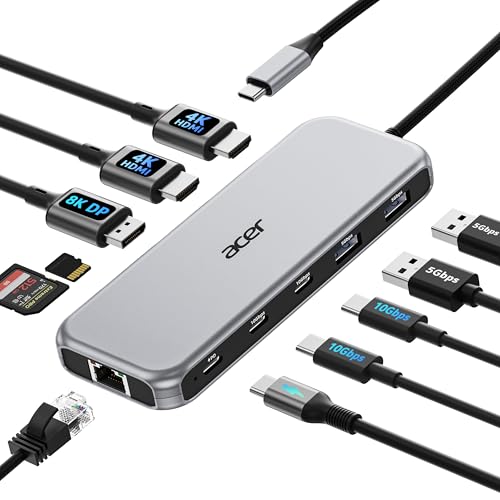
Does Your Laptop Support USB-C Charging?
 By Theo LangUpdated
Your laptop supports USB-C charging only if its USB-C port shows Power Delivery in the manual or spec sheet. A USB-C port shape alone does not prove charging, video output or a protocol version. Check the port description for your exact model first, then match a charger or dock to the charging figure your laptop shows.
Check the manual for Power Delivery
Open the manual or spec sheet for your exact laptop model and find the port details. Look for the words Power Delivery, USB-C charging or a charging figure beside the USB-C port. If the port details show only data transfer, treat charging as unconfirmed and keep using the charger that came with the laptop. Model numbers that look alike can carry different ports, so check the full model number your laptop has on the base or in system settings.
Read the port and charger labels
Look at the charger that came with your laptop and note the output figure printed on it. That figure is the reference for any USB-C charger or dock you consider. A dock or charger that passes through less power than the charger that came with the laptop can still charge the laptop, but charging slows under load and the battery may hold level rather than rise. Some docks need a separate wall charger to pass power through, so check what comes in the box before you buy.
Confirm with a Power Delivery charger
Connect a charger or dock that includes Power Delivery output, using a USB-C cable rated for charging, and watch for the charging icon and battery percentage on screen. Check with the laptop awake and again with it asleep, since charging behavior can differ. If nothing changes, swap the cable for the one that came with the charger and check the port details again. Keep the original charger at hand until USB-C charging works through a full charge cycle.
Match docks and hubs to the port
Docks and hubs add monitors, Ethernet and USB ports through the same USB-C connection, and many pass charging power through to the laptop. For video through a dock, the laptop port also needs video output, so check for DisplayPort Alt Mode or Thunderbolt in the port details as well as Power Delivery. Read the dock figure as output to the laptop, since some hubs take a higher input figure and pass a lower figure on. Match both figures before you rely on one cable at your desk.
What you need
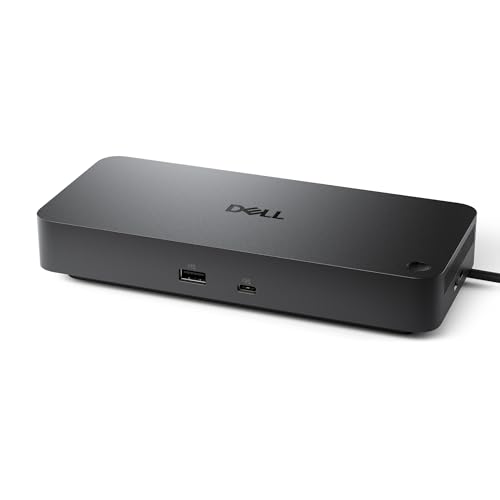
Dell Pro Laptop Docking Station WD25
A USB-C dock with 100W Power Delivery charging, HDMI, DisplayPort and Ethernet for a laptop that supports USB-C charging.
View on Amazon
Selore USB C Docking Station Dual Monitor
An 8-in-1 USB-C hub with dual HDMI ports and Power Delivery charging at 85W output for a full-featured USB-C port.
View on Amazon
Anker Nano Laptop Docking Station
A 13-in-1 dock with a detachable hub and 100W Power Delivery charging, plus HDMI, DisplayPort and Ethernet through USB-C.
View on Amazon
USB C Laptop Docking Station Dual Monitor
A 14-in-1 USB-C dock with Power Delivery charging at 87W output, plus dual HDMI, DisplayPort and Ethernet ports.
View on AmazonThese come from our ranked list Best USB Docking Station, which compares them spec by spec.
FAQ
Does every USB-C port charge a laptop?
No. A USB-C port can carry data only, data and video, or data, video and charging. Check that your laptop port shows Power Delivery in the manual or spec sheet before you buy a USB-C charger.
How can I tell if my port supports charging?
Find the port details for your exact model and look for Power Delivery or a charging figure beside the USB-C port. Then connect a Power Delivery charger and watch for the charging icon on screen.
Can I charge through a docking station?
Yes, if your laptop port supports Power Delivery and the dock includes Power Delivery output. Compare the dock output figure with the charger that came with your laptop, and check whether the dock needs its own wall charger.
What if USB-C charging does not work?
Check the port details again for Power Delivery, swap in the cable that came with the charger, and confirm the charger output figure. If charging still does not start, use the charger that came with the laptop and check the maker support pages for your model.