Does an External SSD Need Maintenance?
 By Theo LangUpdated
An external SSD needs little routine maintenance. The care it needs is simple: keep backups, eject it before you unplug it, keep it dry and cool, and watch for errors or slow transfers that signal a problem.
Keep a second copy of your files
A backup is the main maintenance an external SSD needs. Copy files you cannot replace to a different drive as well, so a failure of one drive does not take the only copy with it. Check the backup now and then by opening a few files from it, and replace a backup drive that shows errors or fails to open files. A backup also lets you keep using your files while you sort out a faulty drive.
Eject the drive before unplugging it
Use the eject option on your computer before you pull the cable out. Wait until the computer says the drive can be removed, since unplugging it during a write can damage files that are still being saved. Close the programs that are using files on the drive first, and let any copy finish before you eject it. This one habit protects more files than any cleaning step.
Watch for signs of trouble
A drive that reports errors, shows files that fail to open, or stops during a transfer is telling you something is wrong. Copy the files you can still reach to a different drive right away, and stop writing new files to the drive that shows errors. If the drive does not appear on your computer, try a different port and cable, then try it on a different computer. Contact the maker for help if the drive stays unreadable.
Store and carry it with care
Keep the drive dry and away from heat, and store it in a case or pocket where it does not get knocked around in a bag. The WD_BLACK P40 Game Drive SSD is built with a shock-resistant structure and can survive a drop of up to two-meters, but a hard knock can still damage any drive. Keep the cable with the drive so you always use a cable that fits, and replace a cable that is frayed or loose.
Keep the drive and cable in good shape
Wipe dust off the outside of the drive with a dry cloth, and keep the port free of dust and grit. Do not open the drive case, and do not try to repair the drive or its cable yourself. The Western Digital My Passport SSD works with USB 3.2 Gen-2 and USB-C, so match the cable to the port on your computer. If a transfer slows down, try a different cable and port before you assume the drive itself has failed.
What you need

Western Digital P50
A 4TB portable SSD with read speed up to 2000 MB/s, a SuperSpeed USB 20Gb/s interface, and a shock-resistant form factor.
View on Amazon
Western Digital P40
A 1TB portable SSD with a USB 3.2 Gen2x2 interface, read speed up to 2000 MB/s, RGB lighting, and a shock-resistant structure.
View on Amazon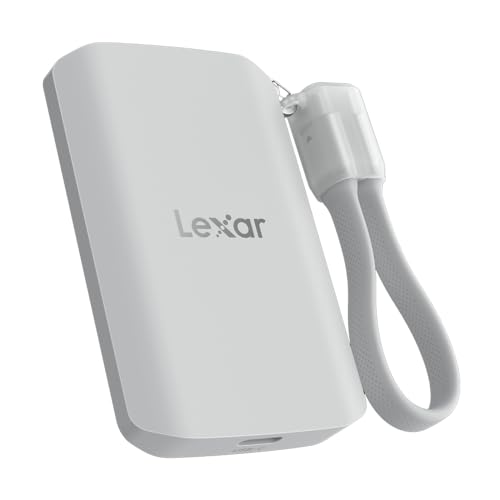
Lexar 2TB ES5 Magnetic External SSD
A 2TB magnetic SSD with read speed up to 2000 MB/s, a MagSafe-compatible design, and an IP65 rating for dust and water resistance.
View on Amazon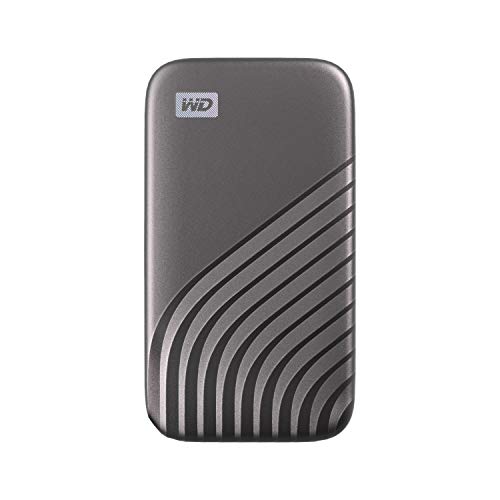
Western Digital WDBAGF0010BGY-WESN
A 1TB portable SSD with read speed up to 1050 MB/s, USB 3.2 Gen-2 and USB-C, and password protection with 256-bit AES hardware encryption.
View on AmazonThese come from our ranked list Best External SSD, which compares them spec by spec.
FAQ
Do I need to defragment an external SSD?
No. Defragmenting is for drives with spinning disks, and an external SSD stores files on flash memory, so there is nothing to rearrange. Keep backups instead, and use the drive as normal.
What should I do if the drive stops showing up?
Try a different port and cable first, then check the drive on another computer. If it still does not appear, copy any files you can reach to another drive and contact the maker for help.
Can I leave files on an external SSD as my only copy?
No. A drive can fail without warning, so keep a second copy of files you cannot replace on a different drive or in cloud storage.