
How to Set Up Water Cooling for a PC
 By Theo LangUpdated
Setting up water cooling for a PC means fitting a closed-loop cooler that moves heat from the CPU to a radiator, where fans push it out of the case. The steps below walk through the whole job in order.
Check your case and CPU socket
Check that your case has mounting points for the radiator size you plan to use, and that the cooler lists your CPU socket. Measure the space where the radiator will sit and check clearance for memory and the graphics card. Shut the PC down, unplug it, and follow the manual that came with your case and cooler before you open anything.
Mount the radiator and fans
Fit the fans to the radiator first, then fasten the radiator to the case mounting points with the screws in the box. Point the fans so air moves in the direction you want through the radiator, and keep the hoses clear of fan blades. Leave the pump loose until the radiator is fixed in place, so the hoses are not pulled tight.
Fit the pump on the CPU
Remove the old cooler if one is fitted, clean the old paste from the CPU, and apply a small amount of fresh thermal paste as the cooler manual describes. Place the pump on the CPU, fit the mounting bracket for your socket, and tighten the screws in the order the manual shows. Do not overtighten, and check that the pump sits flat on the CPU.
Connect the cables and check for leaks
Plug the pump cable and the radiator fan cables into the headers your motherboard manual marks for the pump and the CPU fan. Route the cables away from fan blades and hot parts. Before you switch the PC on, look over every hose joint and fitting for wetness, then run the system with the case open and watch for drips for a few minutes.
Set fan speeds and check the system
In your motherboard software or BIOS, set the pump to run at a steady speed and set the radiator fans to rise with CPU load. Then run a task that loads the CPU and check the readings in your monitoring software. If the fans stay loud at idle or the readings climb fast, recheck the mounting and the fan connections.
What you need

ARCTIC Liquid Freezer III Pro 360 A-RGB
An AIO cooler with a 360 mm radiator, A-RGB fans, an integrated VRM fan and a contact frame for LGA 1851 and LGA 1700.
View on Amazon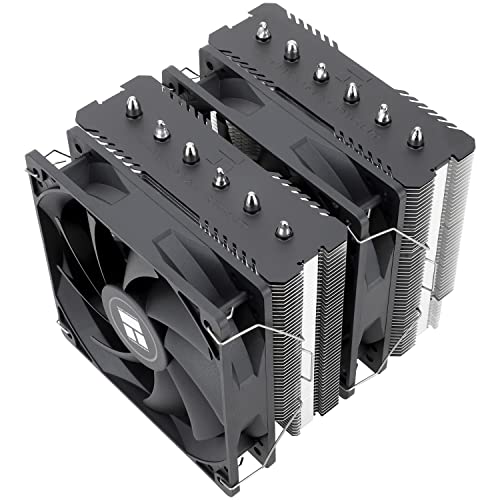
Thermalright Peerless Assassin 120 SE CPU Cooler
A dual-tower air cooler with six heat pipes and two 120 mm PWM fans, listed for AM4, AM5 and LGA 1700 sockets.
View on Amazon
ARCTIC Liquid Freezer III Pro 360
An AIO cooler with three 120 mm fans, an integrated VRM fan and a contact frame for LGA 1851 and LGA 1700.
View on Amazon
LIAN LI HydroShift II Curved 360 TL Flex AIO Cooler-Black-HS2OLDC36TB
An AIO cooler with a motorized 6.67-inch 2K OLED pump display and three 120 mm fans, listed for LGA 1851, LGA 1700, AM4 and AM5.
View on AmazonThese come from our ranked list Best Cooler for PC, which compares them spec by spec.
FAQ
Do I need to refill a closed-loop water cooler?
No. A closed-loop cooler ships sealed with its liquid inside, so there is nothing to fill or top up. If it leaks or the pump stops, contact the maker instead of opening it.
Which way should the radiator fans face?
Face the fans so air moves through the radiator in the direction your case airflow runs, and keep the hoses clear of the blades. Check your case manual for the intake and exhaust positions it was built for.
How often should I check a water cooling setup?
Check the hoses, fittings and fan cables each time you clean dust from the case. Look for wet spots, loose screws or fans that have stopped, and fix what you find before the next long session.


