
How to Install a CPU Fan
 By Theo LangUpdated
To install a CPU fan, shut the PC down, unplug it, and fit the cooler to the CPU socket with the mounting hardware that comes with it. Spread thermal paste on the CPU or use the paste on the cooler, seat the cooler flat, tighten the screws in turn, and plug the fan cable into the CPU fan header. Then check that the fan spins when the PC starts.
Shut down and open the case
Shut the PC down and unplug the power cable before you touch anything inside. Follow the maker's manual for your case and motherboard, and work on a clear surface with room to set the side panel aside. Ground yourself by touching the metal case frame before handling parts, and keep screws in a small tray so none roll away. Do not open a power supply or a battery, and contact the maker if the PC is still under warranty and you are unsure about opening it.
Check the socket and the space
Match the cooler to the CPU socket on your motherboard. The socket name is printed on the motherboard or in its manual, and the cooler box lists the sockets it fits. Measure the space inside the case too: a tall tower cooler needs room above the motherboard and clear of the memory sticks, so check the cooler height against the case before you buy.
Fit the mounting hardware first
Fit the backplate and brackets for your socket before the cooler goes on. The mounting parts differ between Intel and AMD sockets, so use the parts the cooler ships with for your socket and follow the steps in the cooler manual. Set the motherboard on a flat surface if it is out of the case, or work with the case lying flat so the board does not flex while you tighten the screws.
Apply paste and seat the cooler
Put a small dot of thermal paste in the middle of the CPU if the cooler does not come with paste already on it. Lower the cooler straight down so the base sits flat on the CPU, and do not slide it around once it touches the paste. Tighten the screws a little at a time in turn so the pressure stays even, and stop when the cooler sits firm with no wobble.
Plug in the fan and check it
Plug the fan cable into the CPU fan header on the motherboard, which is marked CPU_FAN. Route the cable clear of the fan blades and the case edges. Close the case, plug the power cable back in, and start the PC. Watch the fan spin up, then check the fan speed in the BIOS or the maker's software to confirm the fan is spinning.
What you need
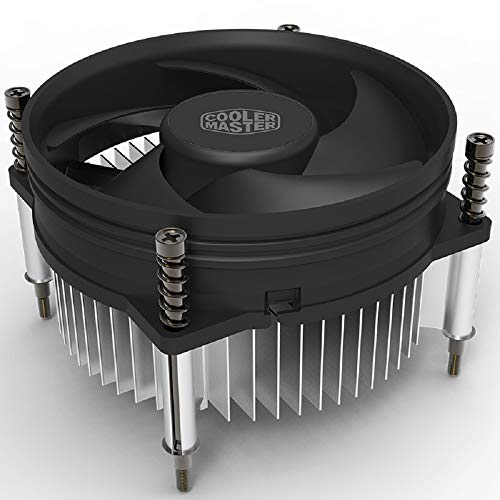
Cooler Master i30 CPU Cooler
A 92mm cooler with a 3-pin fan for Intel LGA 1150, 1151, 1155 and 1156 sockets, with thermal compound already on the base.
View on Amazon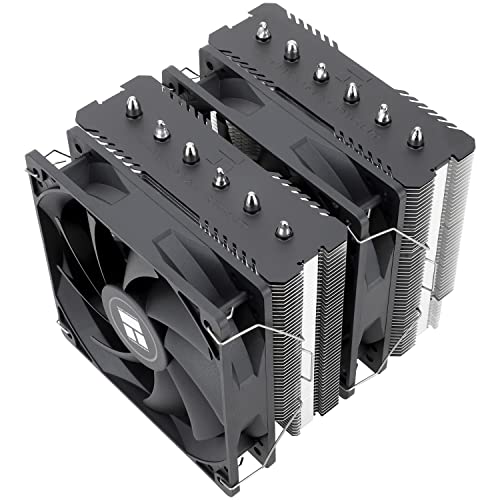
Thermalright Peerless Assassin 120 SE CPU Cooler
A dual tower cooler with 2 120mm PWM fans and 6 heat pipes, for AMD AM4 and AM5 and Intel LGA 1700, 1150, 1151, 1200 and 1851 sockets.
View on Amazon
Thermalright Assassin X120 Refined SE CPU Air Cooler
A tower cooler with 4 heat pipes and a 120mm PWM fan, 148mm tall, for AMD AM4 and AM5 and Intel LGA 1700, 1150, 1151, 1200 and 1851 sockets.
View on Amazon
Cooler Master Hyper 212 Black II CPU Air Cooler
A 120mm cooler with 4 heat pipes and a PWM fan, for AMD AM5 and AM4 and Intel LGA 1851 and 1700 sockets, with a 2 year warranty.
View on AmazonThese come from our ranked list Best CPU Fan Cooler, which compares them spec by spec.
FAQ
Do I need thermal paste for a CPU fan?
Yes, unless the cooler comes with paste already on its base. The paste fills the tiny gaps between the CPU and the cooler so heat moves into the heatsink. Check the cooler manual to see whether paste is included.
Which way should the CPU fan blow?
Point the fan so air moves toward the rear exhaust fan of the case, following the airflow arrow on the fan frame. The fan frame and the cooler manual show the direction. Do not mount the fan so it fights the case airflow.
What should I do if the fan does not spin?
Shut the PC down and unplug it, then check that the fan cable is fully seated in the CPU fan header and that no cable touches the fan blades. Start the PC again and watch the fan. If it still does not spin, contact the maker of the cooler or the motherboard.


