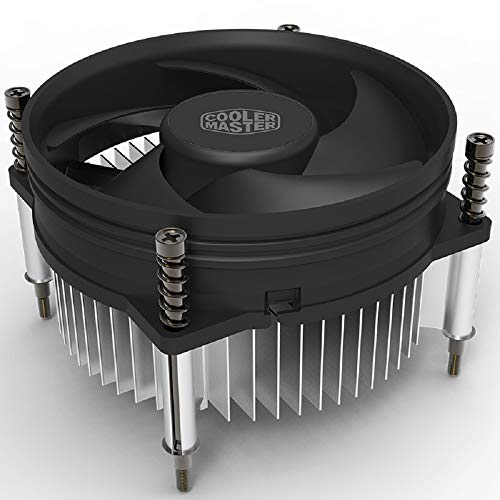
How to Replace a CPU Cooler
 By Theo LangUpdated
To replace a CPU cooler, shut the PC down, unplug it, remove the old cooler and its mounting hardware, then fit the new cooler with its own mounting parts and plug in its fan cable. Match the new cooler to your CPU socket and check that its radiator or tower fits inside your case before you start.
Shut down and unplug the PC
Shut the PC down from the operating system, switch off the power supply if it has a switch, and unplug the power cable from the wall and from the PC. Move the PC to a clear, flat surface with room to open the side panel. Follow the manual that came with your PC and the manual that came with the new cooler, and keep the screws and small parts in a tray so nothing gets lost.
Remove the old cooler
Open the side panel and find the cooler on top of the CPU. Unplug the fan cable from the motherboard header, then loosen the mounting screws or clips a little at a time until the cooler comes free. Lift the cooler straight up so it does not drag across the CPU. Wipe the old thermal paste off the CPU with a lint-free cloth and a little isopropyl alcohol, and let the surface dry before you fit the new cooler.
Check the socket and the fit
Check your CPU socket against the sockets the new cooler supports. The coolers here support LGA1851, LGA1700, AM4 and AM5, and the Thermalright Peerless Assassin 120 SE also supports LGA 1150, 1151 and 1200. Then check the size: a 360 mm radiator needs a case with a 360 mm radiator mount, and the Thermalright tower is 155 mm tall, so check the case clearance in your case manual before you mount anything.
Mount the new cooler
Fit the mounting hardware that comes with the new cooler for your socket, following the manual that came with the cooler. For an AMD board with the Thermalright cooler, use the backplane already built into the motherboard. Spread a small amount of fresh thermal paste on the CPU. Set the cooler on the CPU, tighten the screws a little at a time in turn so the pressure stays even, and plug the fan cable into the CPU fan header on the motherboard.
Power on and check the fans
Close the side panel, plug the power cable back in, and switch the PC on. Watch that the cooler fans spin and listen for any rattling or grinding that points to a loose cable or a fan touching a wire. Open your system monitor or BIOS screen and check the CPU temperature reading sits in its normal range, then run the PC as normal and check again after a longer session.
What you need

ARCTIC Liquid Freezer III Pro 360 A-RGB
A 360 AIO cooler with A-RGB fans, a VRM fan and an integrated cable design, for LGA1851, LGA1700, AM4 and AM5.
View on Amazon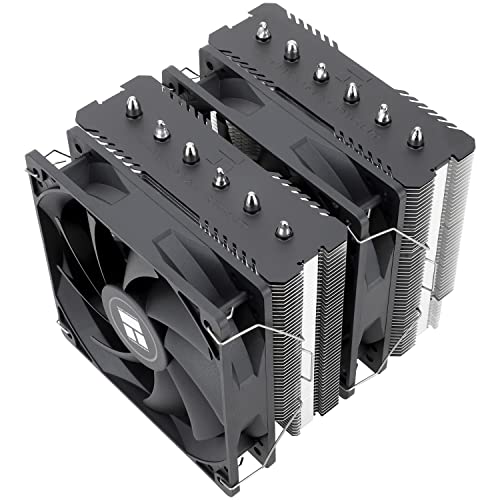
Thermalright Peerless Assassin 120 SE CPU Cooler
A dual-tower air cooler with 6 heat pipes and dual 120mm PWM fans, for AMD AM4 and AM5 and Intel LGA 1700, 1150, 1151, 1200 and 1851.
View on Amazon
ARCTIC Liquid Freezer III Pro 360
A 360 AIO cooler with 3 fans, a VRM fan and a contact frame, for LGA1851, LGA1700, AM4 and AM5.
View on Amazon
LIAN LI HydroShift II Curved 360 TL Flex AIO Cooler-Black-HS2OLDC36TB
A 360 AIO cooler with a 6.67-inch curved OLED display and 3 TL Flex fans, for Intel LGA 1851 and 1700 and AMD AM5 and AM4.
View on AmazonThese come from our ranked list Best Cooler for PC, which compares them spec by spec.
FAQ
Do I need new thermal paste when I replace a cooler?
Yes. Clean the old paste off the CPU and apply fresh paste before you mount the new cooler. Old paste dries out and no longer spreads evenly, so reusing it leaves gaps between the CPU and the cooler.
Can I reuse the mounting hardware from the old cooler?
No. Use the mounting hardware that comes with the new cooler, since brackets and screws differ between models and sockets. Keep the old hardware aside in case you refit the old cooler later.
How do I know the new cooler fits my case?
Check the cooler size against your case manual. A 360 mm radiator needs a 360 mm radiator mount, and the Thermalright Peerless Assassin 120 SE tower is 155 mm tall, so measure the space inside the case first.